
How Do You Split-Screen Chat on iPhone Duo? Run Multiple Model Sessions at the Same Time
Use PandaNpc to open Claude Code, Codex, and other AI sessions in side-by-side split screens, so you can chat while checking progress and work on multiple tasks at the same time.

One AI is still replying, and you want to ask another question without switching pages back and forth. Split screen puts two conversations side by side on the screen: one thing on the left, another on the right, with both progress states visible.
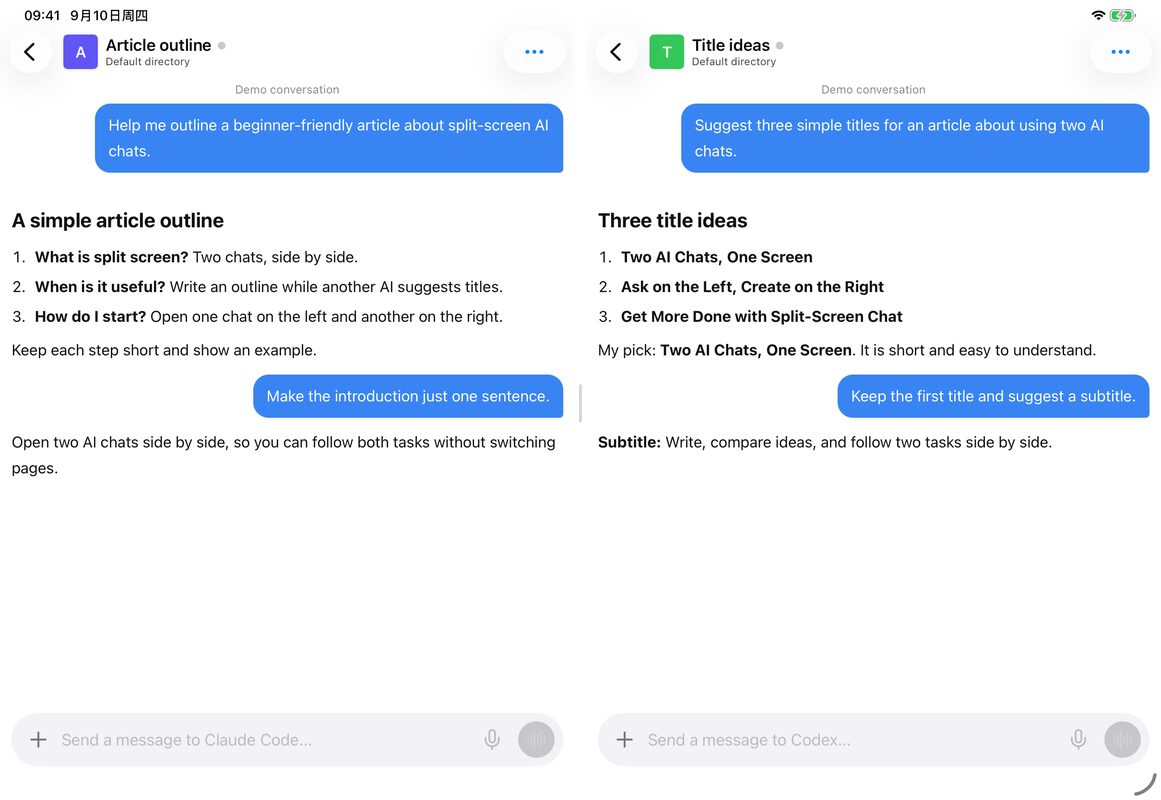
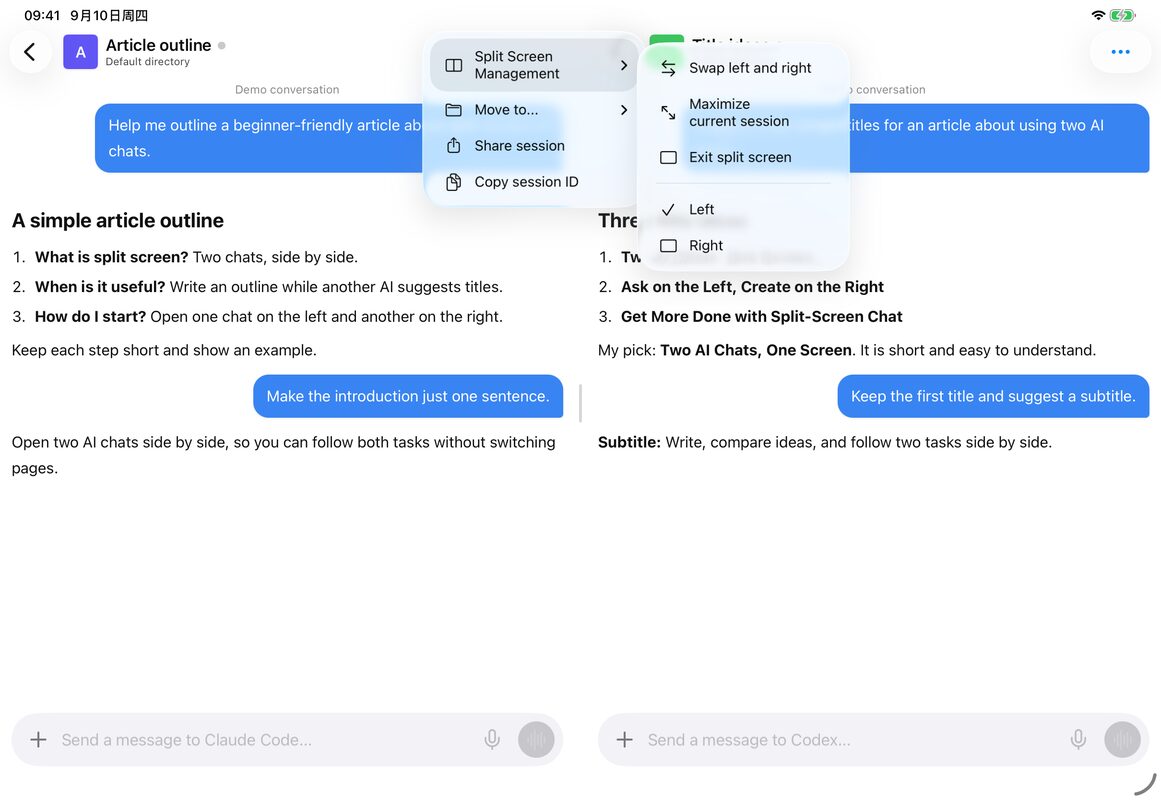
PandaNpc can open two AI conversations in the same App — for example, Claude Code on the left and Codex on the right. Below, we'll first look at what you can do with it, then at how to open it.
iPhone Duo has announced its system split-screen feature; how PandaNpc actually performs on Duo is still unverified. The Apple images in this article are official promotional images.
What Can Split Screen Help You Do?
You don't need to start with complex tasks; these three uses are easy to pick up:
| What you want to do | Left conversation | Right conversation |
|---|---|---|
| Prepare an article | Help me make an article outline | Help me brainstorm a few titles |
| Compare two AI answers | Send the same question to Claude Code | Send it to Codex too and compare the answers side by side |
| Handle two things at once | Help me revise my personal website | Help me organize tomorrow's to-do list |
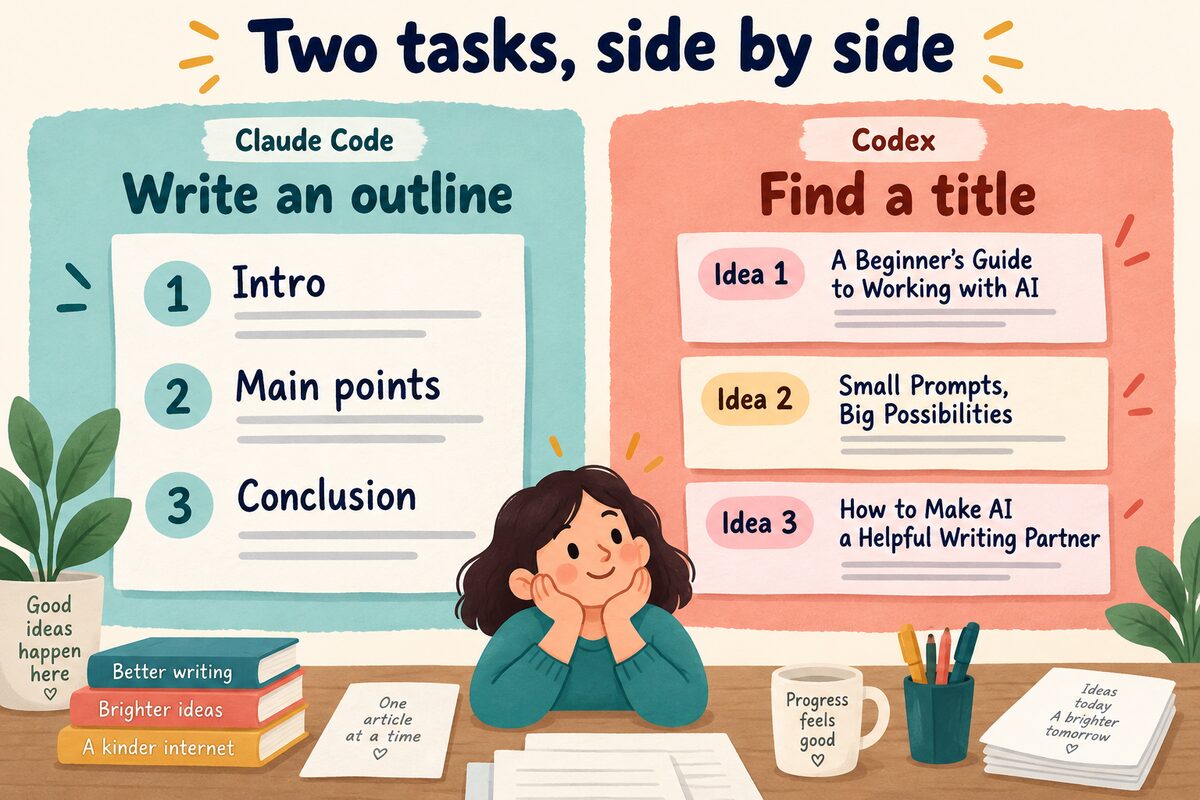
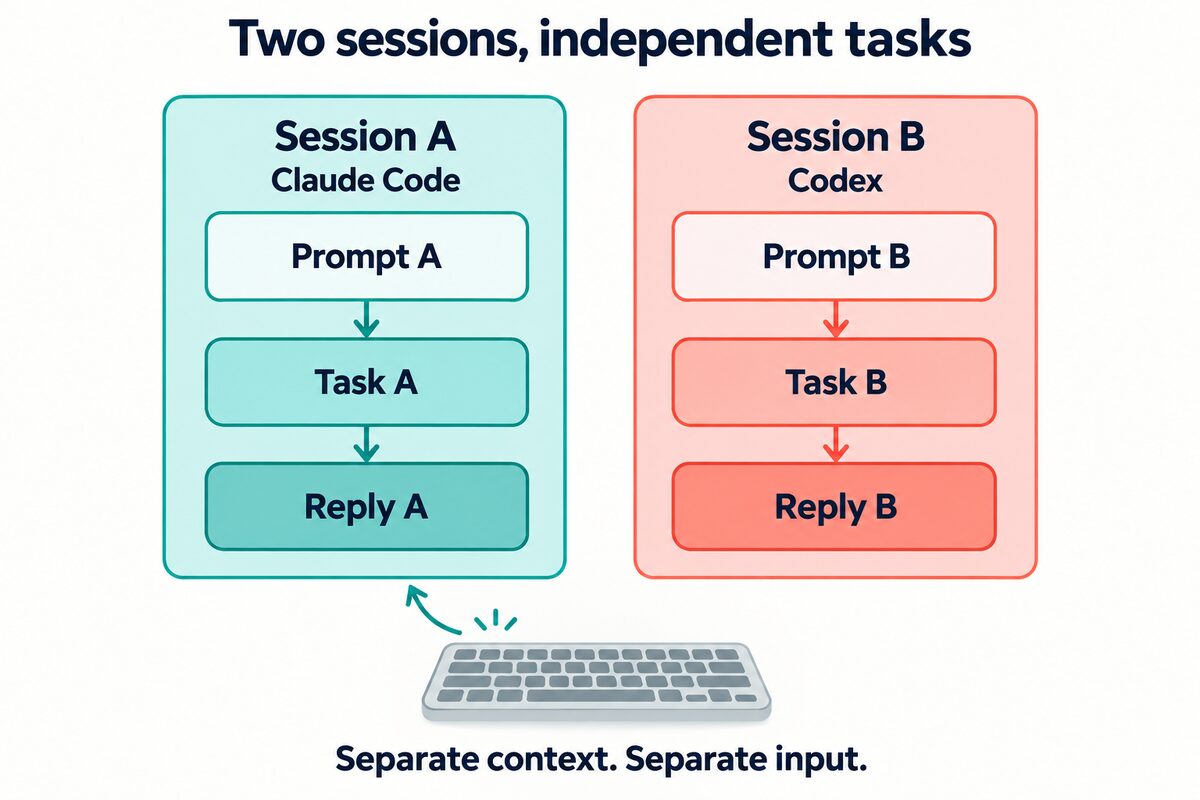
Even if the left side isn't finished, you can keep asking on the right. Each side has its own conversation; if you want both to reference the same material, you'll need to provide it to each separately.
How Do You Open It in PandaNpc?
First log in to PandaNpc and connect to the computer that runs the AI. If you haven't connected yet, follow Connect Claude Code from your phone or Use Codex from your phone to get set up. While you're using it, the computer needs to stay powered on and online.
The steps below are based on the current iOS version's features; the exact buttons depend on the version you have installed:
- Give the window enough room. You can turn your iPhone sideways; on iPad, if the window is wide enough, split view works in portrait too.
- Open the left conversation. In the session menu, choose "Open on the left."
- Open the right conversation. Find another session and choose "Open on the right."
- Ask each side separately. Whichever side's input box you tap is the side the message goes to.
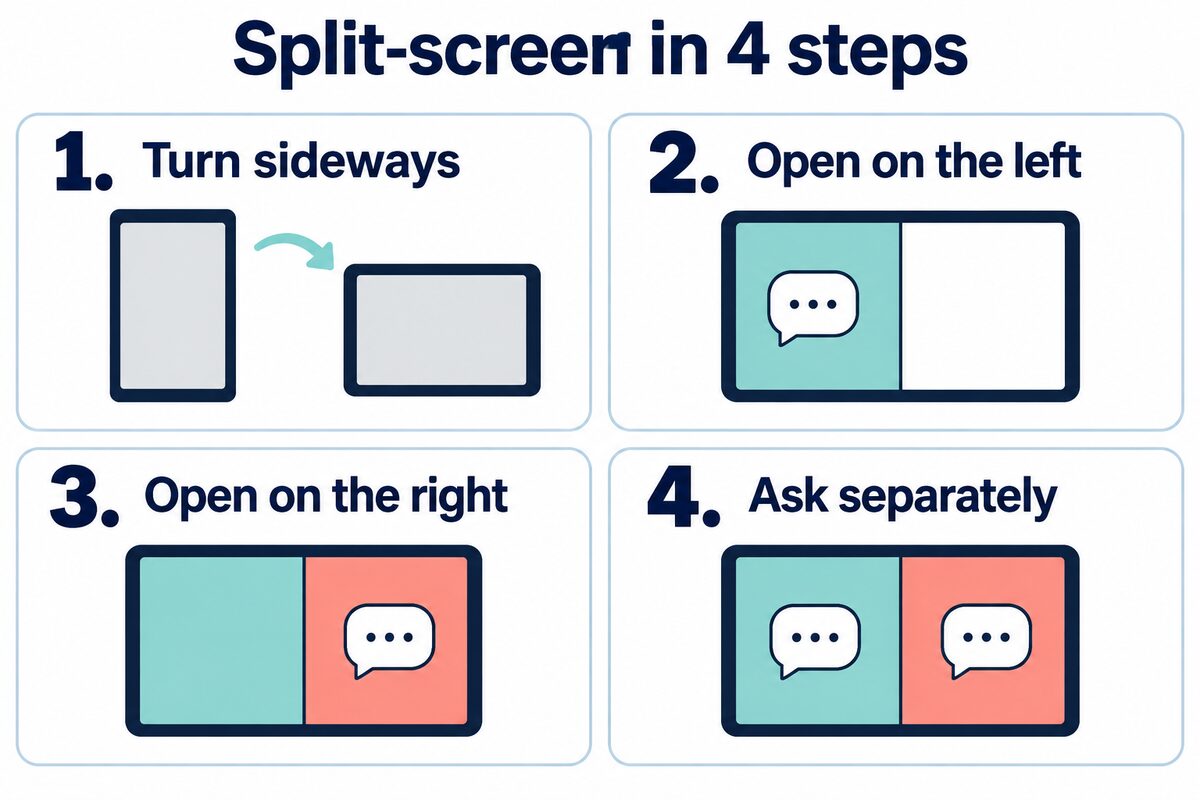
Once you see two different conversations on the left and right, try sending a simple question to each one. Once you confirm both sides can reply, you're ready to start using it.
Drag the divider in the middle to make one side wider. If you want to focus on a long reply, choose "Enlarge current session" in "Split screen management," then "Restore split screen" when you're done.
What Does Split-Screen Chat on iPhone Duo Look Like?
In Apple's official showcase, iPhone Duo can have a web page open on one side while you talk to Siri on the other. That way, you don't have to keep switching apps while looking things up.
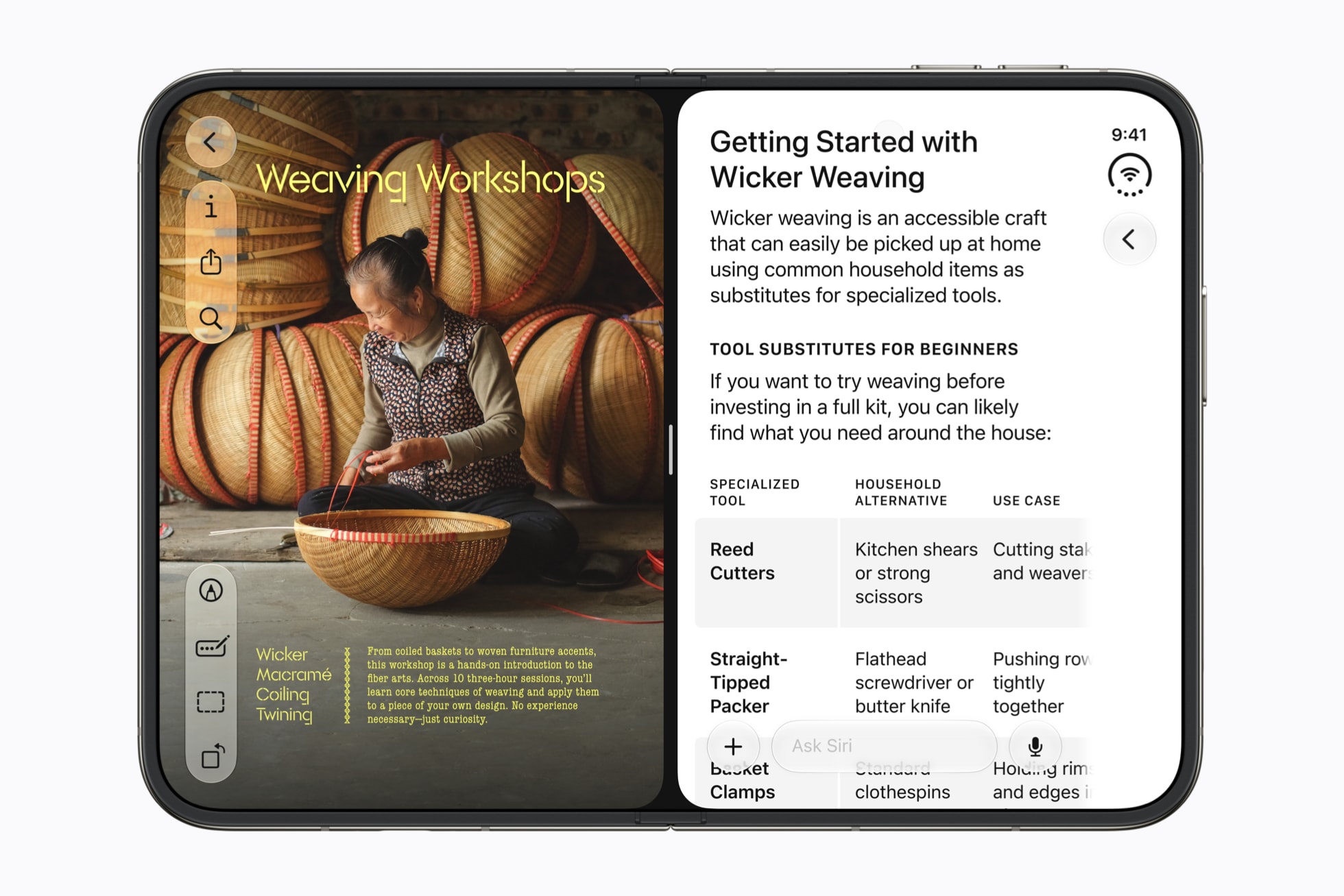
Apple's system split screen is for opening apps side by side; PandaNpc's split screen is for opening two AI conversations side by side inside its own App. PandaNpc now switches between single-column and two-column layouts based on window width, keeping both sessions when you switch; it has been tested on the iPad simulator and installed on an XS Max. Actual performance on Duo hardware and on the fold area are still unverified.
What If You Run Into These Two Problems?
Only seeing one conversation? First enlarge the App window — you can turn your iPhone sideways; if you previously enlarged a conversation, choose "Restore split screen."
One side never replies? Open that session by itself first, check whether the computer is online, and whether the AI is waiting for you to confirm an action.
You can start with "outline on the left, titles on the right." If you haven't installed the App yet, head to the PandaNpc download page.
Related guides
Connect Claude Code to Your Phone: View Sessions and Approve Tools Anytime on iOS
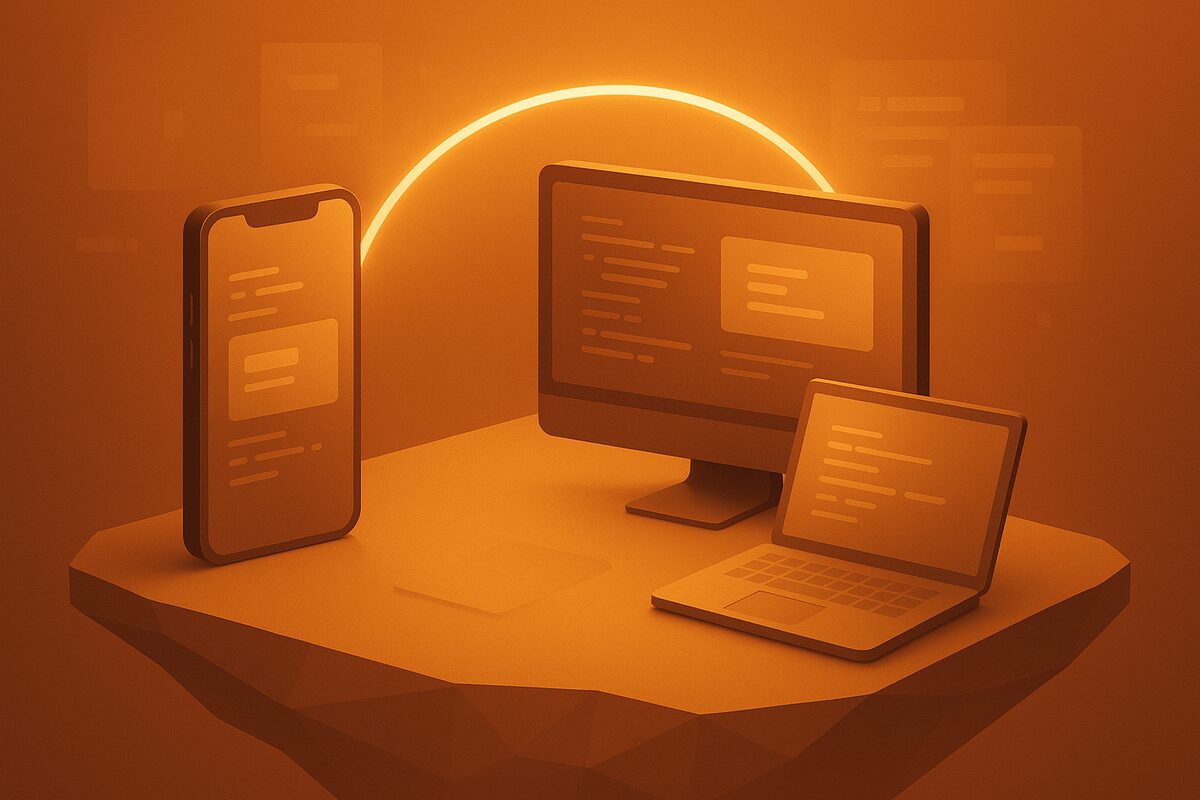
This article is aimed at developers, sharing best practices for connecting to Claude Code from a mobile phone. Use the PandaNpc iOS app to view sessions in real time, approve tool calls, and respond to questions. With pandapaw and iOS Live Activity, you can achieve efficient remote control and improve coding flexibility.
Read article →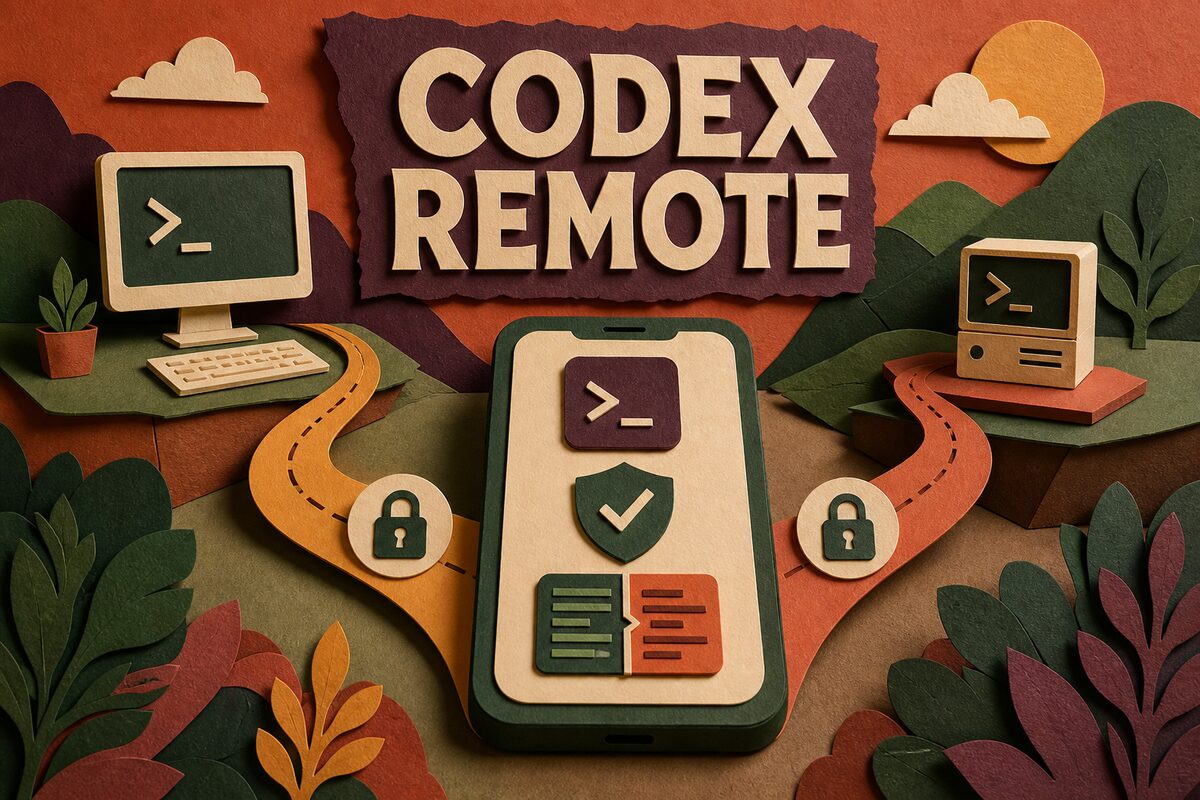
Use Codex on Your Phone: ChatGPT Remote vs CLI (2026)
Use ChatGPT Remote to control supported Mac/Windows Codex chats from iPhone or Android; use PandaNpc for Codex CLI, Linux, and headless hosts.
Read article →
Codex vs Claude Code: Which Should You Use? (2026)
Codex vs Claude Code: choose Claude for terminal depth and hooks, Codex for ChatGPT/cloud work, and PandaNpc to control both across devices.
Read article →