
Use Codex on Your Phone: ChatGPT Remote vs CLI (2026)
Use ChatGPT Remote to control supported Mac/Windows Codex chats from iPhone or Android; use PandaNpc for Codex CLI, Linux, and headless hosts.
Yes—but first identify what you need to control. As of August 2026, OpenAI's ChatGPT Remote lets you use an iPhone or Android phone to access supported Codex chats running on a Mac or Windows host: continue conversations, answer questions, approve commands, and review diffs and test results. OpenAI has been rolling the feature out in supported regions across ChatGPT plans, including Free and Go; actual availability can still vary by app version, account, workspace, and rollout. The host and phone must pair using the latest ChatGPT apps.
However, if what you really want to control is a standalone Codex CLI — especially on a Linux dev machine, a server without a desktop, or if you don't want to keep the ChatGPT desktop app running — the official Remote cannot initiate pairing directly from the CLI or IDE. In that case, you can have PandaPaw host Codex on the machine, then use the PandaNpc iOS App or a mobile browser to control it remotely.
This article explains both routes. Information was verified on August 31, 2026; OpenAI Remote capabilities and entry points may still vary by version and rollout, so check the official Remote connections documentation when you use it.
The Bottom Line First: How to Choose Between the Two Codex Mobile Remote Options
| Comparison | ChatGPT Remote | PandaNpc + PandaPaw |
|---|---|---|
| Host | macOS or Windows running ChatGPT desktop | Windows, macOS, or Linux running Codex CLI |
| Mobile client | Remote tab in ChatGPT iOS / Android | PandaNpc iOS App; Android and other devices can use a mobile browser |
| Direct bare CLI support | Cannot initiate mobile pairing from Codex CLI or IDE | Yes, PandaPaw connects directly to Codex on the host |
| Account relationship | Phone and host must use the same ChatGPT account and workspace | Phone and host use the same PandaNpc account; Codex continues using the existing login or API configuration on the host |
| Host requirements | Stay awake, online, and keep ChatGPT desktop running | Stay awake, online, and keep the PandaPaw service running |
| Best for | Already using Codex in ChatGPT desktop and want an official all-in-one experience | Local CLI, Linux hosts, desktop-less dev machines, or managing multiple coding engines at once |
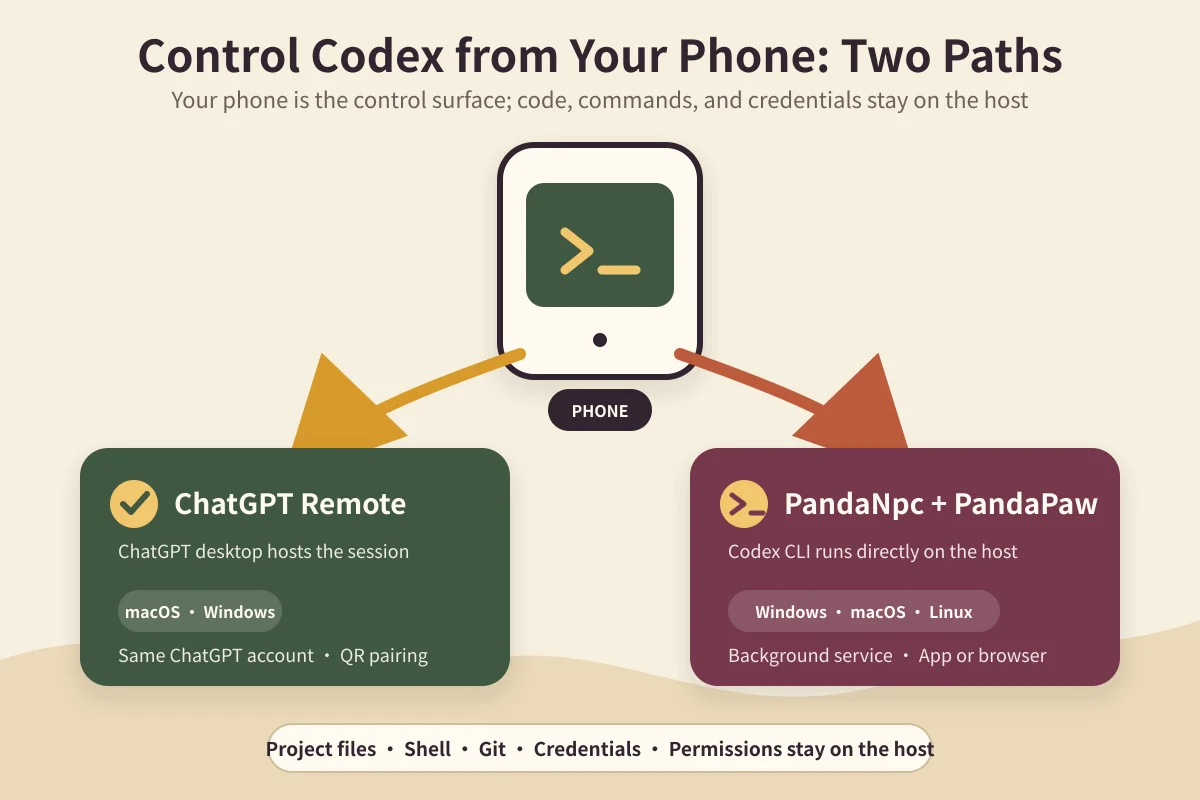
The two approaches share one thing: the phone is just a control surface — code, shell, Git, credentials, and tools remain on the host. Once the host sleeps, shuts down, or loses network connectivity, the phone can no longer have Codex execute tasks.
Option 1: Controlling Codex with ChatGPT Remote
OpenAI currently calls this feature Remote. According to official release notes, the mobile client can start or continue sessions, send follow-up instructions, handle approvals, and view terminal output, screenshots, test results, and diffs. The ChatGPT release notes also state that Remote now supports connecting to Mac or Windows hosts using one-to-one QR-code pairing between phone and host.
What You Need Before You Start
- A Mac or Windows computer with the latest ChatGPT desktop app installed;
- The latest ChatGPT iOS or Android app;
- Both ends signed in with the same ChatGPT account and workspace;
- The current account has access to Codex;
- If it's a team account, an administrator may need to allow Remote Control first;
- The host stays awake and online, and the ChatGPT desktop app stays running.
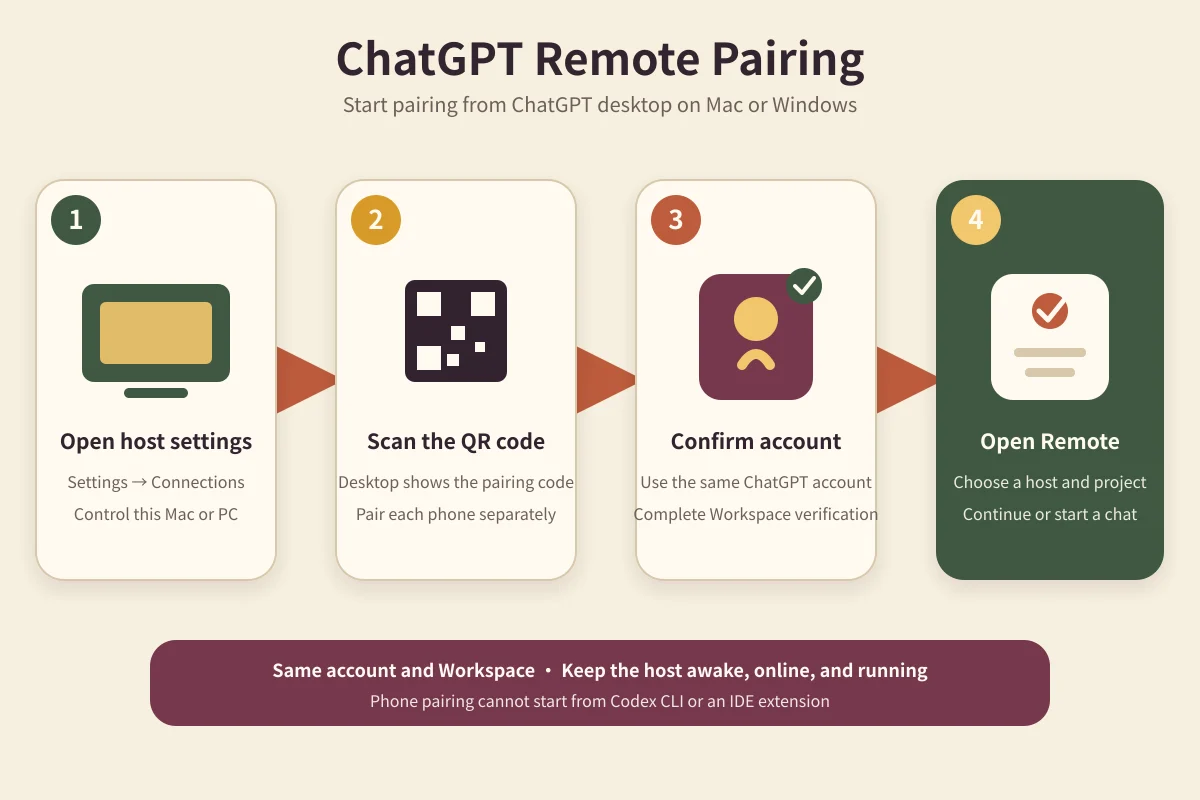
Pairing Steps
- Open the ChatGPT desktop app on the host.
- Go to Settings → Connections → Control this Mac or PC.
- Choose Set up or Add and complete host-side verification.
- Scan the QR code shown in the desktop app with your phone.
- In ChatGPT on your phone, confirm your account, workspace, and any SSO, MFA, or passkey verification that appears.
- Open the Remote tab on your phone and select the paired host and Codex project.
After pairing succeeds, run a non-destructive verification first: open a test project and send Codex the following message.
Print the current working directory and list the top-level files. Do not modify anything.The returned directory and files must match the target project on the host. Merely seeing "host online" is not enough; this reply is what proves the project mapping, session channel, and Codex execution environment are all correct.
Limits of Official Remote
The official docs explicitly state: mobile pairing cannot be initiated from the Codex CLI or IDE extension; it must start from the ChatGPT desktop app. Linux also cannot directly act as the desktop-app host; you can instead have a Mac or Windows desktop app connect to a Linux dev machine over SSH, and then have the phone connect to that desktop gateway.
Also, Remote stops if the host sleeps, loses network, or the desktop app is closed. On Windows, if a task requires Computer Use, the host operates the desktop in the foreground, and the session usually needs to remain unlocked.
Option 2: Remotely Controlling a Local Codex CLI with PandaNpc
If you're already used to running codex in a terminal, or your projects live directly on Linux servers, you can make PandaPaw a persistent host service. Codex, project files, and commands stay on the dev machine; the phone only receives sessions, sends instructions, and handles approvals.
This route does not require the ChatGPT desktop app to stay resident. Codex continues using the host's existing ChatGPT login or API configuration; PandaNpc does not replace the model account, nor does it copy projects to the phone.
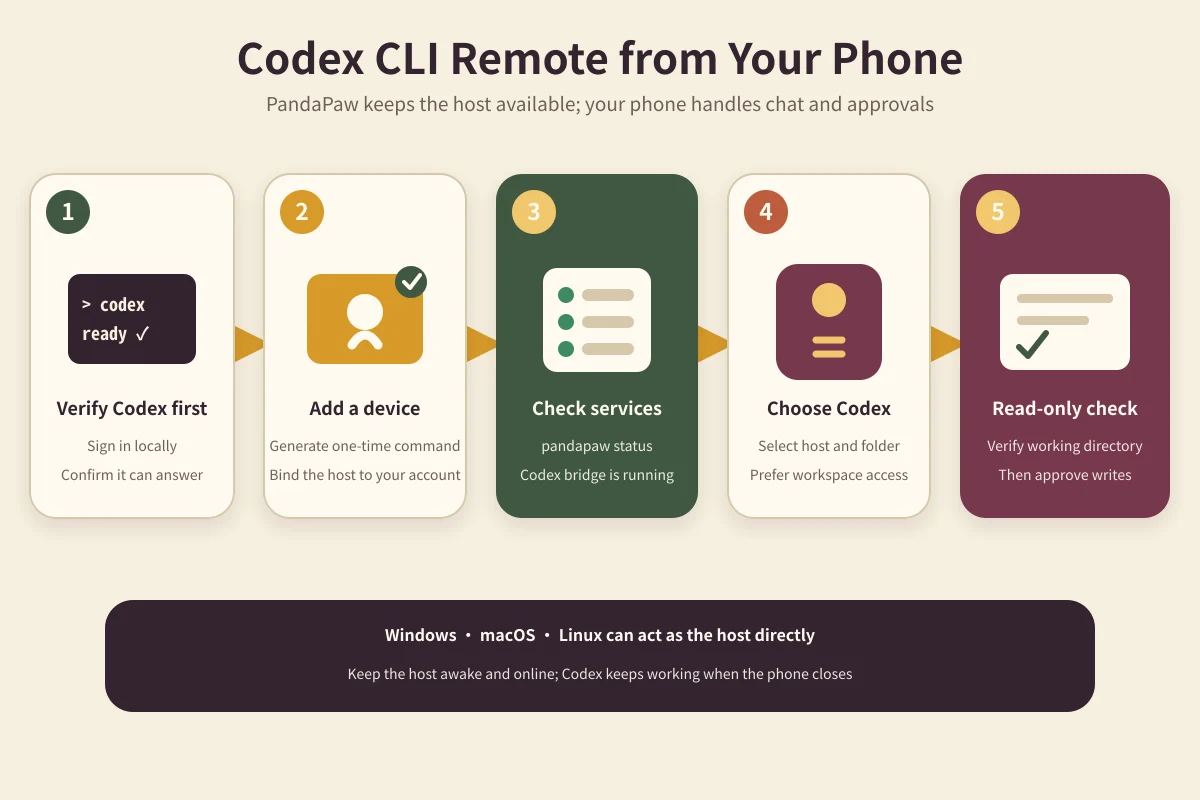
Step 1: Confirm Codex Can Run Standalone on the Host
On the dev machine, run:
codex --versionThen enter a project directory where testing is allowed, run codex, complete the login, and confirm it can answer normally. OpenAI's current Codex CLI repository supports signing in with a ChatGPT account as well as configuring a separate API key.
Don't troubleshoot remote connections when Codex itself hasn't been logged in or its model quota is exhausted; that would misdiagnose "the engine can't answer" as "the phone can't connect."
Step 2: Add the Dev Machine to PandaNpc
After signing in to PandaNpc, open Add Device, choose Add a device, and copy the one-time install command generated on the page to run on the dev machine. This is the recommended approach because the command is already bound to your current account.
If you prefer browser-based authorization instead, you can use the normal install commands.
macOS / Linux:
curl -fsSL https://cos.pandanpc.com/pandapaw/install.sh | shWindows PowerShell:
iwr -useb https://cos.pandanpc.com/pandapaw/install.ps1 | iexAfter a normal install, run pandapaw login as prompted and approve this device in the browser.
Step 3: Verify the Codex Bridge
On the host, run:
pandapaw statusThe output should recognize the installed PandaPaw and show that the Codex component is running and the account is connected. Then confirm from the client's device list that the host is online.
Step 4: Start a Codex Session from Your Phone
- Install the PandaNpc iOS App on iPhone; on Android, or if you don't want to install an app, open PandaNpc Agent directly in your phone's browser.
- Sign in with the same PandaNpc account used on the host.
- Create a new project, select an online host, working directory, and the Codex engine.
- For everyday use, prefer workspace-scoped permissions; use full access only when you clearly understand the impact scope.
- Send the read-only test prompt from earlier and verify the returned directory and files.
- Close the phone page and reopen the same session to confirm history persists and the host is still online.
The PandaNpc iOS client can view Codex sessions, send follow-up messages, handle tool approvals, and receive push notifications for completions or items needing attention; see the PandaNpc iOS documentation for the full capability boundaries.
Should You Choose ChatGPT Remote or Local CLI Remote Control
Prefer ChatGPT Remote if you:
- already use Codex in the ChatGPT desktop app on Mac or Windows;
- can easily sign in to the same ChatGPT account on both phone and host;
- need the officially integrated Diff, screenshot, browser, or Computer Use experience;
- don't mind keeping the desktop app running.
Prefer PandaNpc + PandaPaw if you:
- really want to control an existing Codex CLI rather than migrate to the desktop app;
- the dev machine is Linux or a server without a graphical desktop;
- want the host service to keep running after the screen is locked, without depending on an open desktop window;
- want to manage Codex, Claude Code, and PandaCode from the same client;
- are fine using a mobile browser on Android, or mainly use the native iPhone app.
If you only occasionally step away from your computer and the existing official Remote already meets your needs, there's no need to add a second path. When you need direct control over the CLI or a Linux host, PandaPaw is the better fit.
Permissions and Security: An "Approve" on Your Phone Really Executes
Remote control is not a read-only live stream. Once you approve a command on your phone, Codex will execute the corresponding operation on the host. Therefore:
- On the first connection, use a read-only prompt to verify the working directory;
- Use workspace-scoped permissions by default; don't turn on full access right away;
- Before approving, review the command, target paths, and network operations;
- Don't share pairing QR codes, one-time device commands, API keys, or connection credentials in group chats or screenshots;
- Don't expose the Codex app-server, debug ports, or SSH services directly to the public internet.
OpenAI also officially recommends using SSH, VPN, or a mesh network for remote dev machines and not publicly exposing the app-server transport. Both PandaPaw and the phone proactively establish authenticated outbound connections, so no inbound ports need to be opened on a typical home or office network. If you also need secure access to other services on the host, see the connected devices guide.
Troubleshooting Common Issues
No Remote Tab in the ChatGPT Mobile App
First update the ChatGPT mobile app. Then check whether the host is running the latest desktop app, whether the account and workspace match, and whether the team administrator allows Remote Control. The entry point may still vary by version and workspace configuration.
Phone Can't Find an Already-Paired Official Host
Confirm the desktop app is running, the host hasn't slept, and other devices are allowed in Settings → Connections. Old pairings that haven't been used for a while may need to be re-scanned; signing out of your ChatGPT account also turns off Remote, so you'll need to sign back in and re-enable it.
PandaNpc Shows the Host as Offline
Run pandapaw status on the host to confirm the device is signed in, the service is running, and it can reach the internet. When the host sleeps or loses network connectivity, saved connections may still display, but new tasks cannot be executed.
Host Is Online, but Codex Doesn't Answer
First run codex directly on the host. Check the ChatGPT/API login, model availability, and usage quota. PandaPaw being able to connect doesn't necessarily mean the model account is usable.
Codex Opened the Wrong Project
Stop the test immediately and re-select the correct absolute working directory. Send the read-only verification prompt again and verify the path before approving any file-writing or shell commands.
Will Codex Continue After the Phone Screen Locks?
Locking the phone screen usually won't stop tasks on the host; the key is that the host must stay awake and online. ChatGPT Remote also requires the desktop app to keep running; the PandaNpc route requires the PandaPaw service to keep running. Once the host actually sleeps or shuts down, both routes are interrupted.
FAQ
Does Codex CLI Have a Built-In Remote Control Command?
As of the verification date of this article, OpenAI's official mobile Remote must be set up from the ChatGPT desktop app; pairing cannot be initiated directly from the Codex CLI or IDE extension. If you want to connect to the CLI directly, use a host bridge layer like PandaPaw.
Does Codex Remote Control Support Windows?
Yes. OpenAI's current documentation lists both macOS and Windows as ChatGPT Remote hosts; PandaPaw also supports Windows. Don't rely on the old "Mac only" conclusion.
Can Codex on Linux Be Controlled from a Phone?
Yes, there are two approaches: the official route is to configure an SSH host in the Mac/Windows ChatGPT desktop app and then connect to that desktop gateway from the phone; the PandaNpc route installs PandaPaw directly on the Linux host, and the phone connects to the Codex CLI on that host.
Do I Need a Public IP or Port Forwarding?
No. Both ChatGPT Remote and PandaPaw connect devices through authenticated relay links. Don't expose the app-server or debug ports directly to the public internet just for mobile access.
Does Mobile Remote Control Change How Codex Is Billed?
The phone is only the control side. Actual usage is still determined by the account, workspace, model, and provider running Codex. PandaNpc will not automatically convert an API-billed Codex session into a subscription session, or vice versa.
Summary
Codex can be used on a phone, but you need to pick the right path first. Mac/Windows users already on the ChatGPT desktop app should try the official Remote first; when you need direct control over the Codex CLI, a Linux host, or background services, PandaNpc + PandaPaw is the smoother choice.
Whichever you choose, verify the working directory with a read-only prompt first, then gradually open up permissions. Every approval on your phone ultimately lands on a real dev machine, real files, and real commands.
Related guides

Codex Enable GPT-5.6 Sol 1M Context: 3-Line `config.toml` Configuration Tutorial
GPT-5.6 Sol officially supports a 1.05 million token context. Simply add 3 lines of configuration at the top of Codex's config.toml to run with a 1 million window, and it will automatically compact history at roughly 900,000 tokens. Includes permanent configuration, single command, verification, and cost reminders.
Read article →
Connect Claude Code to Your Phone: View Sessions and Approve Tools Anytime on iOS
This article is aimed at developers, sharing best practices for connecting to Claude Code from a mobile phone. Use the PandaNpc iOS app to view sessions in real time, approve tool calls, and respond to questions. With pandapaw and iOS Live Activity, you can achieve efficient remote control and improve coding flexibility.
Read article →
Device Interconnect: Connect Your Devices Directly, Anywhere, Anytime – No Public IP, No Port Forwarding Hassle
Want to access Claude Code, SSH, or internal services on your home/office computer from outside using your phone or another computer, but stuck with no public IP, afraid to open port forwarding, and finding frp/PeanutHull configuration annoying? Device interconnection can be enabled with one click in the desktop client, adding each of your devices to your private encrypted network, giving each device a fixed private IP, making them directly connected as if they are on the same LAN no matter where you are — end-to-end encryption, zero public exposure, and one-click revocation at any time.
Read article →