
Connect Claude Code to Your Phone: View Sessions and Approve Tools Anytime on iOS
This article is aimed at developers, sharing best practices for connecting to Claude Code from a mobile phone. Use the PandaNpc iOS app to view sessions in real time, approve tool calls, and respond to questions. With pandapaw and iOS Live Activity, you can achieve efficient remote control and improve coding flexibility.
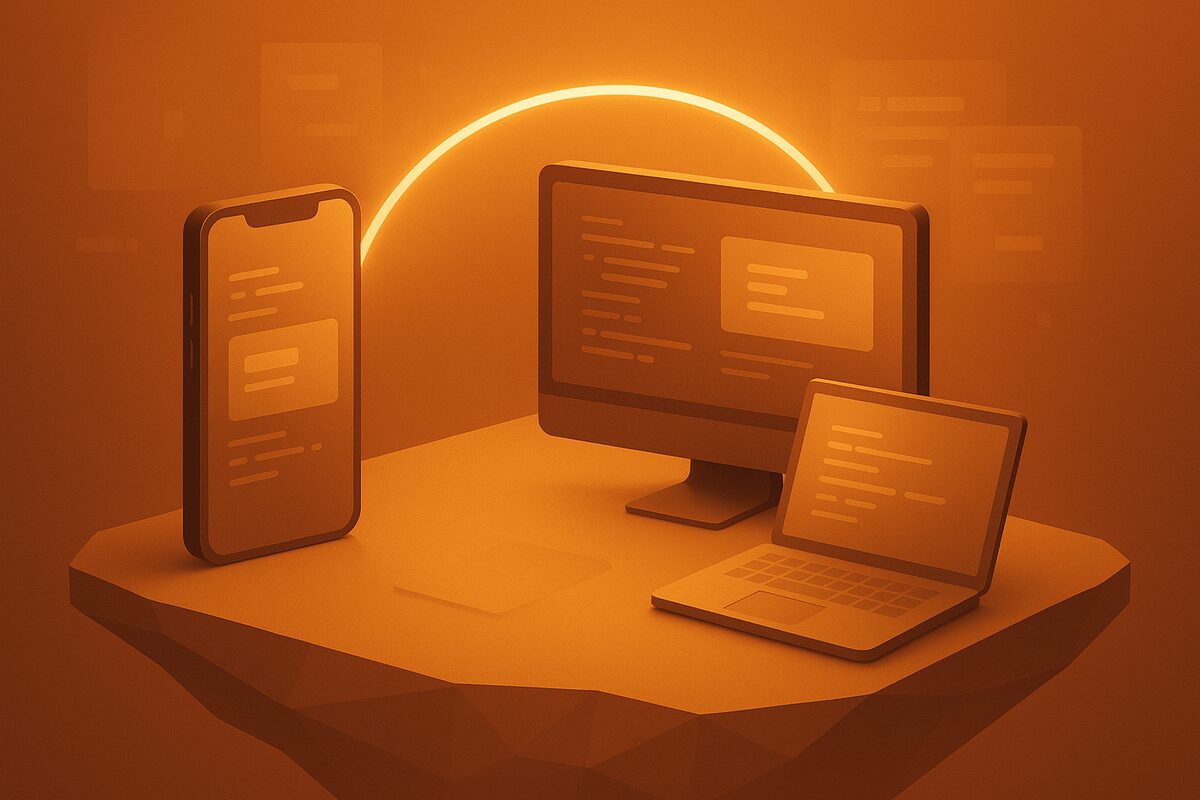
As a developer, you've surely encountered this scenario: you're using Claude Code to refactor code or debug an issue when you suddenly need to leave your computer—for a meeting, a commute, or just to grab a coffee. At times like this, Claude Code might be generating code, waiting for you to approve a tool call, or raising a question that needs your confirmation. The traditional approaches are either SSH-ing back to your computer from your phone, or simply pausing your work. The former offers a terrible experience: terminal output fills the small screen, and the approval flow relies entirely on typing commands by hand. The best way to connect Claude Code to your phone is to use the PandaNpc iOS app to bring the complete desktop session stream to your hand—view, approve, and answer anytime, anywhere.
Why You Need to Connect Claude Code to Your Phone
Claude Code's interaction model is "streaming generation + permission confirmation." Typical tool calls (such as reading/writing files, executing commands) require your authorization, while AskUserQuestion question cards require you to enter an answer before continuing. If you're away from your computer, Claude Code will either stall or be forced to give up after timing out. Even worse, you have no way of knowing where it is in its execution—is it still generating, or has it been waiting for you for a long time?
PandaNpc's iOS app (launching June 2026) completely solves this pain point. Through the pandapaw component (cc-bridge / cc-tty), it "exposes" the Claude Code session on your development machine to your phone. You only need to scan a QR code to pair, and afterward you can see the complete session stream on your phone, including every permission approval card for each tool call and every question card. This means you can approve or reject actions with a swipe on your phone anytime, just as if you were sitting at your computer, or even type in answers directly to let Claude Code continue.
Three Steps to Remotely Control Claude Code from Your Phone
Step 1: Deploy the pandapaw Bridge Service on Your Development Machine
PandaNpc doesn't directly replace how Claude Code runs; instead, it uses a lightweight bridge layer called pandapaw to forward standard terminal output to your phone in real time. Depending on your preference, you can choose between two modes:
- cc-bridge (default mode): Runs in
claude -p(stream-json) headless mode, uses Claude API / SDK credit, and is suitable for background automation and long-running tasks. - cc-tty (recommended): Takes over the Claude Code terminal in REPL mode, uses your Max subscription quota without consuming additional API credit, and is suitable for daily high-frequency interactive use.
Installation is also very simple: run a single command on your macOS, Windows, or Linux development machine (see the docs at pandanpc.com), and pandapaw will generate a unique pairing token and QR code. The whole process requires no manual firewall configuration or port forwarding—pandapaw connects through a secure WebSocket tunnel, so your phone only needs internet access.
Step 2: Scan the QR Code with the iOS App to Pair
Open the upcoming PandaNpc iOS app, and the main screen will display a camera icon. Tap it to scan the QR code shown in the terminal on your development machine, and the phone will automatically parse the pairing information and establish a secure connection. No need to manually enter tokens, IPs, or keys—the pairing QR code is valid for a short time, and you can simply regenerate it after it expires.
After successful pairing, the app will immediately pull the complete state of the current Claude Code session: if you already have a task running, your phone will show the recent conversation history and any cards waiting for authorization.
Step 3: View Sessions, Approve Tools, and Answer Questions on Your Phone
This is the core experience of connecting Claude Code to your phone. The app's session view clearly distinguishes three types of information:
- Normal output: Code, explanations, or logs generated by Claude, displayed in a chronological stream that you can scroll back through.
- Permission cards: When Claude Code needs to execute a tool (such as
Read,Bash, orEdit), a card with "Approve/Reject/Modify parameters" buttons pops up on your phone screen. You tap once to authorize—no need to type any commands. - Question cards: When Claude asks you a question (for example, "Please confirm the database connection string"), the card shows the full question and an input field. You type your answer on the phone keyboard and submit it, and Claude Code immediately receives the answer and continues executing.
Even better, when your phone is locked, Live Activity shows the current status in real time: "Generating," "Waiting for permission," or "Completed." A quick glance at the lock screen tells you whether Claude Code is waiting for you, without having to unlock your phone and refresh repeatedly.
Notes and FAQ
🔒 Security and Network
- pandapaw connections use an encrypted channel by default, but it's recommended to use it only on trusted networks (such as home Wi-Fi or a company VPN). On public Wi-Fi, you can further harden it through the relay nodes officially provided by PandaNpc (optional).
- The pairing QR code is valid for 2 minutes by default. After it expires, simply regenerate it to prevent it from being intercepted by others.
💡 cc-tty Mode vs. cc-bridge
- cc-tty is suitable for users who use it frequently and already have a Max subscription: it doesn't consume API credit, all interactions go through Claude Code's Max quota, and latency is lower.
- cc-bridge is suitable for scenarios that require fine-grained API control (such as usage tracking), but it consumes API call quota. Most developers are recommended to use cc-tty directly.
- By the way: one Max subscription can also be safely shared with friends or teammates to use Claude together—without handing over your account credentials, and it can be revoked anytime.
❓ FAQ: Troubleshooting
- Can't connect after scanning? Check whether pandapaw is running on the development machine, and whether both your phone and development machine have public internet access (or are on the same internal network).
- Session not syncing? Pull down to refresh in the app to force a status sync; if the Claude Code process restarts, you'll need to scan the QR code to pair again.
- Approval buttons not responding? Make sure your iOS network is working properly and the app has background activity permission (enable Background App Refresh in Settings).
Summary
Connecting Claude Code to your phone is no longer an "emergency fallback"—it's part of your daily development workflow. With the pandapaw bridge and real-time session sync, the PandaNpc iOS app lets you seamlessly resume coding work in any scenario: approve a file write while waiting for the subway, answer a question during a meeting, or even review generated code from bed. All operations are based on the real Claude Code session—no fabricated states, no altered execution logic.
When your development work requires you to step away from the computer, open PandaNpc, scan the code, and Claude Code's control is right in your pocket.
Related guides

Can you share a Claude subscription? How to safely share Claude Code with friends and team (no password, revoke anytime)
Yes — and you don’t need to hand your account password to anyone. PandaNpc lets you share the Claude Code connection on your machine via a link with friends, family, or teammates: they remotely use your subscription quota to run Claude Code. Each share is an independent, revocable token with 1/7/30-day or permanent validity; one-click revocation disconnects them instantly, without affecting your own usage at all.
Read article →
How to Use Claude Code Remote Control from Your Phone (2026)
Use Claude Code Remote Control from your phone or browser. Learn the three official commands, setup limits, troubleshooting, and when PandaNpc fits.
Read article →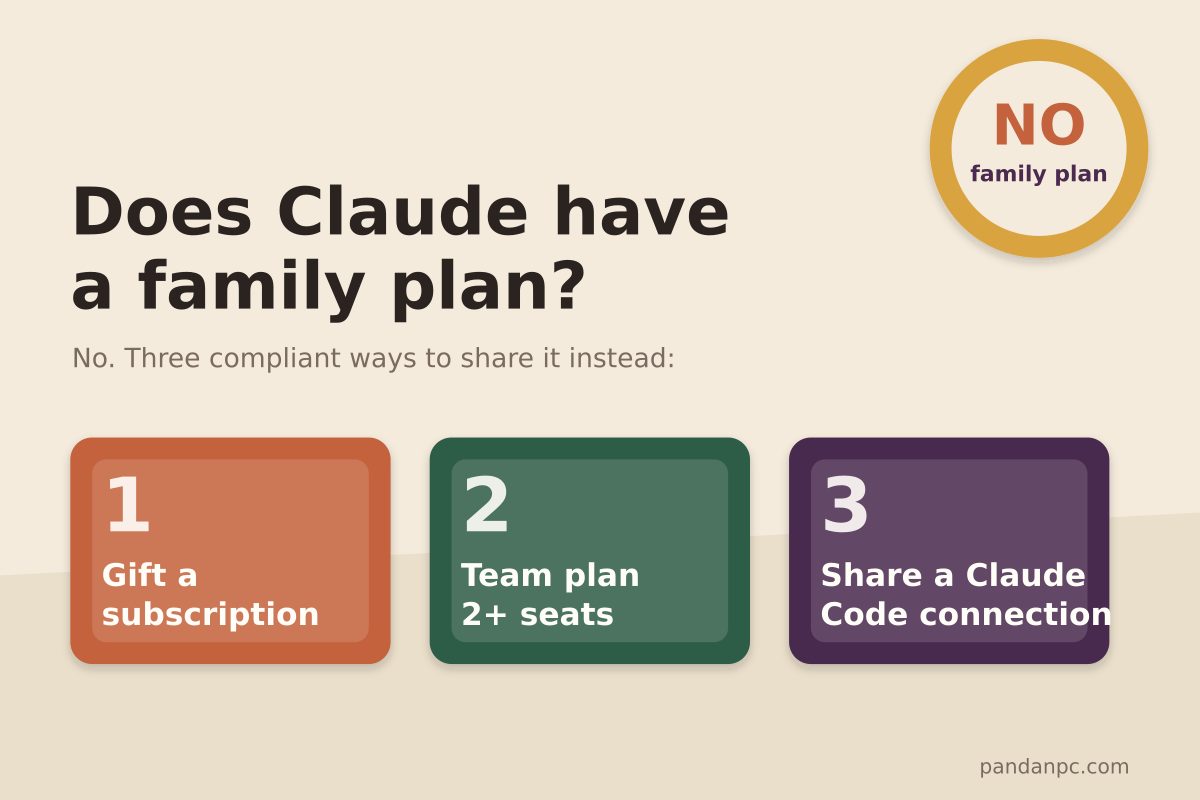
Does Claude have a family plan? Team plan pricing, seat rules, and 3 compliant ways to share Claude with family and friends (2026)
No — Claude currently does not have a family plan. This article cross-checks the official pricing page and help docs to verify the Team plan's seat pricing (standard seats US$20/25, premium seats US$100/125), 2-seat minimum, corporate email requirement, and other rules; compares the differences between Pro, Max, Team, and Enterprise; and offers three ways for family and friends to share Claude without violating the terms: gifting subscriptions, a Team plan, and sharing a Claude Code connection.
Read article →