
How to Use Claude Code Remote Control from Your Phone (2026)
Use Claude Code Remote Control from your phone or browser. Learn the three official commands, setup limits, troubleshooting, and when PandaNpc fits.

Fastest official approach: Upgrade Claude Code to the current version, run claude remote-control in your project directory, then open claude.ai/code from the Claude App on your phone or from a browser to launch and control a session still running on your computer. If the session is already open, type /remote-control; if you also want to keep working in the local terminal at the same time, use claude --remote-control.
If you only use official Claude Code and a Claude.ai subscription, prefer the official Remote Control. If you use an API Key, Bedrock, Vertex, a custom ANTHROPIC_BASE_URL, or want to remotely control Codex, PandaCode, DeepSeek harness, and multiple development machines from the same interface, consider PandaNpc. This article explains both paths clearly, so you don't need to guess which one fits you first.
Information and commands were verified against the official Anthropic Remote Control documentation on August 30, 2026. Claude Code updates quickly; the actual available commands are still governed by your local claude --help and /help.
Three Ways to Start Claude Code Remote Control
The three commands are not synonyms; the difference is where you start from:
| Your scenario | Command | What happens |
|---|---|---|
| You want to start new sessions from your phone at any time later | claude remote-control |
Starts server mode; the phone or Web can create new sessions on this machine |
| You want to operate from the local terminal and remotely at the same time | claude --remote-control |
Starts a normal interactive session and also exposes it to the Claude App and claude.ai/code |
| A session is already running halfway | /remote-control or /rc |
Preserves the existing conversation history and generates a remote URL and phone QR code |
Official Remote Control execution still happens on your local machine: project files, MCP, tools, and configuration are not moved into a new cloud container; the phone and browser are only remote control interfaces. This is different from Claude Code on the web, which runs in an Anthropic-managed cloud environment.
Using Official Remote Control: From Checks to a Successful Connection
Step 1: Confirm Version, Login, and Workspace
First, on the development machine run:
claude --versionThe official documentation requires Claude Code v2.1.51 or newer. Then start claude once as usual in the target project directory and complete /login and workspace trust confirmation. Remote Control uses the Claude.ai identity; the official docs currently state clearly that API Key is not supported. If Team or Enterprise organizations cannot see the entry point, an administrator also needs to enable Remote Control in the Claude Code admin settings.
Step 2: Choose a Startup Mode
To select a directory from your phone and start a new session, run:
cd /path/to/project
claude remote-control --name "My Project"
To keep typing in the development machine terminal while allowing your phone to take over, run:
cd /path/to/project
claude --remote-control "My Project"
For an already running session, type:
/remote-control My ProjectThe terminal shows the session URL; in claude remote-control mode, pressing space also displays a QR code.
Step 3: Connect from a Phone or Browser
Use the same Claude account:
- Open
https://claude.ai/codein a browser and select the session with the computer icon in the session list; - On iOS or Android, open the Claude App and go to the Code tab;
- Or open the URL the terminal gives you directly, or scan the QR code.
After the first connection, send a read-only verification prompt first; do not approve file writes immediately:
Print the current working directory and show
git status --short. Do not modify anything.
Only when the path is correct, the Git status matches expectations, and permission confirmations appear on your phone or browser are you truly connected.
How to Choose Between Official Remote Control, Claude Code Web, and PandaNpc
| Need | Official Remote Control | Claude Code on the web | PandaNpc |
|---|---|---|---|
| Where the Agent runs | Your computer | Anthropic cloud environment | Your computer, server, or dev container |
| Remote entry point | Claude App, claude.ai/code |
claude.ai/code |
iOS, browser, desktop client, browser extension |
| Local files and MCP | Preserved | Uses cloud workspace | Preserved on the host running the Agent |
| Supported engines | Claude Code | Claude Code | Claude Code, Codex, PandaCode, DeepSeek harness, Pi |
| Authentication boundary | Claude.ai login; API Key not supported | Claude.ai login | Uses each engine's existing account, API, or custom provider configuration on the host |
| Unified multi-machine management | Each Claude Code host provides sessions separately | Cloud task-centric | Dev machines, servers, and each engine's connections shown uniformly under one account |
| Public inbound port | Not needed | Not applicable | Not needed; hosts actively establish outbound connections |
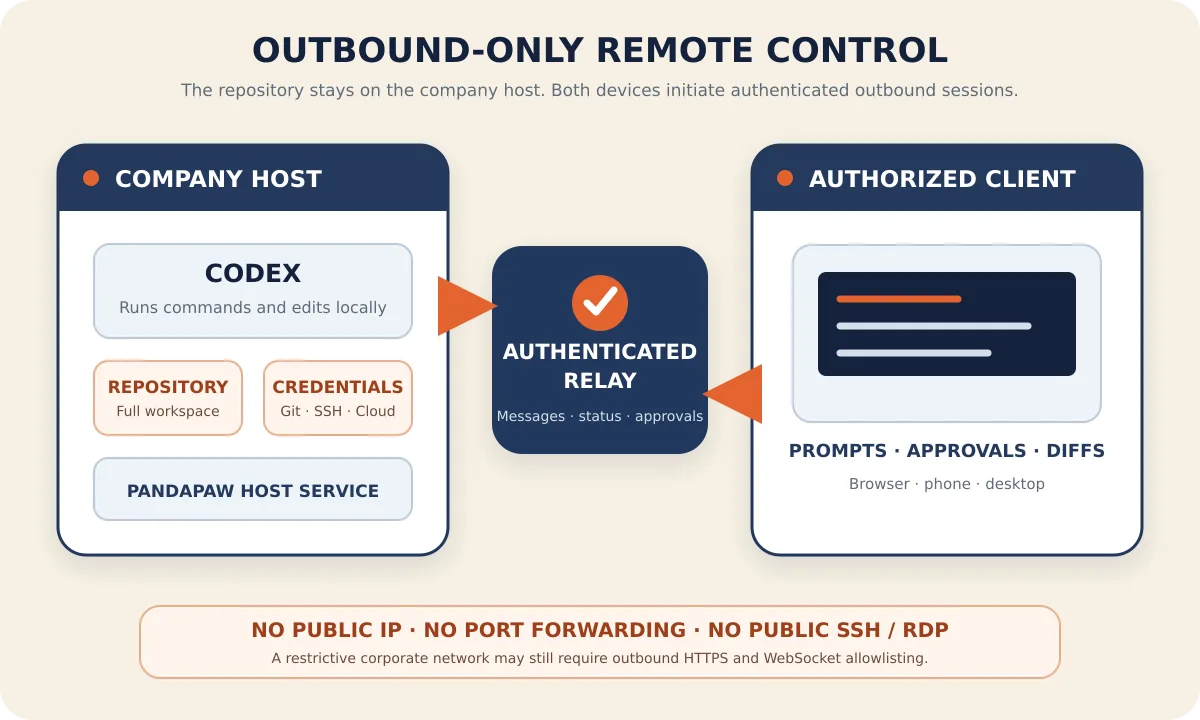
So the choice is simple: if the official capabilities are enough, use the official solution. PandaNpc's value is not repackaging the same official command; it fills the gaps for cross-engine, API/custom model, unified multi-machine management, and private device network scenarios.
When the Official Option Doesn't Fit: Use PandaNpc to Remote-Control Your Local Agent
PandaNpc's PandaPaw runs alongside your development machine and registers local engines such as Claude Code and Codex as remote connections. Model calls still follow each engine's own account and provider configuration; the remote side only sends instructions, displays results, and handles approvals.
Step 1: Install and Log In to PandaPaw on the Development Machine
macOS / Linux:
curl -fsSL https://cos.pandanpc.com/pandapaw/install.sh | shWindows administrator PowerShell:
iwr -useb https://cos.pandanpc.com/pandapaw/install.ps1 | iexThe installer opens a browser authorization page. After approving, check:
pandapaw statusStep 2: Select the Host and Project from the Agent Page
Open PandaNpc Agent in a browser, confirm the target machine is green and online, select Claude Code and the correct project directory, then send the same read-only verification prompt as before. The phone and desktop clients share the same connection list.
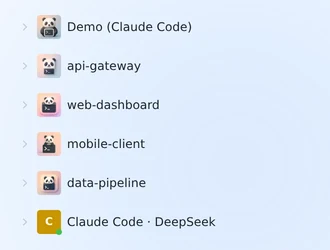
If you only care about the permission cards, question cards, and Live Activity on iPhone, continue with the iOS workflow for connecting Claude Code from your phone.
Multiple Machines and Multiple Agents: Don't Do Port Mapping Machine by Machine
When you have only one development machine, a single remote session is enough; when Claude Code, Codex, and other Agents are spread across desktops, laptops, NAS, cloud servers, or dev containers, the real problem becomes host discovery and secure interconnection.
PandaNpc's connected devices joins the machines under your account into an encrypted private network, assigns each machine a stable private IP, and automatically registers the Agents it can run. Devices prefer peer-to-peer connections and fall back to relaying when hole punching fails; the whole process requires no public IP or router port mapping. This way, your phone only needs to choose "which machine, which Agent, which project" without storing a set of SSH ports, dynamic DNS names, and long-lived keys.
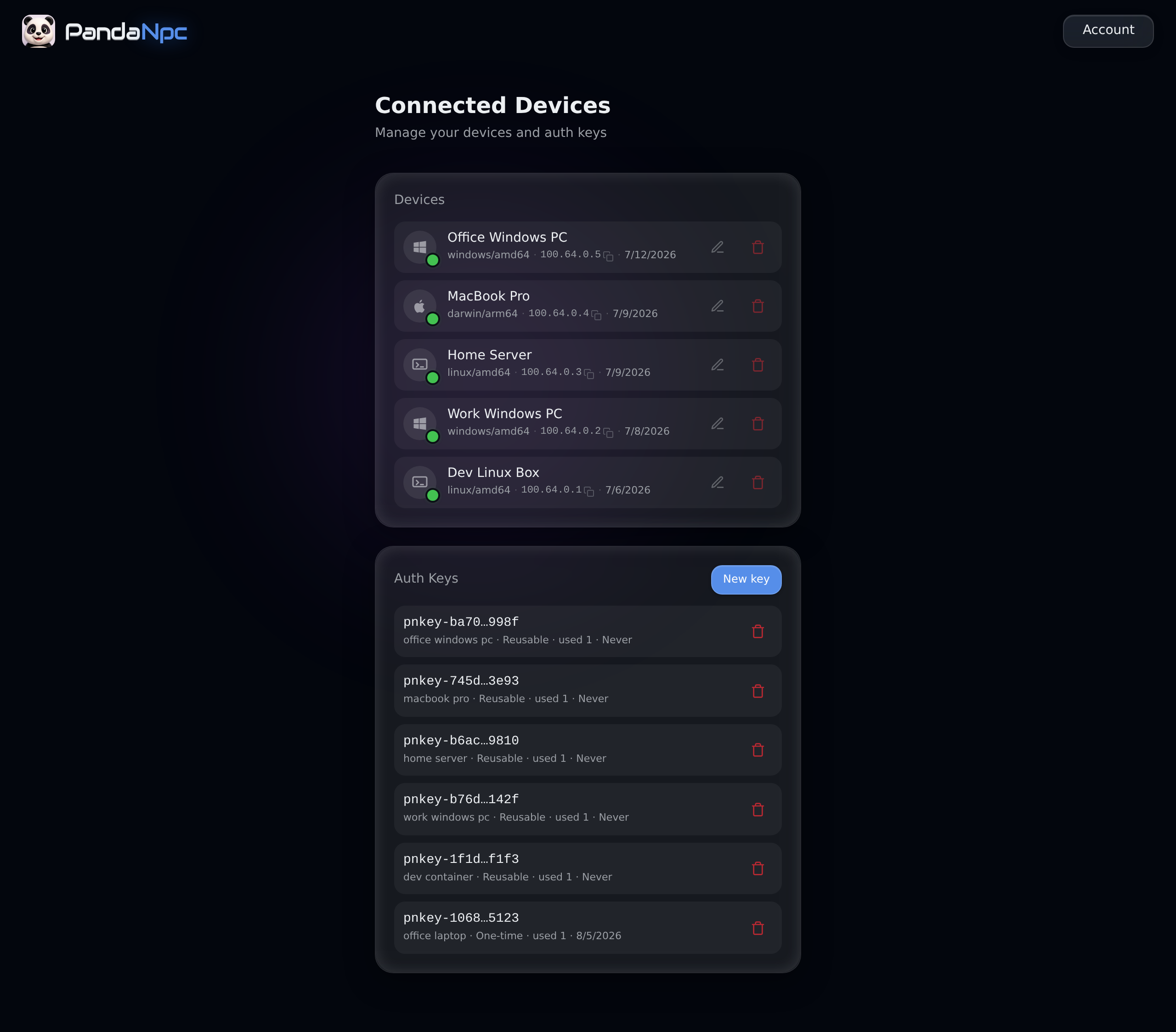
This kind of device networking solves "whether Agents can reach each other securely"; task decomposition, context sharing, and result aggregation still belong to the multi-Agent orchestration layer. The two must not be conflated.
Common Questions and Troubleshooting
`claude remote-control` or `/remote-control` Doesn't Exist
First check claude --version. The main command requires at least v2.1.51; VS Code support requires a newer version. After upgrading, reopen the terminal and session. If it still isn't there, run /help to confirm the organization policy hasn't disabled Remote Control.
Can't Find the Computer or Session on Your Phone
Confirm that the phone, browser, and CLI are logged in with the same Claude account and organization, and that the claude remote-control process on the development machine is still running. On the phone, go to the Code tab, not the normal chat list.
Can't Enable It with API Key, Bedrock, Vertex, or a Custom Gateway
Official Remote Control currently requires a Claude.ai login and explicitly does not support API Key. First confirm whether this is the authentication method you must keep; if you can switch back to a subscription login, use the official option; if not, use a solution that can connect to the local CLI, such as PandaNpc. Don't quietly change your production gateway or identity policy just to enable remote control.
Can the Computer Be Turned Off or Have Its Lid Closed?
No. The screen can be turned off, but the host running the Agent must stay powered on, the Claude/PandaPaw process must stay alive, and it must be able to reach the network. Official Remote Control reconnects automatically after the host recovers; if it sleeps frequently, switches networks, or shows "online but no longer sends messages," go through the Claude Code remote disconnection troubleshooting checklist item by item.
Will Multiple Remote Sessions Modify the Same File?
There is a conflict risk. Official server mode can create multiple sessions from the same directory by default; for parallel modification, use claude remote-control --spawn worktree to give sessions independent Git worktrees. In PandaNpc, you should also choose different workspaces or worktrees for parallel Agents; don't let two write-type sessions operate on the same checkout at the same time.
PandaNpc Shows the Machine as Offline
Run pandapaw status on the host and confirm, in order: account authorization, background service, outbound HTTPS/WebSocket, and the corresponding engine login. Opening a public inbound port cannot fix an outbound connection blocked by a corporate proxy.
Security Boundary: Code Stays Local, But That Doesn't Mean Nothing Travels Over the Network
Official Remote Control has the local machine actively establish an outbound HTTPS connection and does not open an inbound port on the router; messages travel between the remote interface and the local session over the Anthropic API's TLS connections. Project files and tool execution stay on the host, but to display the conversation and process instructions, session data still needs to pass through the official service.
PandaNpc likewise has the host actively connect to the authentication relay, with execution staying on the host; messages, status, diffs, and approvals that the remote side needs to display pass through the relay. Whichever solution you use, you should:
- Verify the host and working directory before approving file writes or running commands;
- Not share remote connections with untrusted people;
- For sensitive projects, prefer default approval or edit-only mode;
- On company devices, follow company-approved VPN, VDI, identity, and audit requirements.
FAQ
What is Claude Code Remote Control?
It lets the Claude App or claude.ai/code control Claude Code still running on your computer. The phone and browser are remote interfaces; local files, MCP, tools, and project configuration stay on the development machine.
How do I use Claude Code from my phone?
Run claude remote-control or claude --remote-control on the development machine, or type /remote-control in an existing session; then open the Code tab of the Claude App or claude.ai/code with the same account. If you also need to control Codex, custom models, or multiple hosts, you can use PandaNpc's Agent page.
Does Claude Code Remote Control Support Browsers?
Yes. The official entry point is claude.ai/code; PandaNpc also offers browser, iOS, and desktop clients. Both keep the Agent executing on the host, rather than copying the entire project to the current browser.
Does Claude Code Remote Control Support API Keys?
The official docs currently state clearly that API Key is not supported; you need to log in via Claude.ai. If your Claude Code must use an API, Bedrock, Vertex, or a custom ANTHROPIC_BASE_URL, keep your original authentication and choose a remote solution that can connect to the local CLI.
Will Claude Code Stop If My Phone Goes Offline?
As long as the development machine and the Agent process are still online, your phone going offline or closing the page does not stop the host session. You can continue viewing after reconnecting. However, no new work can be executed while the development machine is sleeping, powered off, or offline for an extended period.
Can Official Remote Control Control Codex or Multiple Agents?
No, it is a Claude Code feature. To manage Claude Code, Codex, PandaCode, DeepSeek harness, Pi, and multiple hosts from the same interface, you need an additional multi-engine connection layer; PandaNpc's PandaPaw and connected devices are designed for this scenario.
Conclusion
If you just want to continue an official Claude Code session from your phone or browser: run claude remote-control; the official option is the shortest and most direct. If you need API/custom models, other engines such as Codex, multiple hosts, or private device networking: keep your local Agent configuration and unify the connections in PandaNpc through PandaPaw.
Whichever path you choose, the success criterion is not "the page shows online" but that the remote side can read the correct working directory, see the real Git status, receive permission confirmations, and continue the same local session after a disconnect and reconnect.
Related guides
Connect Claude Code to Your Phone: View Sessions and Approve Tools Anytime on iOS
This article is aimed at developers, sharing best practices for connecting to Claude Code from a mobile phone. Use the PandaNpc iOS app to view sessions in real time, approve tool calls, and respond to questions. With pandapaw and iOS Live Activity, you can achieve efficient remote control and improve coding flexibility.
Read article →
Claude Code Remote Disconnection Troubleshooting: Symptoms, Criteria, and Solutions for Six Types of Disconnections
When Claude Code's remote connection drops, don't rush to reconnect—different types of disconnections have different symptoms, and the fixes are completely different. This article works backward from "what you see" to six causes: machine sleep, network switching killing long-lived connections, screen-mirroring-style solutions requiring the local machine to stay on, half-dead connections, reconnects losing sessions, and processes being reaped. For each cause, it gives confirmation criteria and the corresponding fix, and ends with a step-by-step troubleshooting checklist you can follow.
Read article →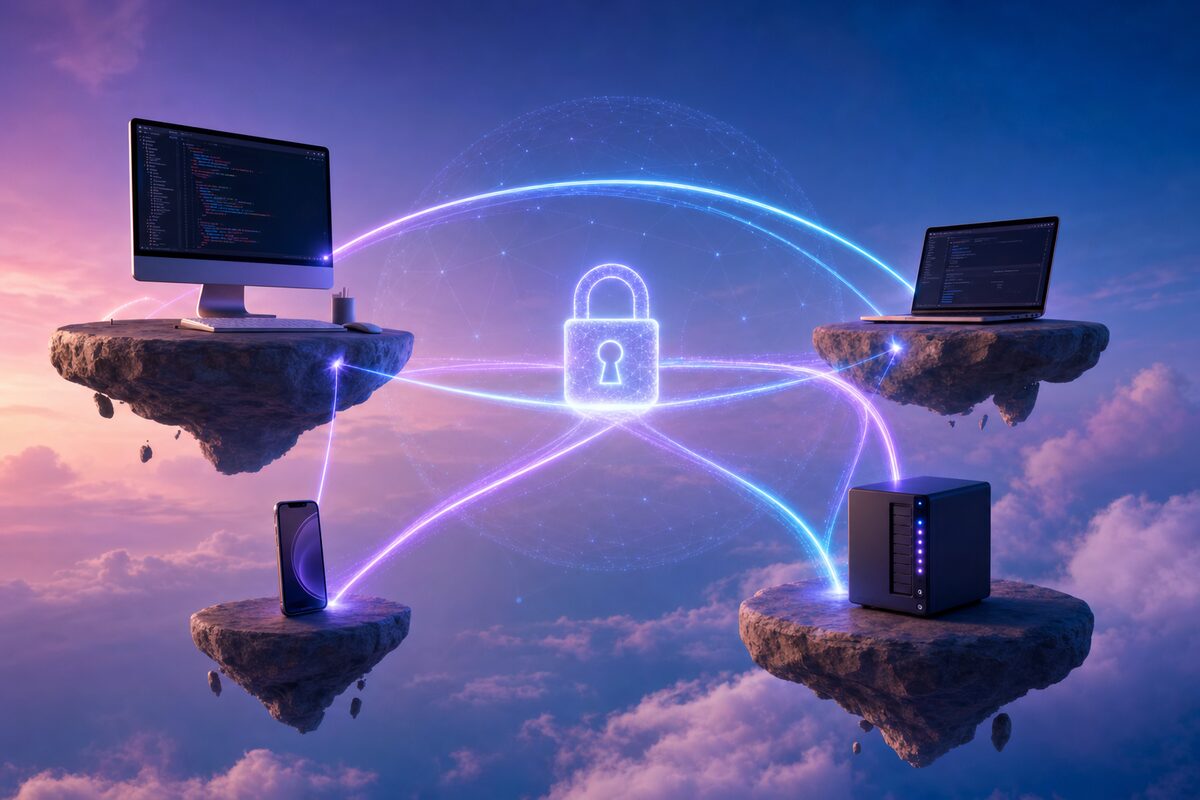
Device Interconnect: Connect Your Devices Directly, Anywhere, Anytime – No Public IP, No Port Forwarding Hassle
Want to access Claude Code, SSH, or internal services on your home/office computer from outside using your phone or another computer, but stuck with no public IP, afraid to open port forwarding, and finding frp/PeanutHull configuration annoying? Device interconnection can be enabled with one click in the desktop client, adding each of your devices to your private encrypted network, giving each device a fixed private IP, making them directly connected as if they are on the same LAN no matter where you are — end-to-end encryption, zero public exposure, and one-click revocation at any time.
Read article →