
How to use multiple sessions in one PandaNpc Cloud Agent
Open separate sessions in one PandaNpc Cloud Agent, give each session a distinct task, then switch between them to check progress and results.
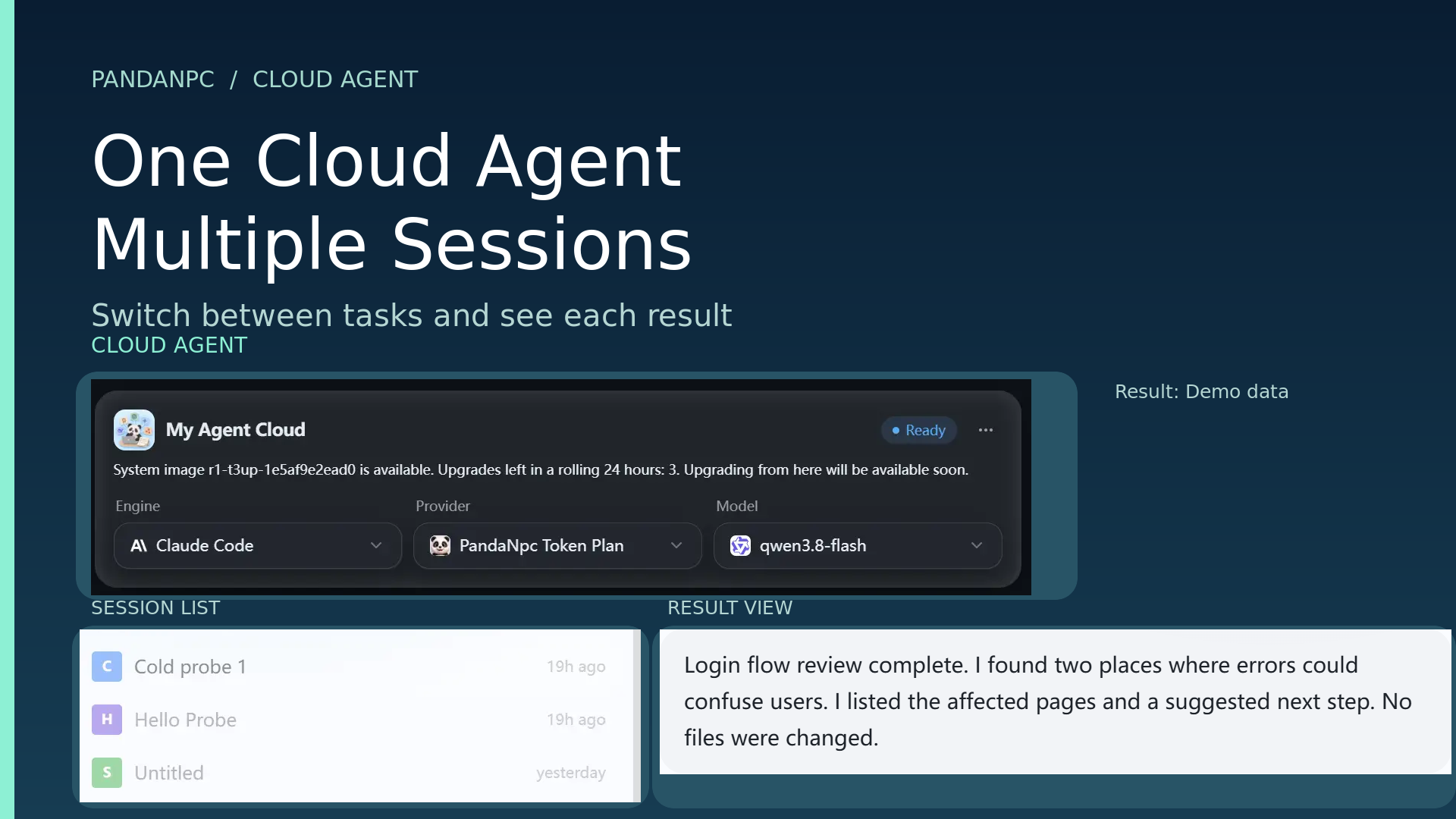
This article was written by the PandaNpc team and introduces how to use it in our own product.
View cover full-size PNG (1920×1080)

Image note: The Cloud Agent card, session list, and new-session entry come from real English pages; the two result cards use real PandaNpc components and Demo data to show where to view them. No new session was created this time, and it was not verified that two tasks run at the same time; actual availability is subject to your account status and page prompts.
PandaNpc's Cloud Agent can open multiple sessions in one place: one for investigating an issue, one for organizing a plan, and another for handling an independent change. You do not have to wait for the first task to finish before starting the second. Each session has its own conversation and progress, and you can switch back and forth in the left-hand list. How many tasks can actually run at the same time depends on your plan, model, and the page prompts.
Step 1: Open your own Cloud Agent
Log in to PandaNpc, go to the Agent page, and find "My Agent Cloud" in the connection list. If the page says you need a subscription or upgrade, first follow the page instructions to view available plans; if it says a model has not been configured yet, complete the model setup first. This article starts from an already-available Cloud Agent and does not require you to prepare another computer that is always on.
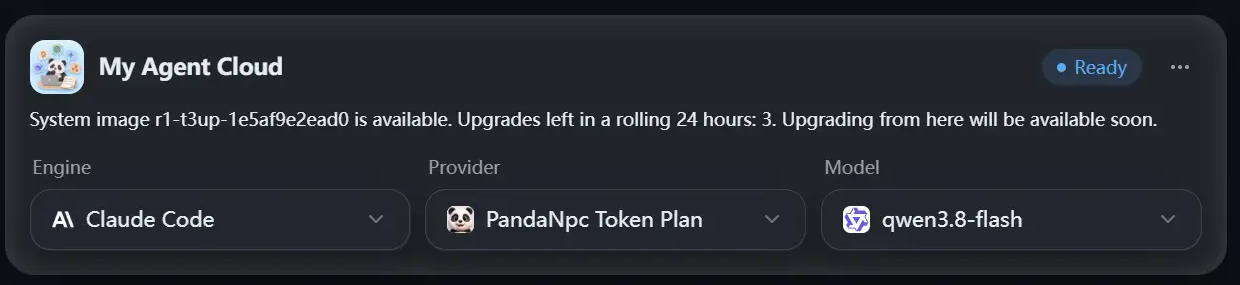
Figure: The My Agent Cloud card on the Agent page. The account in the image shows Ready; your page may show another status. View full-size PNG (1240 × 285)

In the Cloud Agent card, select the engine and model, then click "Create Cloud Agent" or "Open". The first time you use it, you may need to wait for creation; if it has already been created, you can resume it after pausing or stopping by following the page prompts. Showing offline when idle does not necessarily mean data is lost; reopening it or sending a message will usually wake it up.
Step 2: Open a session for the first task
Open the Cloud Agent conversation page, create a new session, and give it a clearly scoped task. For example:
First check the project's login flow and find issues that may cause users to fail to log in. Analyze and list your findings first; do not modify files. When done, tell me which pages are involved.
If the Cloud Agent is available, this session will start processing the task after you send it. Let it keep working while you go set up the next one.
Step 3: Open another session and arrange another task
Go back to the "My Agent Cloud" connection on the left, click the "+" for a new session, or use "New Session" on the Agent page. In the new session, assign another independent task:
Please organize the copy issues on the registration page and provide clearer prompts. Only look at content related to the registration page; do not modify the login flow. When done, list your suggestions and the points that need confirmation.

Figure: The "new session" + entry on the left side of the Cloud Agent. Real English interface; I did not click to create a new session this time. View full-size PNG (740 × 70)

This gives you two sessions, each retaining its own task. Whether they can run at the same time depends on the quota and running status shown on the page. You can continue to open a third session, but do not assume there is no upper limit; if the page says parallel tasks or the model quota is full, wait for the existing tasks to finish first, or adjust the plan and model according to the page prompts.
Note: Multiple sessions are multiple conversations that you open separately. They will not automatically know what the others said, and they will not automatically agree on who changes which file. If you want one session to actively ask another Agent for help, that is a different use case: "dispatching sub-agents."
Step 4: Check progress and results in the session list
The left-hand list keeps each session. Open one to see its conversation and current progress; click another to switch to it. Switching what you are viewing does not mean ending the previous task. After the tasks are complete, check the results, the files involved, and the actual changes separately.
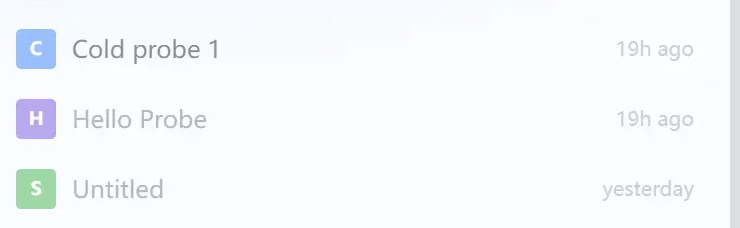
Figure: Three existing sessions under the same Cloud Agent. Real English interface; this image does not prove they were running at the same time. View full-size PNG (740 ×228)


Figure: The appearance of the result seen after switching back to the login task. Demo data; not actually dispatched. View full-size PNG (1044 × 191)


Figure: The appearance of another result seen after switching to the registration copy task. Demo data; not actually dispatched. View full-size PNG (1044 × 143)

To have a session continue working, go back to that session and keep talking, for example:
Based on the inspection results just now, first fix the first issue you found. Only change login-related files; when done, explain what was changed and how to verify it.
If you are worried that two tasks will affect each other, the simplest approach is to have them do investigation, organization, or review first; when changes are needed, define clear file boundaries for each session. Do not let two sessions modify the same place at the same time and then judge which version is correct based only on the last reply.
Three things to remember before use
- Sessions do not automatically share conversations. If the second session needs context, say it again in the second session.
- Parallel capability has real limits. Plan duration, model quota, current number of tasks, or Cloud Agent status may all affect whether a new task can start. When you see quota or pause prompts, follow the page instructions.
- Before pausing, stopping, or changing engines, check the running tasks first. The page may warn that this will interrupt work in progress; read the prompt fully before deciding whether to continue.
FAQ
Do I need to create multiple Cloud Agents to do multiple tasks at the same time?
Not necessarily. First, just create multiple sessions under your own Cloud Agent; each session handles one independent task.
If I switch to the second session, will the first session stop?
Simply switching which session you are viewing is not the same as manually stopping a task. You can go back to the first session to check its progress and results.
Can two sessions modify the same project at the same time?
Whether they can run in parallel smoothly depends on the tasks and available quota. To avoid changes overwriting each other, it is best to separate the files or feature scope, and check the actual files after completion.
If the Cloud Agent shows offline, can I still view previous sessions?
The Cloud Agent may pause after being idle. When you open the connection or send a message, the page will try to wake it up according to its current status; if the subscription or quota is insufficient, handle the page prompt first.
Related guides
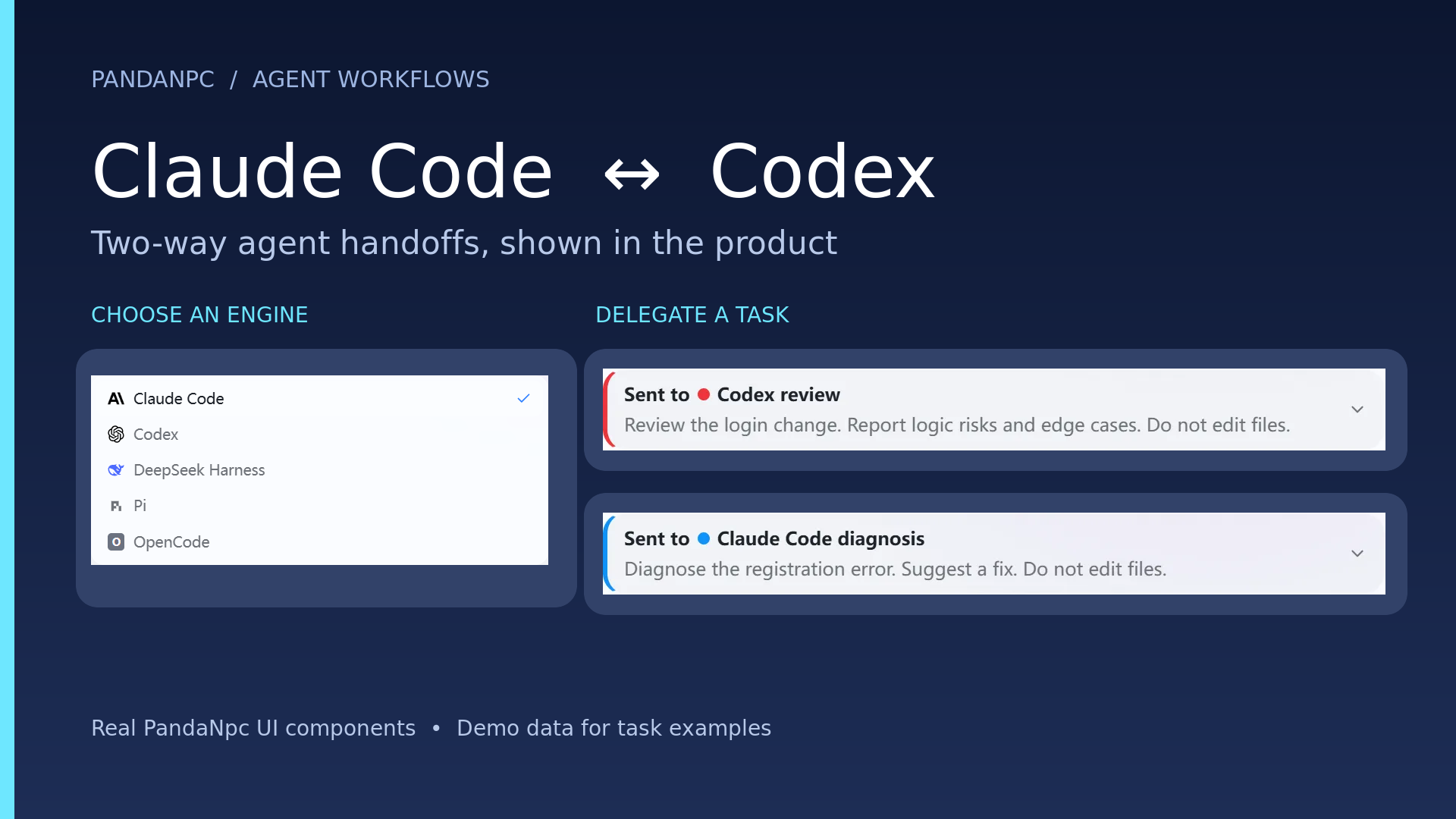
How to use Codex and Claude Code together in PandaNpc
Connect Codex and Claude Code in PandaNpc, ask one to review or work on a scoped task from the other session, and get the result back in the original conversation.
Read article →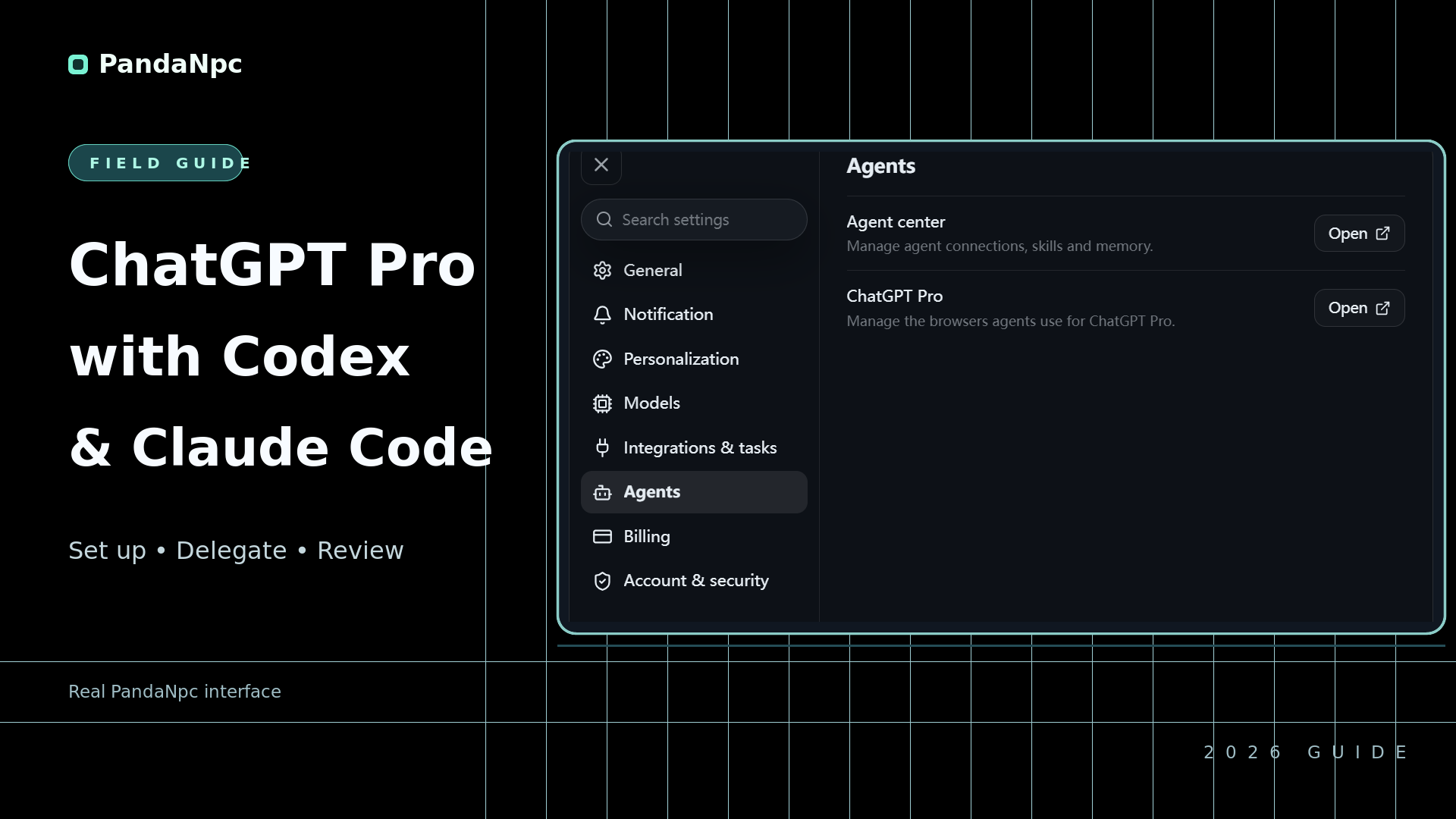
How to use ChatGPT Pro with Codex and Claude Code in PandaNpc
Use ChatGPT Pro with Codex and Claude Code in PandaNpc: send a question to your signed-in ChatGPT browser and read its answer back in the original conversation.
Read article →
How Do You Split-Screen Chat on iPhone Duo? Run Multiple Model Sessions at the Same Time
Use PandaNpc to open Claude Code, Codex, and other AI sessions in side-by-side split screens, so you can chat while checking progress and work on multiple tasks at the same time.
Read article →