
How to use Codex and Claude Code together in PandaNpc
Connect Codex and Claude Code in PandaNpc, ask one to review or work on a scoped task from the other session, and get the result back in the original conversation.
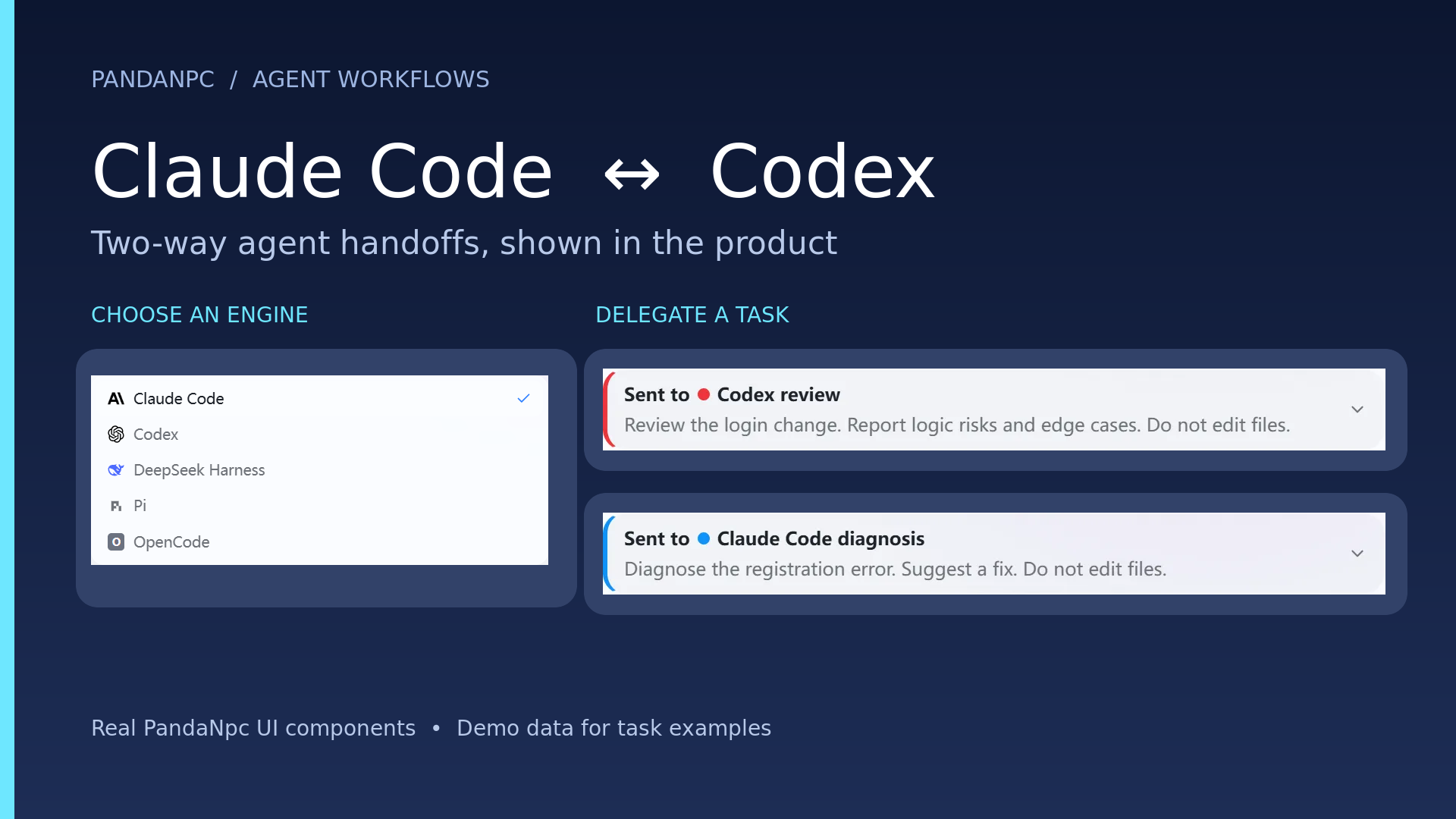
This article was written by the PandaNpc team to introduce usage methods in our own product.
View full-size cover PNG (1920×1080)

Image note: The engine options below come from the real English product interface; the task cards, example replies, and sidebar sub-agents use real PandaNpc components and Demo data, and only show position and appearance. This time there was no actual connection between the two engines, task dispatch, or verification of result return.
Claude Code and Codex can help each other within the same project in PandaNpc. You explain in one session who you want to ask to do what, and the other can receive the task; after completion, the result will return to the original session. Below, we walk through "Have Codex review Claude Code's changes" and "Have Claude Code help Codex handle an issue."
Step 1: Connect the two first
Open PandaNpc's Agent page, and confirm that you can see your Claude Code and Codex in the connection list, and that the computer prepared for the work is online. If there is no connection, use "Add Connection" or "New Connection" on the page and follow the guidance to connect.
When both need to work on the same project, also confirm that both can open this project. If the connections are on different computers, first make sure the target computer can also access the project files; just because two names appear in the session list does not mean the two computers have the same copy of the files.
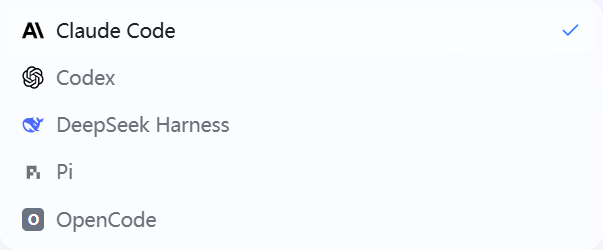
Figure: Claude Code and Codex are visible when selecting an engine. What is shown here are options; it does not mean both connections are online. View full-size PNG (603 × 250)

Step 2: Ask Codex to review in a Claude Code session
Open the Claude Code session in the project, and first tell it the task boundaries. You can copy this passage directly, then replace the content in square brackets with your own project:
Please ask the connected Codex to independently review [the project or this change] for me. Focus on checking logical errors, missed edge cases, and places that may affect existing functionality. Only review, do not modify files; send the findings, corresponding files, and modification suggestions back to this session. If you cannot find a Codex connection that can access this project, tell me first.

Figure: The appearance of the task card handed to Codex in a Claude Code session. Demo data; no actual work was dispatched. View full-size PNG (1032 × 108)

When the connection is available, Claude Code can select your Codex connection and deliver the task. After Codex finishes, the review result will return to the Claude Code session. You can have Claude Code decide the next step based on the findings, or you can open Codex's sub-session yourself to see the process.

Figure: Example appearance when the review conclusion returns to the parent conversation. Demo data; not a real return verification. View full-size PNG (1032 × 191)

If you want Codex to take action directly, change "only review, do not modify files" to a clear modification scope, for example, "only modify the error prompt of the login form, and explain which files were changed." The more specific the task, the easier it is to check the result.
Step 3: Ask Claude Code for help in a Codex session
The reverse works the same way. Open the Codex session for the same project and clearly state what you want Claude Code to handle. For example:
Please ask the connected Claude Code to check [specific issue] for me. First find the cause, then give repair suggestions; do not modify files for now. After completion, send the conclusion and the files involved back to this session. If the target connection cannot access this project, tell me first.

Figure: Example task card component when Codex asks Claude Code for help. Demo data; no actual connection to the Codex parent session. View full-size PNG (1032 × 108)

When you need it to actually make changes, you can replace it with:
Please ask the connected Claude Code to fix [specific issue], and only change [files or functionality allowed to be modified]. After completion, explain the changes, verification status, and anything that still needs my confirmation, then send the result back to this session.

Figure: Example appearance of Claude Code's conclusion appearing in the parent conversation. Demo data; not a real return verification. View full-size PNG (1032 × 191)

This is not sending the same message to both at the same time. The current session is responsible for arranging it; the other works in its own sub-session and reports back to the current session when finished.
Step 4: Check progress, check results, then continue making requests
After dispatching the task, the sub-session will appear in the sub-agent area of the related session. You can open it to see what it is doing; even if you temporarily leave the current page, you can check it when you come back. After completion, first read the result that returns to the original session, then check the files it mentions and the actual changes.
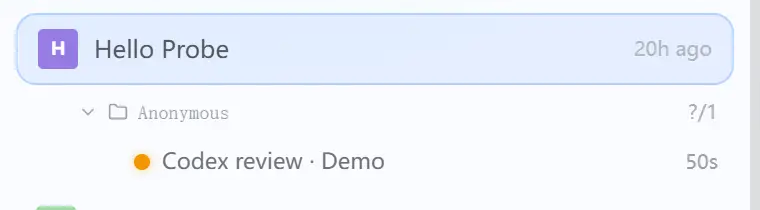
Figure: The location of the sub-agent entry and status in the sidebar. Demo data; the Codex review was not actually run. View full-size PNG (760 × 210)

If the result is not enough, continue directly in the session:
Please hand the previous task to the same to continue: supplement [the missed issue], keep the previous task context, and tell me the result after completion.
The same sub-agent can continue working from the previous session. If the previous round is still running, wait for it to finish before asking further. If there is no report for a long time, you can first check the sub-session status and results; do not dispatch another identical task just because the page has not shown a reply yet.
When Is It Suitable to Use This Way?
A common usage is "one person modifies, the other reviews": for example, Claude Code completes a fix, then ask Codex to find omissions from a different angle; you can also have Codex write code and ask Claude Code to check it against the requirements. You can also divide different work between the two, but specify the files each is responsible for to avoid modifying the same place at the same time.
Please remember two boundaries: the other party needs to be able to use the target project; after receiving a modification task, the sub-agent may directly operate on files in the target directory. Therefore, when dispatching, it is best to specify the project, task scope, whether modification is allowed, and how you want it to report results. You also need to judge review conclusions in light of the actual changes; do not just look at the words "completed."
FAQ
If only Claude Code is connected, can I directly ask Codex for help?
You need an available Codex connection first. The reverse is also true.
Can they still help each other if they are on different computers?
You can dispatch tasks to a connection on another computer, but the target computer must be able to access the project that needs to be handled. Before dispatching, confirm that it sees the correct files.
After the sub-agent finishes, do I have to switch sessions to find the answer?
Usually not. The result will return to the original session that initiated the task; if you want to see details, open the sub-session.
Can I specify that the other one only reviews and does not modify files?
Yes, you can explicitly write "only review, do not modify files" in the task. It is also recommended to specify the review scope and the result you want to receive.
Related guides
How to use ChatGPT Pro with Codex and Claude Code in PandaNpc
Use ChatGPT Pro with Codex and Claude Code in PandaNpc: send a question to your signed-in ChatGPT browser and read its answer back in the original conversation.
Read article →
Codex vs Claude Code: Which Should You Use? (2026)
Codex vs Claude Code: choose Claude for terminal depth and hooks, Codex for ChatGPT/cloud work, and PandaNpc to control both across devices.
Read article →
How to use multiple sessions in one PandaNpc Cloud Agent
Open separate sessions in one PandaNpc Cloud Agent, give each session a distinct task, then switch between them to check progress and results.
Read article →