
Can You Share a ChatGPT Subscription Without Sharing Your Password?
Share ChatGPT Plus and Pro subscription access with family and friends through a revocable Codex connection, without handing over your password. You can also share conversations through read-only links.
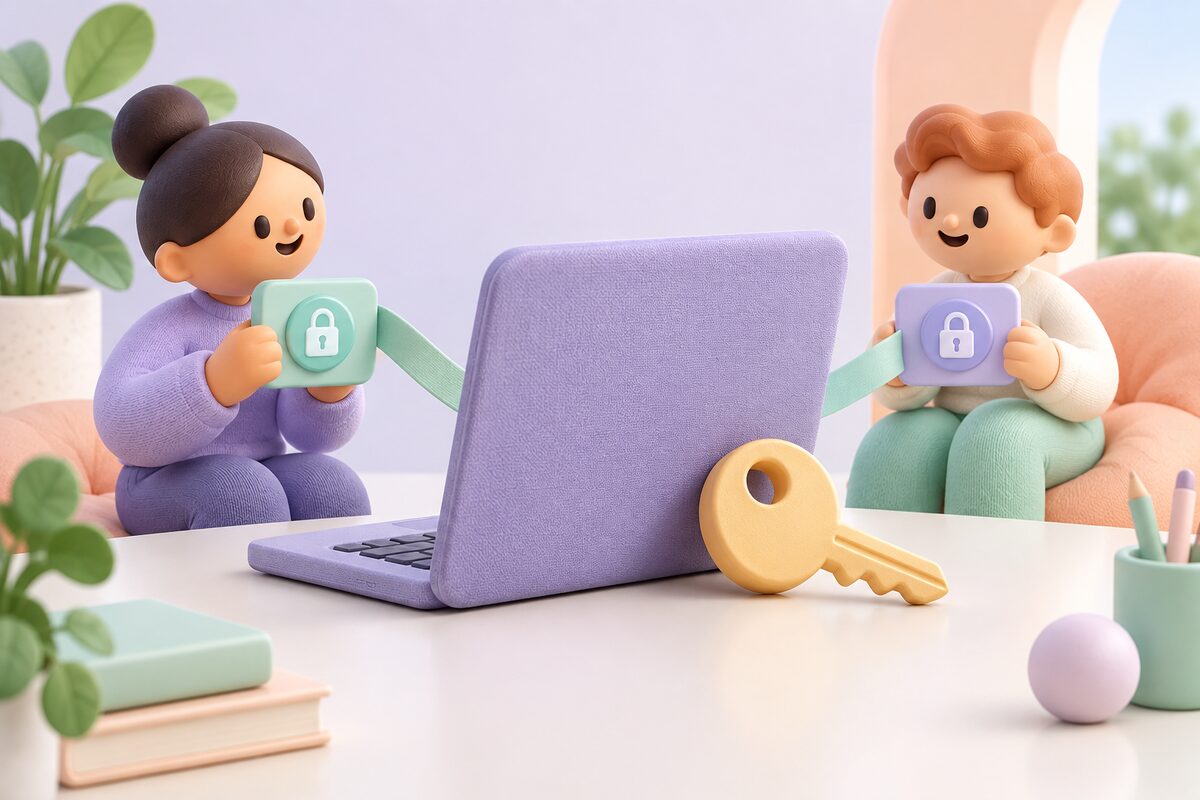
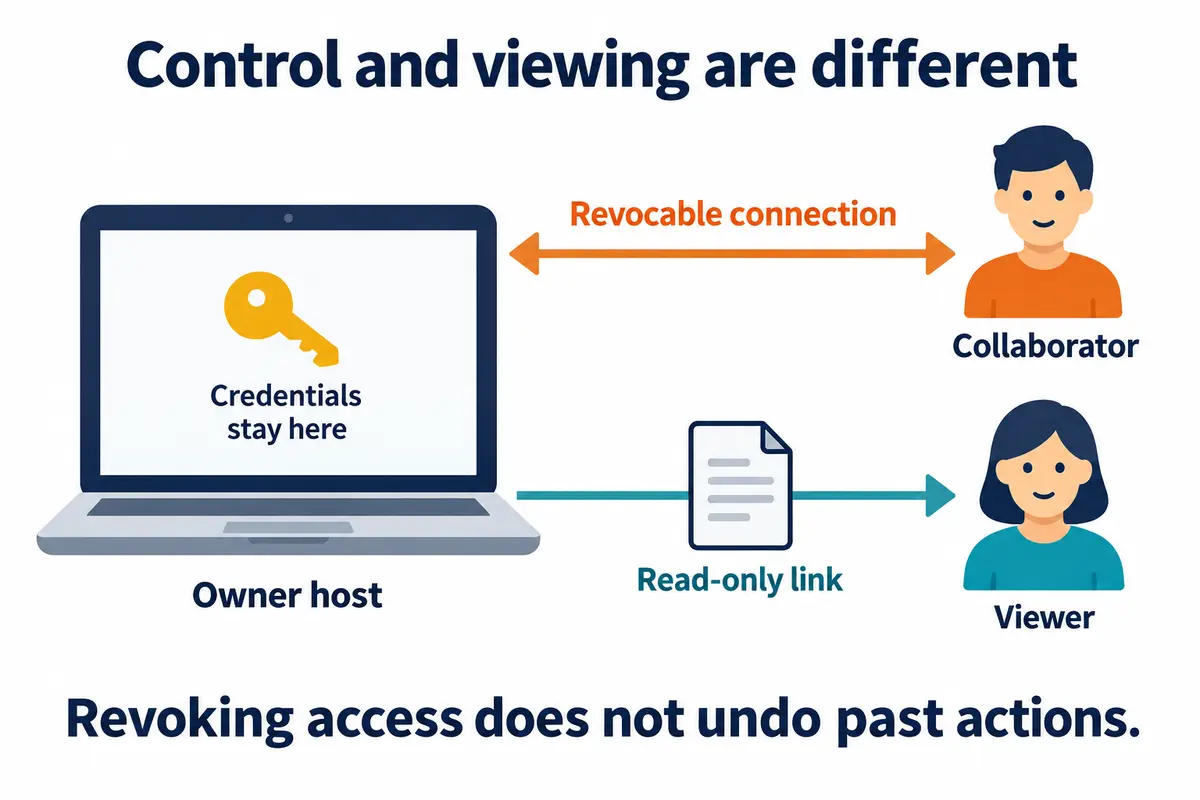
You can share a Codex connection running on your own computer, or its session results, without handing over your password. Codex signed in with ChatGPT Plus or Pro still executes tasks on the host; family and friends send tasks through a separate connection, or view the session through a read-only link. This is what this article means by "sharing an entry point supported by your subscription" — the other person does not get their own Plus or Pro membership from it.
But being able to connect technically is not the same as being authorized to let multiple people use a personal subscription. OpenAI's account sharing policy clearly states that a personal account is used by the person who created it. This article does not interpret "not giving the password" as official permission to share a personal subscription among multiple people: when someone else actually needs to run tasks, first confirm the applicable terms of service and organizational authorization; if you cannot confirm them, use separate accounts, or share only results that are allowed to be public.
The official materials and product code referenced in this article were verified on September 8, 2026. The connection steps below are based on PandaNpc's current implementation notes and were not tested across accounts with two real accounts during this writing.
Share ChatGPT Plus and Pro Subscriptions: What Exactly Are You Sharing?
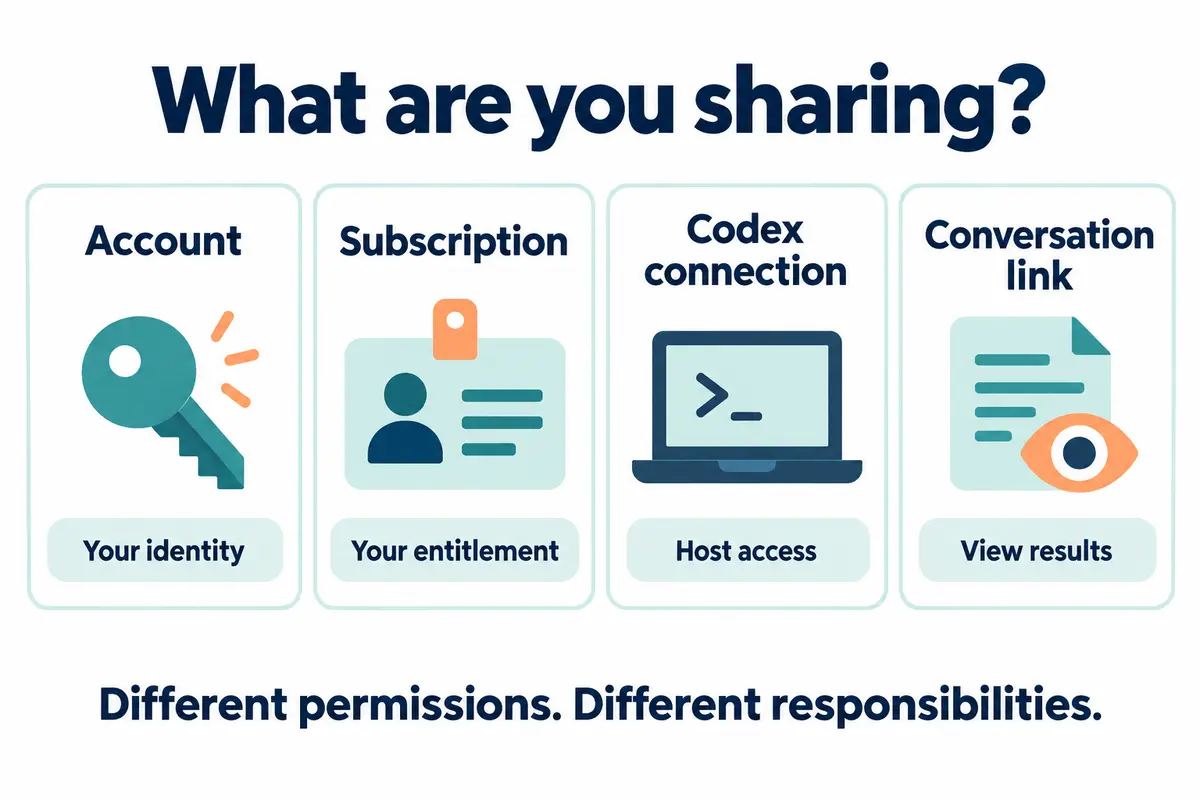
"Share ChatGPT subscription" often lumps four different things together. Before choosing an entry point, first decide whether the other person needs to view results or operate your development environment.
| What you share | What the other person can do | What the other person does NOT get |
|---|---|---|
| Account password or login session | May use the account as you and access personal data | An independent identity, independent quota, or clear responsibility boundary |
| The Plus / Pro subscription itself | Cannot use PandaNpc to activate a membership for another account | It does not become a family plan or a second membership seat |
| Codex connection | Can send tasks, invoke tools, and operate on files within the permissions the host allows | Does not automatically get full ChatGPT web features or a subscription of their own |
| Read-only session link | Can view the shared conversation, output, or results | Cannot control the host through the read-only page, and gets no model quota |
OpenAI's instructions for using Codex with your ChatGPT plan describe ChatGPT sign-in methods and plan usage. Whether a specific model is available and how much quota remains should be determined by what the host account currently shows; PandaNpc does not unlock extra models or reset upstream usage.
Share Codex with Family and Friends: Confirm the Scope First, Then Generate a Connection
This approach suits scenarios where the relevant authorization is already in place and a collaborator genuinely needs to use the host's Agent. If you only want to show an answer or coding output, use the read-only session sharing described later.
1. Verify That Codex Works on Your Own First
Sign in to Codex on your own computer, then open the Codex connection for that device in PandaNpc. Confirm that you can send a read-only task and receive a result, and that the model and account match expectations. The host must stay powered on and connected to the network; if it sleeps or loses network access, the other person cannot wake it back up through a share link.
For installation and cross-device access, see the Codex remote control guide for phones. This article assumes a working connection already exists and does not repeat the installation steps.
2. Prepare a Dedicated Working Directory and Tool Permissions
Don't hand over your whole everyday development environment directly. Start with a test directory that contains no personal files, production keys, or real customer data, and check Codex's workspace and tool permissions. The working directory is only a starting point, not OS-level isolation; if the Agent can execute arbitrary commands or access files outside the directory, you cannot claim it only sees that folder.
The recipient may send instructions, run tools, read and write files, and handle approvals within the current permission scope. So "not telling them the password" does not mean "they can never touch sensitive information on the host." Tighten permissions before sharing, and use a separate system user or an isolated environment when necessary.
3. Generate a Share Link with an Expiration Date
In the connection list, open the menu of the target connection, choose "Share connection," then select the validity period and generate the link. The available periods are 1 day, 7 days, 30 days, or permanent; for temporary collaboration, choose 1 day first.
Only relay connections with remote bridging capability are supported; purely local connections cannot be shared directly. Confirm that the selected connection is the Codex connection, so you don't hand another engine or a different device to the other person.
Generating a new share link for the same connection revokes the previous share. Don't create multiple simultaneously valid access entries for one connection by generating links repeatedly. Revocation also happens at the level of the share link: when the same link has been claimed by multiple people, revoking it affects all of those recipients.
4. The Other Person Claims It with Their Own PandaNpc Account
Family or friends open the share link, sign in with their own PandaNpc account, and claim it. They can also paste the link or share code into the "Connection link" field under "New connection" and confirm to create it.
Claiming does not require you to send your OpenAI password, login cookies, or API Key. What they receive is a remote connection entry, not your ChatGPT login page, billing management rights, or full product subscription.
5. Verify the Setup with a Task That Contains No Sensitive Information
Ask the other person to send this in the test project:
Report the current working directory and list the top-level file names.
Do not read file contents, modify files, or make network requests.
Check that the returned path is the expected directory, the engine is Codex, and there are no unexpected file changes. Then use an operation that contains no sensitive data and should trigger approval under the current settings, to confirm how permissions actually behave. If you get a path from another host, the engine doesn't match, or permissions exceed expectations, revoke the share first and then troubleshoot.
6. Revoke After Collaboration Ends
In the account center, find the corresponding record under "Connections I shared" and revoke it. In the current implementation, connections using that share credential are disconnected and further reconnection attempts are refused; the owner's own connection does not use that share credential and is not affected by this revocation.
Disconnecting is not the same as undoing operations that were already executed. Content already read, files already downloaded, and tasks already started all need to be checked and handled separately. When checking the setup, confirm both that the other person cannot reconnect and that no unfinished tasks remain on the host.
When You Share ChatGPT Plus and Pro, Who Pays for Codex Usage?
When Codex on the host is signed in with your ChatGPT account, task usage is recorded against the Codex usage of that account; if you switch to API Key sign-in, it should be understood according to API billing. Sharing a connection does not turn API charges into free Plus or Pro usage.
The exact limits on Plus and Pro change over time, and task complexity, context, model, and execution method also affect consumption. Don't read "share with two people" as "the quota is doubled," and don't promise unlimited usage for any plan. You can check current limits in the Codex usage interface; /status in the CLI also shows session state and usage information.
If multiple people will use it independently over the long term, a clearer arrangement is separate accounts, or assigning memberships according to an applicable organizational plan. PandaNpc's connection sharing solves the remote entry problem; it cannot replace the upstream product's seat and authorization mechanisms.
Share ChatGPT Conversations: Give Only the Results, without Opening Host Control
If family or friends only want to see an answer, a proposal, or a report, sharing a session is usually enough — there is no need to grant Codex connection access.
Share a Conversation in ChatGPT
In the target ChatGPT conversation, use the share feature, check the previewed content, and generate the link. OpenAI's Shared Links FAQ explains the sharing scope and the access and deletion rules: anyone with the link can view the shared content, so treat it as a link that could be forwarded and do not put passwords, customer data, or anything else that should not be public into it.
Sharing a conversation does not give the recipient Plus or Pro membership, and it does not carry host control over to them. Deleting the shared link stops access through the original link, but it cannot guarantee taking back content that others already copied or imported.
Share a Codex Session in PandaNpc
Generate a read-only share link in the target Codex session. If you need to show the subsequent progress of the task, you can enable live refresh with an expiration; see the Claude Code and Codex CLI real-time session sharing tutorial for the exact steps.
This kind of share and "connection" are two separate entry points: read-only visitors cannot send tasks, approve tools, or modify the project. Stopping live refresh and revoking the share are also different operations — the former stops updates, and the latter makes the original share entry ineffective. Before sending, check the actual displayed scope in an incognito window.
FAQ
Can you share ChatGPT Plus or Pro compliantly without sharing your password?
You can't tell just from that. Credential protection and subscription authorization are two different things; not sending your password only removes one way credentials can be exposed. The personal-account policy still applies, and a remote connection does not automatically give you permission for use by multiple people.
After claiming the connection, does a family member become a ChatGPT Plus or Pro user?
No. The family member receives a host connection entry, not their own membership; the features and usage of the ChatGPT web version are still determined by each person's own account.
After sharing a Codex connection, can the other person only view the session?
No. The connection allows the other person to operate the Agent within the existing permission scope. If you only want the other person to view content, generate a read-only session link instead.
Can I generate different valid links for different friends?
Currently, the same connection keeps only one active share code; regenerating it revokes the old share. Once the same share code has been claimed by multiple people, revoking it affects all recipients who use that code. Don't treat it as a member management system with per-person revocation rights.
Will commands that were already executed roll back automatically after revocation?
No. Revocation is used to terminate access with that credential; it does not roll back files, and it cannot guarantee stopping host processes that have already been started. If you need a rollback, check Git status, backups, and the running state of tasks, then handle them according to the actual situation.
Can I share only the final result without showing the whole coding process?
You can choose a sharing method that suits presenting the result, and verify what the preview contains before sending. Don't assume that a "read-only" link means the content has no privacy risk. If you need a narrower scope of visibility, see the guide to sharing artifacts and sessions.
Choose the Sharing Method Based on Your Actual Needs
If you only need to show family and friends an answer, use a read-only session link; if you need authorized remote collaboration, use a Codex connection, after checking permissions, quotas, and the revocation method. If each person needs to use ChatGPT independently over the long term, arrange separate accounts or appropriate organizational memberships.
Once the host and permissions are ready, go to PandaNpc Agent and select the target Codex connection. Run a read-only check first, then start real tasks.
Related guides
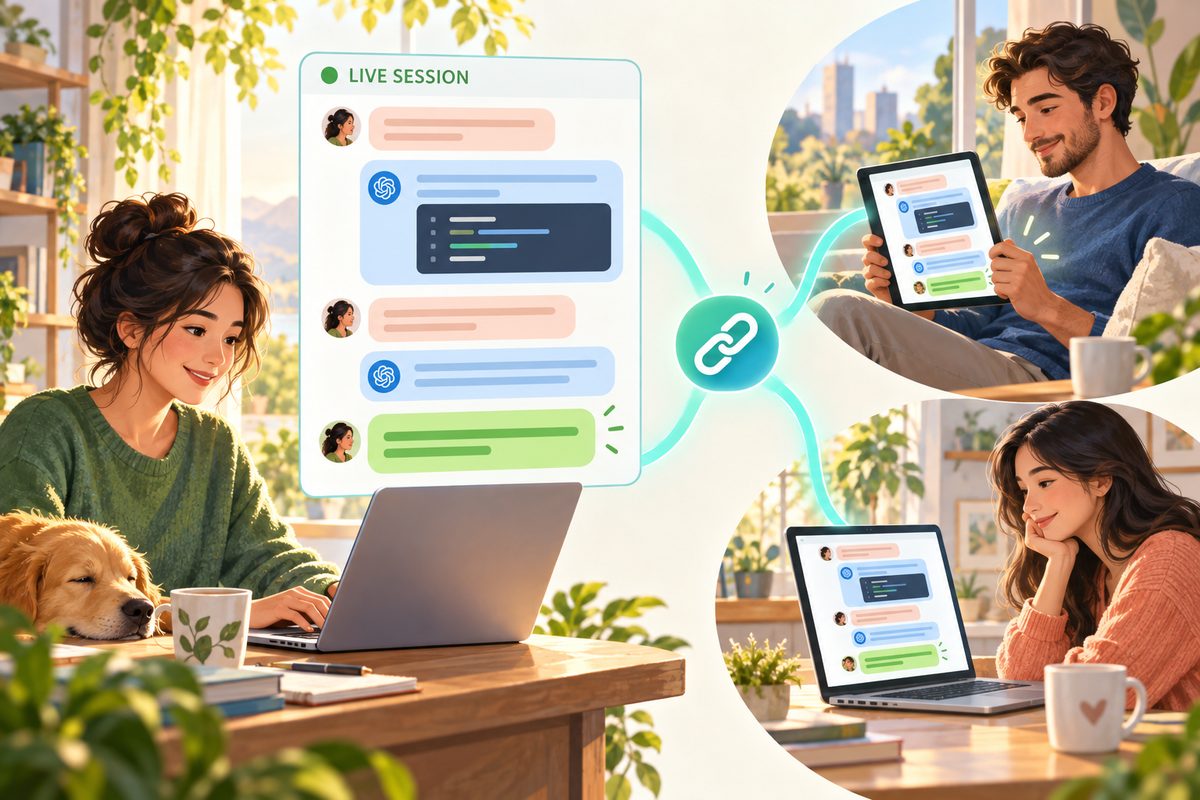
Share Claude Code & Codex CLI Sessions Live
Share Claude Code and Codex CLI sessions live with a public read-only link. Let others watch your AI coding agent in real time without screen sharing or remote control.
Read article →
Use Codex on Your Phone: ChatGPT Remote vs CLI (2026)
Use ChatGPT Remote to control supported Mac/Windows Codex chats from iPhone or Android; use PandaNpc for Codex CLI, Linux, and headless hosts.
Read article →
Is GPT-6 Astra Available Now? How to Safely Share It with Family and Friends
Yes — GPT-6 Astra is now fully available to eligible paid plans, Codex, and the API. This article explains the permission differences among Plus, Pro, Business, Enterprise, Free/Go, and GPT-6 Pro, and demonstrates how to securely share via revocable Agent connections without sharing OpenAI account passwords or API Keys.
Read article →