
Share Claude Code & Codex CLI Sessions Live
Share Claude Code and Codex CLI sessions live with a public read-only link. Let others watch your AI coding agent in real time without screen sharing or remote control.
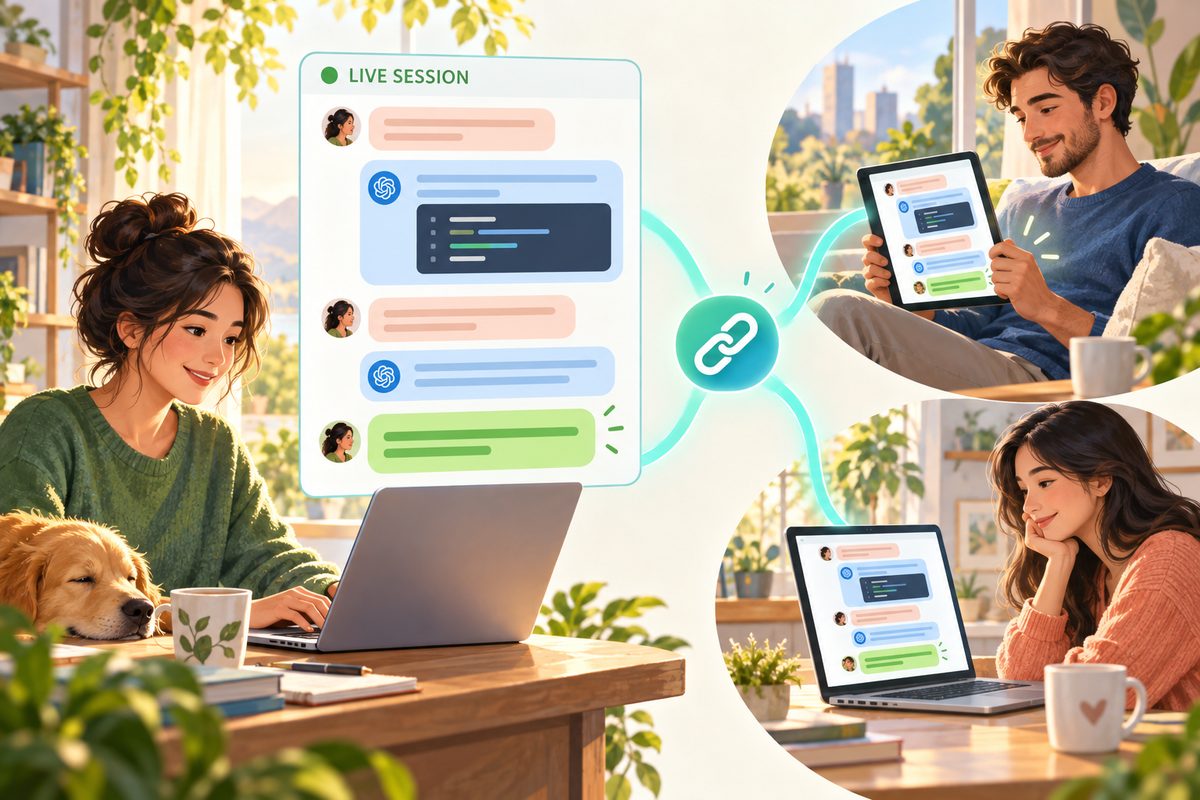
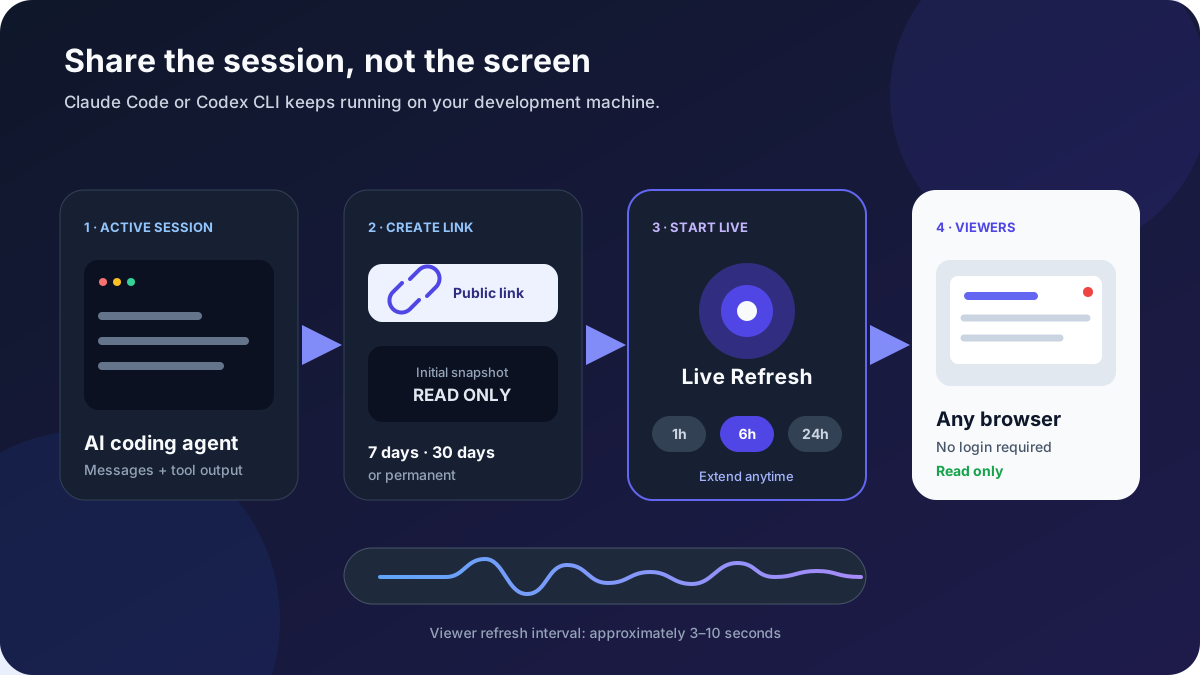
Yes, you can—without screen sharing or handing over agent control. Generate a public read-only link from your Claude Code or Codex CLI session in PandaNpc, then turn on "Live Refresh." Visitors can view the existing conversation, subsequent messages, and tool output in their browser. The live stream duration can be set to 1, 6, or 24 hours; once you stop the live stream, the link still displays the last snapshot, and you can revoke sharing when you need it to become completely inaccessible.
This works well for pair debugging, remote demos, client acceptance, and async reviews. Claude Code and Codex CLI still run on your development machine—visitors are only viewers. For installation and usage of each CLI, refer to Anthropic's Claude Code getting-started docs and OpenAI's Codex CLI docs.
First, Know the Difference: Snapshot, Live Sharing, and Connection Sharing Are Not the Same
| Method | What visitors see | Real-time updates | Can send commands or approve actions | Best for |
|---|---|---|---|---|
| Session snapshot | Full conversation at link creation | No | No | Sharing records, archiving, async reading |
| Session live sharing | Snapshot + subsequent messages and tool output | Yes | No | Live debugging, demos, observing collaboration |
| Result page | AI-summarized highlights, changes, outcomes | Rebuilt after snapshot updates | No | Reporting, delivery, showcasing work |
| Connection sharing | Others join your coding agent session | Yes | Yes | Co-driving with trusted collaborators only |
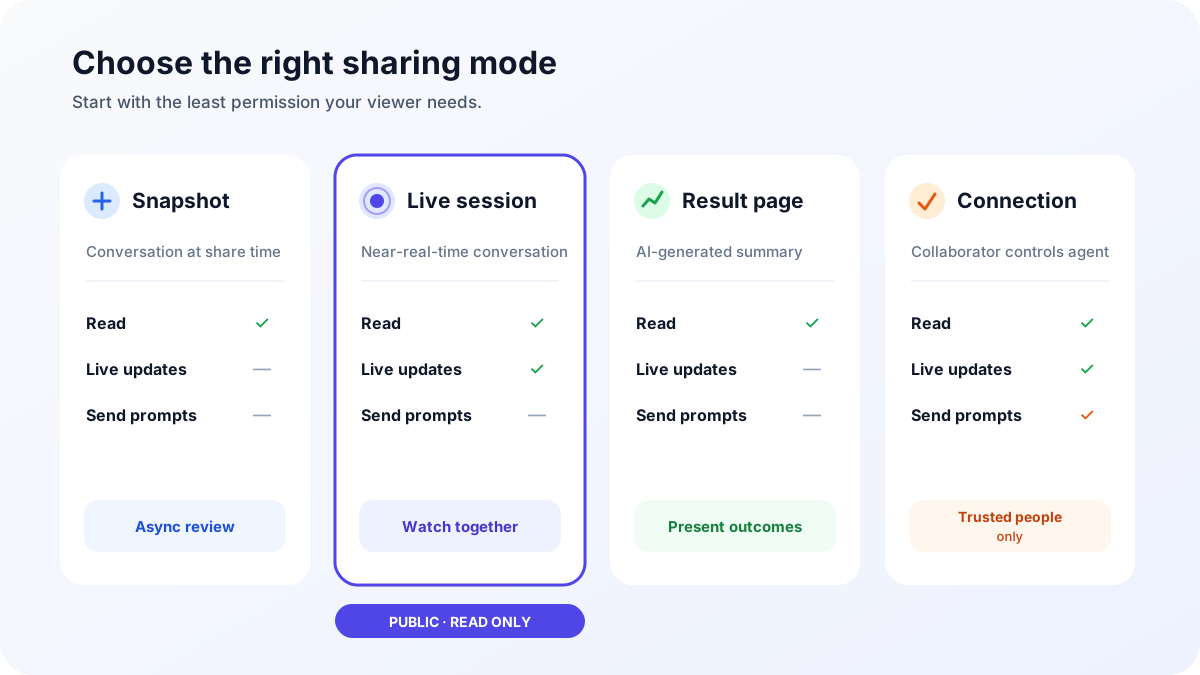
This article covers the first two: first generate a public read-only snapshot, then optionally enable live refresh. If you only want to showcase the final output, use the session result page instead; if the other party needs to send actual commands, first read permission boundaries for sharing a Claude Code connection.
What You Need Before You Start
- Claude Code or Codex CLI on your development machine already works;
- PandaPaw is connected to that dev machine, and the target session can be opened in PandaNpc Agent;
- The session has at least one shareable message;
- You have reviewed the history to ensure it contains no passwords, API Keys, private keys, customer data, or other information that should not be public.
The share link does not require visitors to log in. That convenience also means it is essentially a bearer link: anyone with the link can view it. So do not treat "the link is hard to guess" as access control.
How to Live Share a Claude Code or Codex CLI Session
Step 1: Open the Session You Want to Share
Go to PandaNpc Agent, select the project running Claude Code or Codex, then open the session that is in progress or already completed. Review the title and conversation content first to make sure you're sharing the correct project.
Step 2: Generate a Public Read-Only Link
Click the Share button in the top-right corner of the session. On first share:
- Choose the link validity: 7 days, 30 days, or permanent;
- If you want a structured summary, keep "Generate result page" enabled; turn it off if you only want to live-stream the raw conversation;
- Click generate link and copy it.
The moment you generate the link, the current full conversation is saved as a snapshot. Even if you never enable live streaming later, visitors can still read this snapshot via the link.
Step 3: Turn On "Live Refresh"
After the link is generated, find Live Refresh in the same share dialog, choose 1 hour, 6 hours, or 24 hours, then click "Start streaming." The page will show the remaining time; if the task takes longer than expected, you can extend the live window.
Step 4: Verify in an Incognito Window
Don't just trust "link copied." Open the share link in an incognito window or on another device that isn't logged in, then send a test message without sensitive information from the original session. The visitor page usually shows new content within about 3–10 seconds and displays the live status.
This step verifies four things at once: the public link is accessible, visitors don't need to log in, the current live window is valid, and new messages are indeed coming from the correct session.
What Visitors Can See in Real Time
Once live streaming is on, anyone with the link can see:
- The full conversation that existed when sharing started;
- New user messages and agent replies added during the live window;
- Subsequent tool output, including read file contents, shell commands, and their output;
- Whether the session is still working, plus read-only state such as model, context, and file changes;
- If a result page was generated, they can also switch to a structured summary of the outcome.
Visitors cannot send messages, answer agent prompts, approve commands, or control the dev machine through this page. If you want to continue operating your own Codex from your phone, use the Codex CLI remote control solution—don't mistake a viewing link for a remote control entry point.
Privacy and Security: What You Must Check Before Going Live
Live sharing requires more caution than a plain snapshot because you don't yet know what the agent may read next. At minimum, complete these checks before starting:
- Clean up the history. Secrets and file snippets already in the conversation will be public with the initial snapshot.
- Anticipate subsequent tool calls. After the agent reads
.env, config files, logs, or customer data, that tool output may appear directly on the visitor page. - Choose the shortest sufficient duration. A ten-minute demo usually warrants 1 hour; don't jump to 24 hours just to avoid another click.
- Only send it to people who need to watch. Public read-only does not mean suitable for public broadcast; forwarding in group chats can still widen exposure.
- Stop or revoke when finished. Stopping live refresh only freezes the final snapshot; to make the original link completely inaccessible, you must revoke the share.
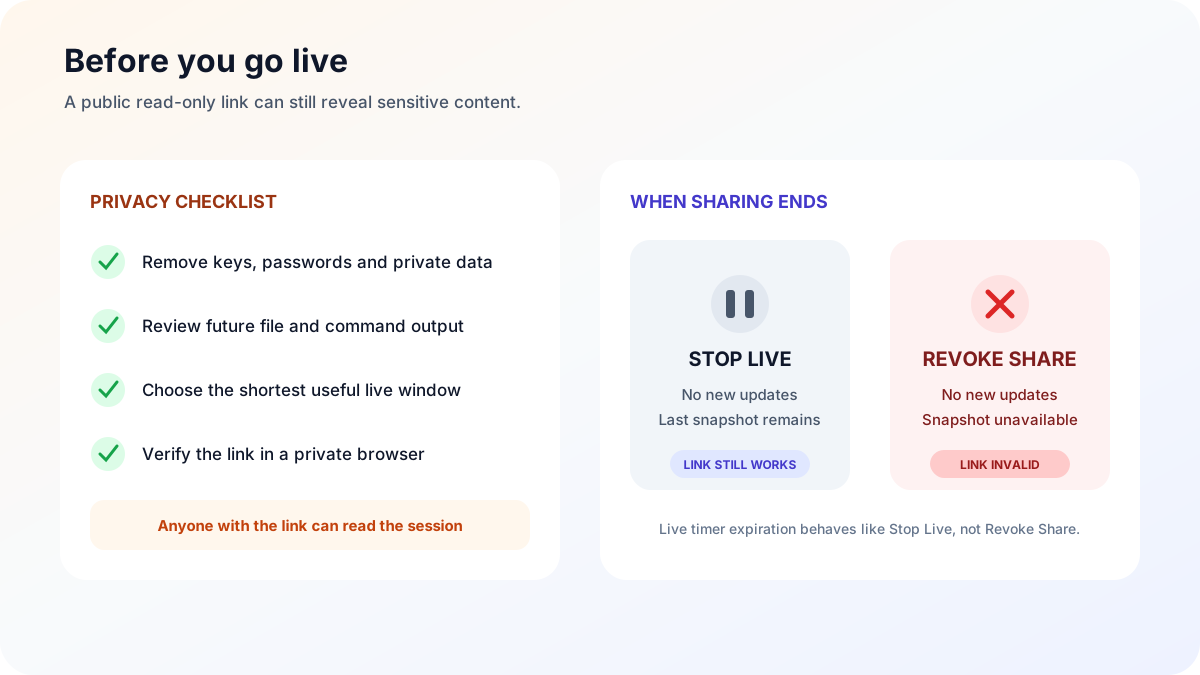
One more point that's often confused: session sharing is read-only, connection sharing is actionable. The latter may allow the other party to send commands and approve tool calls on your host, and should only be given to trusted members.
What Happens After the Live Stream Ends
A live stream ends in one of three ways:
- It automatically stops when the 1, 6, or 24-hour deadline is reached;
- You manually click "Stop live stream" in the share dialog;
- You revoke the entire share.
The first two only stop further updates—visitors can still read the snapshot as of the stop point. Revoking the share makes the original public link invalid. If you later re-share the same session, treat it as a new public entry point and review content and validity again.
Troubleshooting Common Issues
Live Refresh is on, but visitors only see the old snapshot
First confirm the share dialog still shows "Streaming" and the remaining minutes, then check that the dev machine, PandaPaw, and the target session are online. When live data is temporarily unavailable, the page safely falls back to the last snapshot without granting any extra permissions.
You can also ask visitors to bring the page back to the foreground. Browser tabs kept in the background for a long time pause refreshes; reopening the tab resumes fetching new messages.
New messages don't appear instantly
The visitor page uses near-real-time refresh rather than character-by-character sync. It typically updates within a few seconds; when there is a lull with no new messages, the refresh interval gradually widens to about 10 seconds to reduce redundant requests. This delay does not affect the session continuing to run on the dev machine.
The toggle turns off right after clicking "Start streaming"
This usually means the server couldn't locate the currently online session. Confirm you're operating within the target session, your device is still online, and refresh the Agent page before retrying. Historical snapshots remain readable—no need to keep generating new links.
The link shows as nonexistent or already expired
Check whether it was copied in full, whether it has passed the 7/30-day validity, or whether it has been revoked. Expired or revoked links cannot be restored by visitors—only the sharer can generate a new one.
The result page keeps generating
The result page requires extra AI summarization, so it may appear later than the read-only snapshot. It is independent of live refresh: even if the result page is still generating, the original session stream remains viewable.
FAQ
Can both Claude Code and Codex CLI be shared using the same method?
Yes. As long as the corresponding session appears in PandaNpc Agent, use the same share entry point from the session's top-right corner. Only one guide is needed, because the core task is the same: "turn an AI coding session into a public read-only live viewing link."
Do visitors need a PandaNpc, Claude, or ChatGPT account?
No. The share page is a public read-only page—visitors only need a browser. Precisely because no login is required, the link should be treated as sensitive information.
Can visitors control Claude Code or Codex?
No. The session share page is view-only; they cannot send messages, approve commands, or operate the host. If you need two people working together, use the higher-permission connection sharing and invite only trusted collaborators.
How is this different from screen sharing?
Screen sharing transmits your entire desktop and usually requires keeping a meeting or casting connection alive; session sharing only presents the structured messages and tool output of this one AI coding session. Visitors can scroll at their own pace and review past messages, without seeing other windows on your desktop.
Does stopping the live stream delete the link?
No. After stopping, the link keeps the final snapshot; only choosing "Revoke share" makes the link invalid.
Can I share only the final results without exposing the full conversation?
Yes. Generate a result page when sharing, which shows what was done, which files were changed, and what remains pending in a structured summary. Note that the same share link may still provide access to the full session; if the original conversation isn't suitable for public viewing, clean it up first or avoid creating a public share.
Summary
The safest flow for live sharing Claude Code or Codex CLI sessions is: check the content first, generate a public read-only snapshot, choose the shortest live duration, verify in an incognito window, then stop or revoke when done. This preserves the value of watching the AI coding process live, while keeping visitor permissions read-only.
When you're ready to start, open PandaNpc Agent, select the target session, and click the Share button in the top-right corner.
Related guides

Claude Code Artifacts Enterprise-Only? Use PandaNpc to Let Anyone Publicly Share AI Coding Results
This article is aimed at developers, explaining what Claude Code Artifacts are, their features and limitations (enterprise-only, visible within the organization, read-only), and sharing best practices for using PandaNpc results pages to turn Claude Code sessions into public, universally accessible share links that can be copied as prompts.
Read article →
Use Codex on Your Phone: ChatGPT Remote vs CLI (2026)
Use ChatGPT Remote to control supported Mac/Windows Codex chats from iPhone or Android; use PandaNpc for Codex CLI, Linux, and headless hosts.
Read article →
Can you share a Claude subscription? How to safely share Claude Code with friends and team (no password, revoke anytime)
Yes — and you don’t need to hand your account password to anyone. PandaNpc lets you share the Claude Code connection on your machine via a link with friends, family, or teammates: they remotely use your subscription quota to run Claude Code. Each share is an independent, revocable token with 1/7/30-day or permanent validity; one-click revocation disconnects them instantly, without affecting your own usage at all.
Read article →