
How Does GPT-6 Astra Pass CAPTCHAs? Clearing "I'm Not a Robot"
GPT-6 Astra has been reported to clear all 48 levels of a CAPTCHA game with zero errors, demonstrating continuous recognition, operation, and verification abilities. Through the PandaNpc browser MCP and Chrome plugin, you can connect your own Astra session to experience it firsthand; this article includes hands-on screenshots from the first 4 levels and the error-correction process.
CAPTCHAs are used to tell humans and machines apart. Now, AI is also taking on these challenges that ask you to "prove you're human." The news that GPT-6 Astra cleared "I'm Not a Robot" has made many people want to try it themselves: can their own AI understand the levels and actually operate a browser?
To experience this, you need to connect Astra's judgment ability with browser tools. This article explains how to connect your own Astra session and open the game via the PandaNpc Chrome extension and browser MCP, and uses our actual operation records from completing the first 4 levels to show how to tell whether a task succeeded.
This article was written by a PandaNpc developer and involves its own extension and MCP. The publicly reported 48-level completion is described separately from the first 4 levels of browser-tool experience recorded in this article; this experience involved retries and did not verify all 48 levels.
What kind of game is "I'm Not a Robot"? Where can you play it?
"I'm Not a Robot" is a browser game on Neal.fun themed around "I am not a robot" verification, turning CAPTCHA-style interactions into a series of challenges.
Click to open "I'm Not a Robot" and experience it in your browser.
For AI, this kind of game tests more than recognition ability. It also needs to read the rules, find the interaction target, perform actions, and then observe whether the page accepted the operation. As levels change, the model must re-understand the current task.
GPT-6 Astra cleared 48 levels—what does the news mean?
Public reports say GPT-6 Astra completed all 48 levels of "I'm Not a Robot." Some reports use the phrase "zero mistakes," but this article has not independently verified the full run records and does not infer a consistent success rate from them. Related report
What makes this news noteworthy is that the model completed a continuous interaction: understanding the page, choosing actions, checking feedback, and then continuing to the next step.
OpenAI also lists computer and browser operation as one of Astra's main capabilities, with publicly described tasks including filling out forms, using software, and doing web research. OpenAI official introduction
Clearing the game does not mean it can pass CAPTCHAs on all real websites. We can use this demo as a starting point to experience how the model uses tools, but actual performance still depends on your own runtime environment and operation records.
How do Astra, browser MCP, and the Chrome extension work together?
| Component | What it handles | What the user can observe |
|---|---|---|
| GPT-6 Astra | Understands the level, decides actions, judges results | The model's analysis and next operation |
| Browser MCP | Provides the session with page reading, screenshot, and input tools | Tool calls in the session |
| PandaNpc Chrome extension | Executes operations in the target browser | Clicks, input, drags, and changes on the page |
The whole process is: your task → Astra calls MCP tools → the extension executes → page feedback returns to Astra.
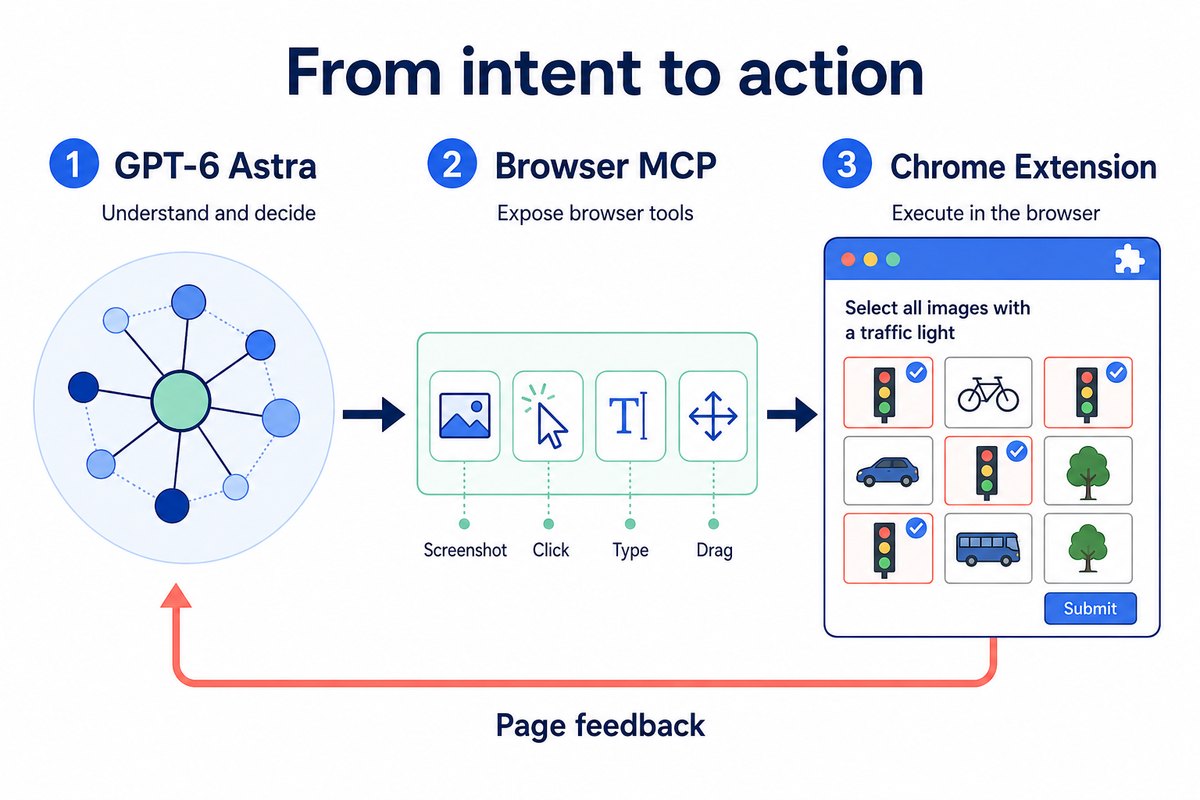
PandaNpc's current Codex integration includes browser MCP configuration injection; the browser tools provide interfaces for screenshots, clicks, input, dragging, and browser instance selection. This is PandaNpc's toolchain and not mean the news demo used the same setup.
What do you need to prepare before starting?
- PandaNpc account: used to connect devices, projects, and sessions.
- A computer running Codex: connect it to PandaNpc through PandaPaw.
- A model account or configuration that can use GPT-6 Astra: a successfully connected device does not mean the model is authorized.
- A Chrome browser with the PandaNpc extension installed: responsible for executing operations in the game.
Users who can already use an Astra session in PandaNpc can jump straight to the extension installation section. For model selection, refer to GPT-6 Astra vs. Claude Fable 5.1 comparison.
1. Connect the computer running Codex to PandaNpc
Log in to PandaNpc, open the devices page, and choose to add a device. Follow the on-page instructions to copy the install command for the target computer and run it in that computer's terminal. After installation finishes, return to the devices page to confirm the computer has appeared.
If PandaPaw is already installed on the computer, run:
pandapaw statusIf account authorization hasn't been completed yet, run:
pandapaw loginFollow the prompts in the opened web page to complete authorization. Devices that are online normally do not need to be logged in again repeatedly.
Then open PandaNpc Agent, find the corresponding device and project, and enter the Codex session. See the PandaPaw connection documentation for full installation instructions.
2. Install the Chrome extension and sync your account
Install the PandaNpc extension from the Chrome Web Store.
In the same Chrome user profile where you installed the extension, open the PandaNpc login page and log in, then open the extension sidebar.
The extension currently uses the web account login state. When you aren't logged in, the sidebar will guide you to log in on the web page; after logging in, you can enter the device, project, and session lists.
Find the device and Codex session you just connected. If they don't appear in the list, first check whether the web login succeeded and whether the device and the extension use the same PandaNpc account. Logging in under another Chrome user profile will not replace the login in the current profile.
3. Confirm the session is actually using GPT-6 Astra
After entering your Codex session, check the model information shown in the session to confirm the actual model is GPT-6 Astra.
If you are currently using another model, complete the selection through the model configuration entry supported by that Codex environment, then check the model reported in the session. In the current extension, Codex sessions do not use the same ordinary model-switching buttons as Claude.
Don't assume the switch succeeded just because the model says "I am Astra" in a reply; check the session model information. If your account doesn't have access to Astra, the extension and MCP cannot make up for that missing permission.
4. Verify that browser MCP is connected
First send a simple task:
Please check the currently available browser tools, read the active tab's title, and take a screenshot. Do not click or type for now.
Confirm that the returned title and screenshot come from the browser you intend to operate. If multiple browsers are connected, you can ask:
Please list the available browser instances, select the instance I want to use for the game, and take a new screenshot to confirm.
This step verifies whether the session can call tools, whether the extension is online, and whether the target browser is correct. If the model only gives text suggestions without calling tools, fix the connection issue first, then start the game.
5. Open the game and let Astra take the challenge
In the connected Chrome, open "I'm Not a Robot" and keep the game window visible.
For the first attempt, it's recommended to only try the current level:
Please use the browser MCP to play the currently open "I'm Not a Robot".
First read the current level's rules, then complete the task through normal page interactions. Do not read the source code to find answers, and do not modify the game state to skip levels.
Check the page feedback after each action. Try the current level first, pause when it's done, and tell me which tools were called and how the result can be confirmed. If something fails, report it honestly.
After confirming the full flow works, let it continue, and record the levels passed, failure reasons, retries, and any manual interventions.
How can you confirm the game operation actually succeeded?
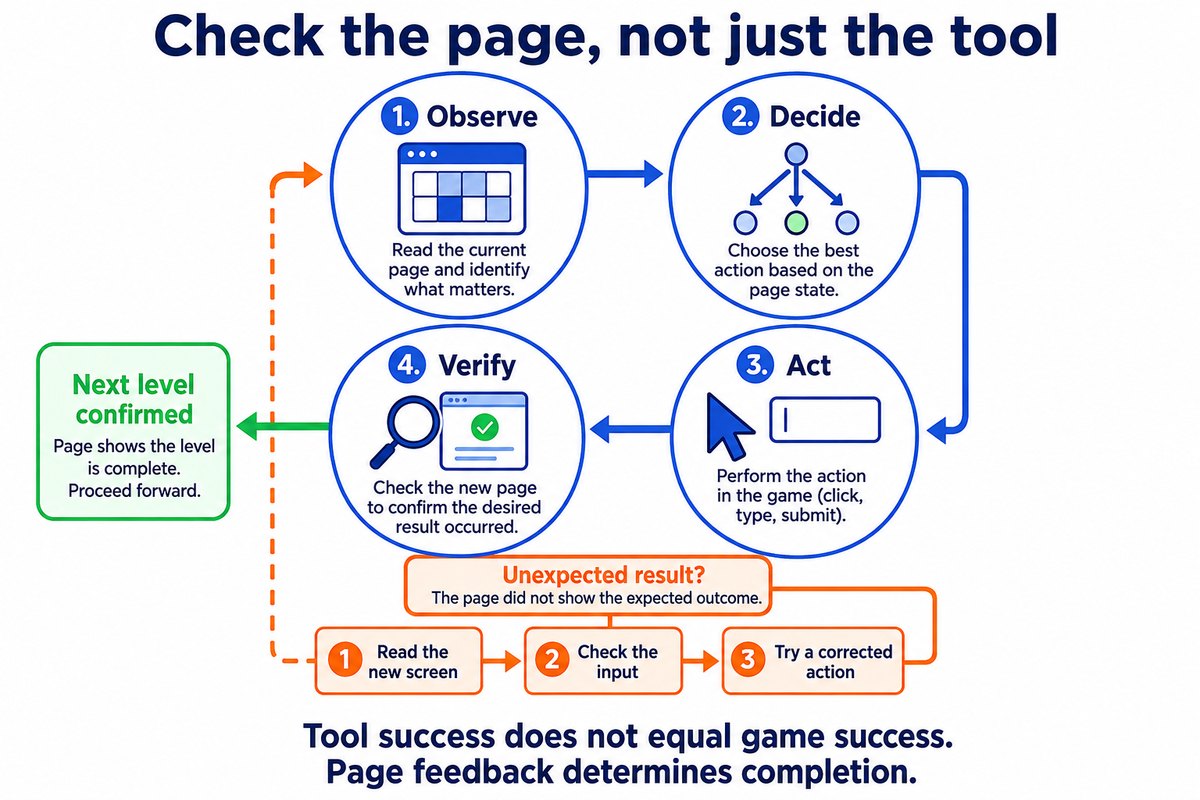
Each operation must complete the full cycle of "observe → decide → execute → verify." The tool response only says how the execution went; whether the page advanced to the next level is the real evidence that the game task passed. When the result doesn't match expectations, read the new screen first, check the input box contents, and then correct the action.
Our actual experience: completed the first 4 levels and reached level 5
In the browser instance specified by the user, we opened the game through the PandaNpc browser MCP and Chrome extension and completed the first 4 levels. The operations were based on page screenshots and feedback, using click, fill, and real-input tools; we did not read the game's source code or modify level state.
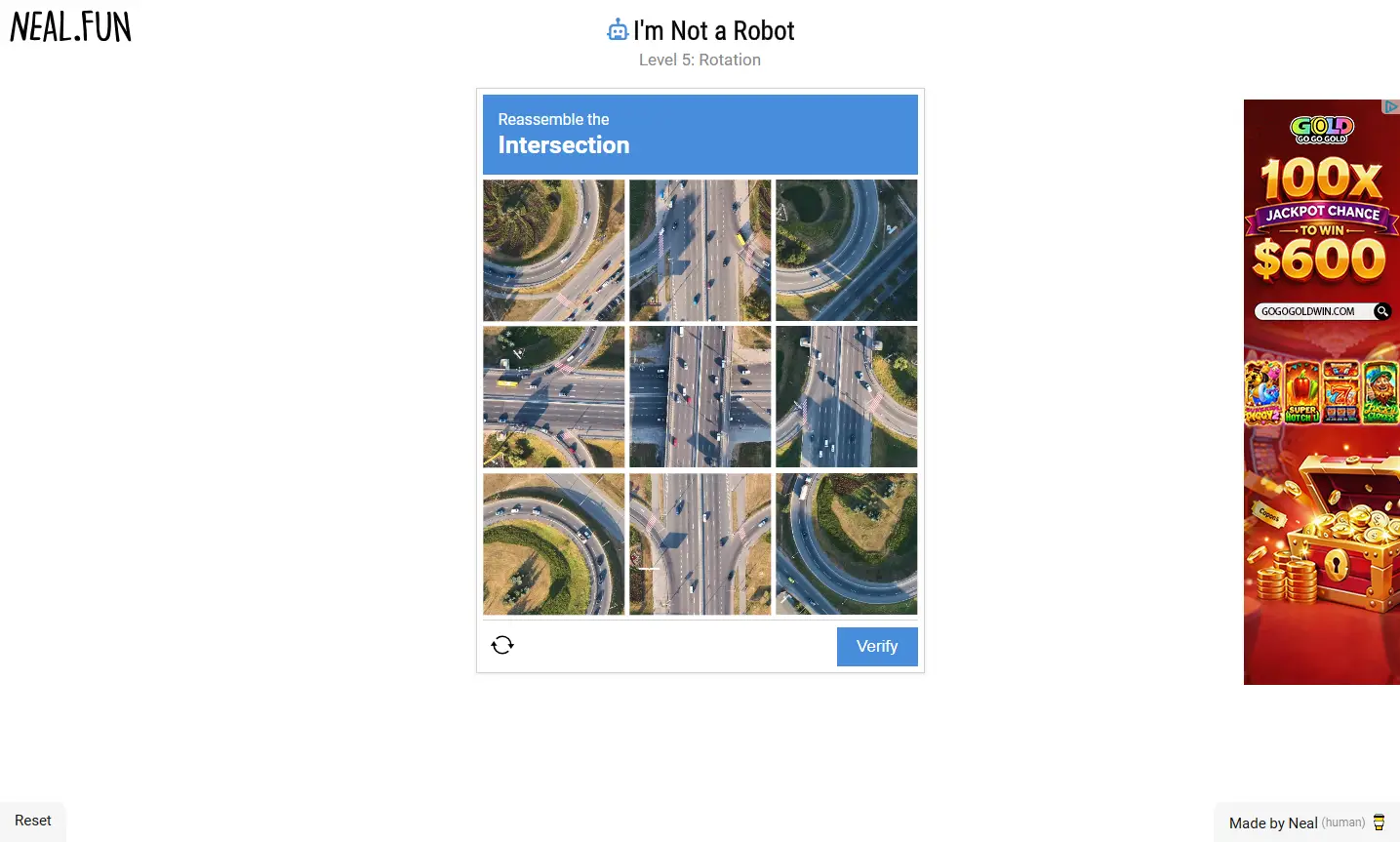
The final screenshot shows Level 5: Rotation, confirming that the first 4 levels were passed. Level 5 was not attempted; this record is meant to show how the toolchain actually works.
| Level | Page task | Actual actions and result |
|---|---|---|
| Level 1: Checkbox | Check "I'm not a robot" | Clicked the checkbox; the page advanced to level 2 |
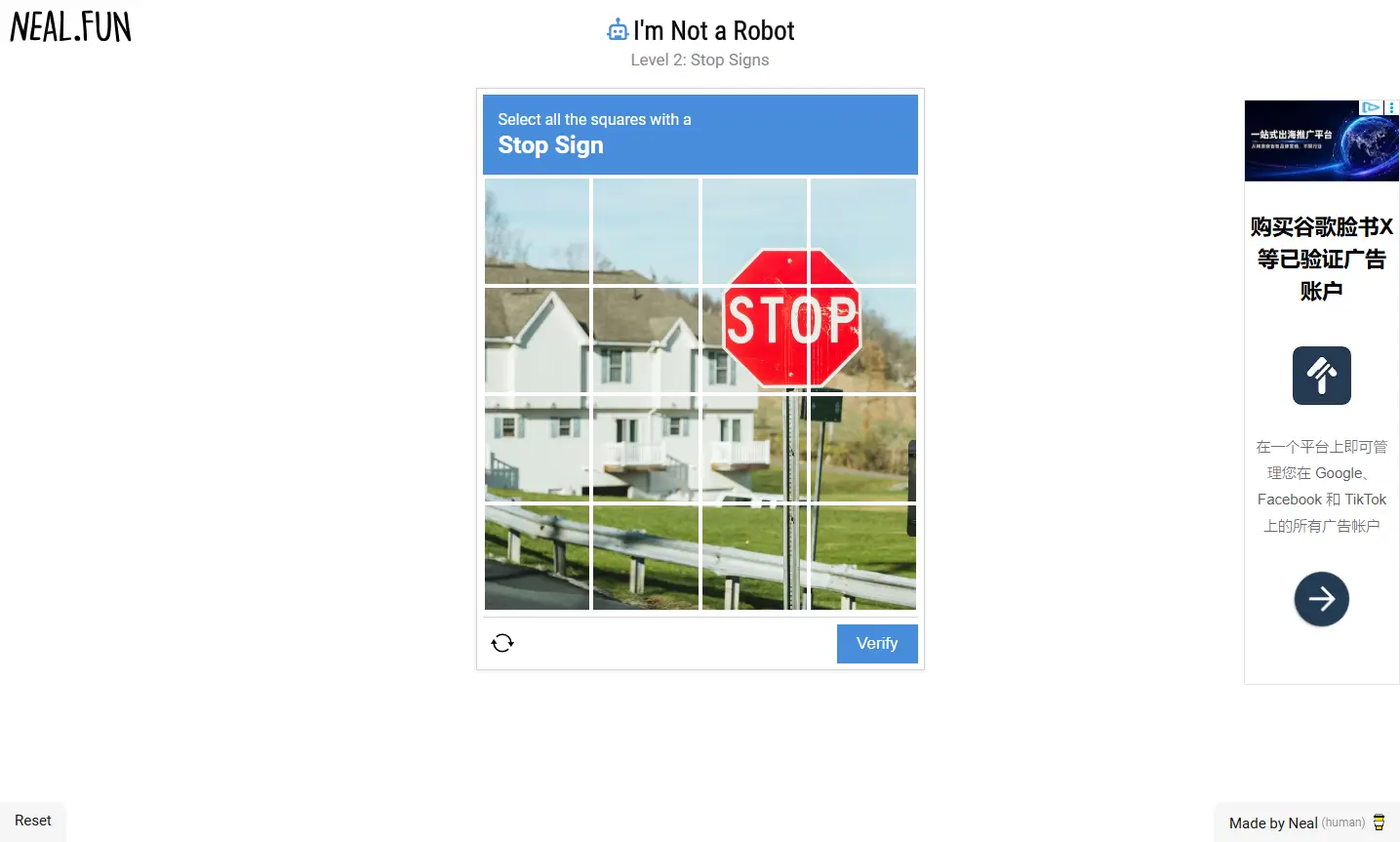
| Level 2: Stop Signs | Select the squares containing stop signs | Selected 4 squares based on the screenshot, clicked Verify, and advanced to level 3 |
| Level 3: Wiggles | Enter the wiggling distorted text | A character was misread and input was appended; after re-reading and clearing the input, submitted and advanced to level 4 |
| Level 4: Vegetables | Select the vegetable images | Made selections based on the images and clicked Verify; advanced to level 5 |
Image selection: decide based on the screen, confirm based on the next level
The stop sign in level 2 spanned multiple squares. Based on the screenshot, we selected the 4 squares containing the sign and clicked Verify. Only when the page showed level 3, Wiggles, did we confirm the selection had passed.
Level 4, in turn, was an image-selection task with different objects. After submitting, the page advanced to level 5, Rotation, forming another complete record of "look at the image → act → receive page feedback."
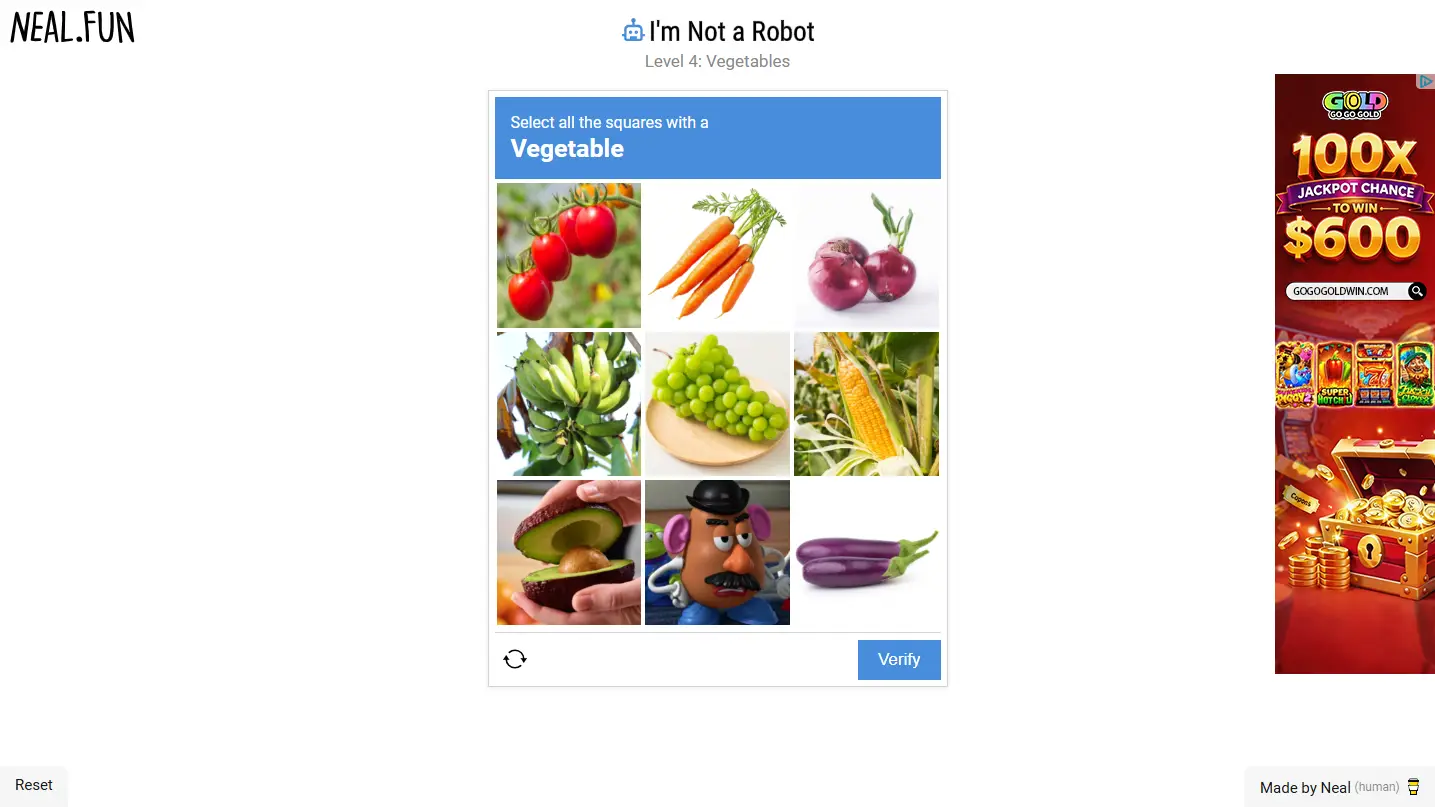
These two levels show the real role of the browser tools: the model's decisions can be turned directly into page actions, while the result is still confirmed by the game page.
Level 3: a misread character and appended input—passed after correction
Level 3's text has dynamic distortion. The first time, one character was misread, and FNZZCD was entered; after submitting, the game did not advance to the next level.
When retrying the input, the select-all operation didn't work as expected, and the new text was appended after the old content, so the input box ended up containing FNZZCDFNZZCD. The tool did execute the input action, but the actual field content no longer matched what the task required.
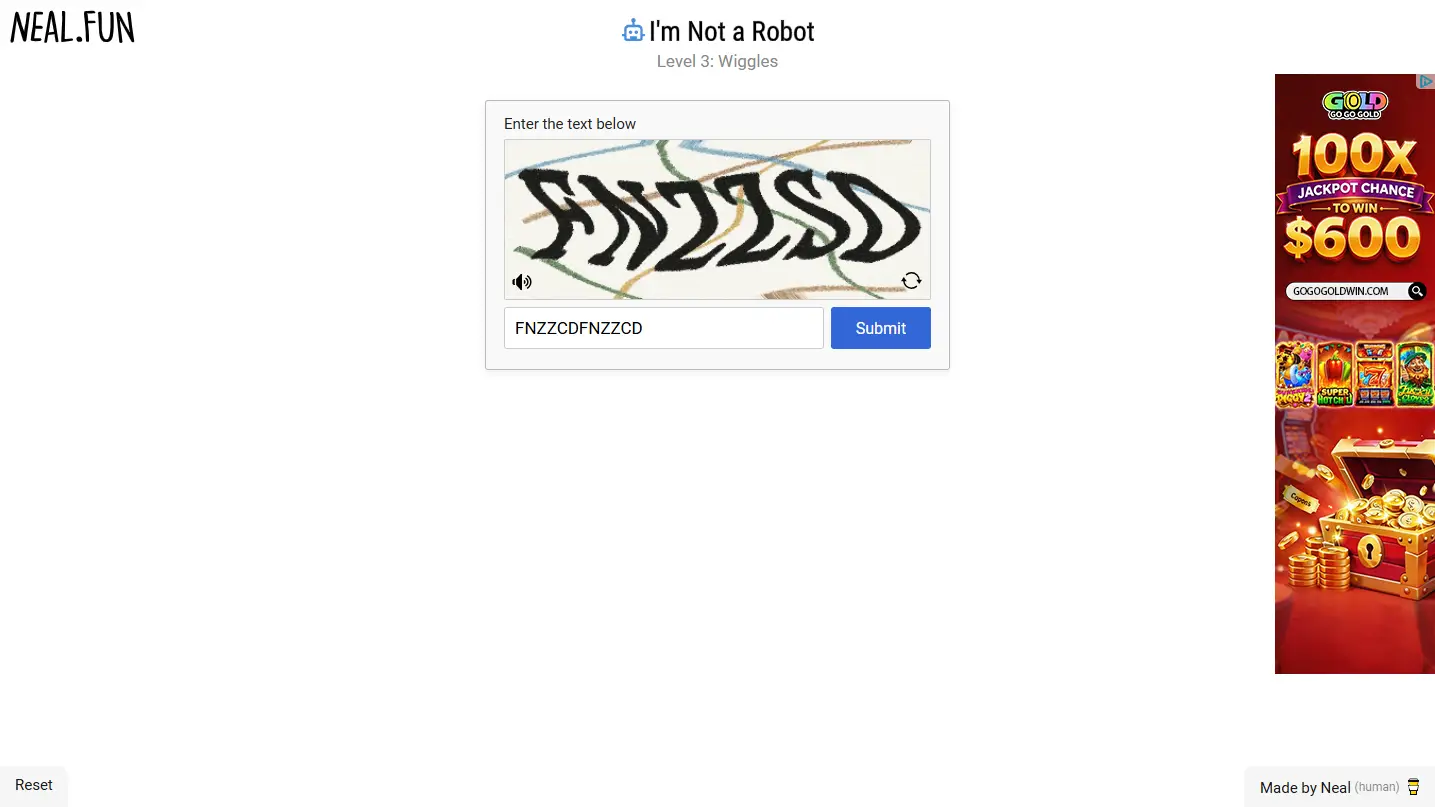
After looking at the screenshot again, the text was identified as FNZZSD. This time we cleared the input box first, focused it, called the real-input tool, and submitted; the page advanced to level 4.
This process included recognition errors and input-handling problems, so it cannot be called "zero mistakes." And because the correction changed both the answer and the input method, the final pass cannot be attributed solely to switching to a particular tool either.
The reusable lesson is: before retrying, check the actual state of the page and the input box; only report a pass when the page has advanced to the next level.
The page at the end of this experience
After level 4 was submitted, the page showed the level 5 rotation puzzle. We kept this screen as evidence that the first 4 levels were completed, and did not go on to attempt level 5.
What to do when MCP doesn't respond, screenshots fail, or clicks land in the wrong place?
| Symptom | What to check first |
|---|---|
| Extension shows no device or session | Whether the web account matches the device's owner |
| Codex won't reply properly | Whether model authentication, quota, and runtime environment are normal |
| Model isn't calling browser tools | Whether the current session has browser MCP loaded |
| Screenshot is from the wrong page | Browser instance and active tab |
| Screenshot fails | Whether the window is visible, and the specific reason returned by the tool |
| Input didn't pass | Look at the actual field content first; check for misreads, appends, or uncleared text |
| Click completed but the page doesn't move | Page feedback after the action |
| Suddenly clicks the wrong thing next | Whether the page refreshed or the layout changed |
| Tool request was rejected | Current permissions and the rejection reason |
In this experience, when the new tab was just opened, the first page snapshot returned that it could not connect to the content script; then the screenshot succeeded and the page already showed level 1. A single read failure doesn't directly mean the whole browser pipeline is unavailable—judge based on both the tool error and the actual page that follows.
FAQ
Can I use GPT-6 Astra just by installing the Chrome extension?
No. The extension handles browser execution; you also need a working Codex session and access to Astra.
Can this extension be connected directly to the regular ChatGPT website?
The path described in this article is a Codex session in PandaNpc connecting to browser MCP. Just opening ChatGPT in another tab will not automatically establish that connection.
Does MCP itself recognize CAPTCHAs?
MCP is the protocol that connects models with tools. In this setup, the model is responsible for understanding and deciding, while the browser tools and extension are responsible for reading the page and performing actions.
How many levels did you actually try this time? Was it zero mistakes?
We completed the first 4 levels and ended the experience after reaching level 5. Level 3 involved a misread character and appended input, which were corrected before passing—so it was not zero mistakes, nor a clear of all 48 levels.
The tool returned success—why didn't the game still pass?
Tool execution and the game's judgment are two separate outcomes. In our level 3, the text was entered successfully but the content had been wrongly appended. You should check the input content and the page feedback after submitting.
If it can pass the game, can it pass real website CAPTCHAs?
You can't infer that directly. The game result only proves performance under those conditions; it doesn't mean other verification systems will accept the same actions.
Why use both the extension and MCP?
MCP lets the model know what tools are available and how to call them; the extension carries out those calls in the browser. With the two connected, the model can observe the page, act on it, and then read the results.
Related guides
GPT-6 Astra vs Claude Fable 5.1: Coding, Agents, Pricing, and Benchmark Comparison
GPT-6 Astra and Claude Fable 5.1 are both publicly available, and both are flagship models priced at $10 per million tokens for input and $50 per million tokens for output, but they have trade-offs in programming, computer operation, long tasks, cache costs, and context. This article uses a common benchmark to compare them item by item and provides a method for selecting models based on tasks.
Read article →
Is GPT-6 Astra Available Now? How to Safely Share It with Family and Friends
Yes — GPT-6 Astra is now fully available to eligible paid plans, Codex, and the API. This article explains the permission differences among Plus, Pro, Business, Enterprise, Free/Go, and GPT-6 Pro, and demonstrates how to securely share via revocable Agent connections without sharing OpenAI account passwords or API Keys.
Read article →
Let Claude Directly Operate Your Browser: Fill Forms, Post Content, Even Drag Slider Captchas
Most people still use AI at the level of "you ask, it answers." PandaNpc's Chrome plugin lets your Claude Code actually reach into the browser, clicking, filling, and turning pages for you — even dragging slider CAPTCHAs for you. By injecting real inputs with isTrusted=true at the kernel layer via the Chrome DevTools Protocol, plus backend-calculated human-like drag trajectories, it bypasses anti-scraping and enters cross-origin iframes. 43 operation tools, equipped with a complete set of approval cards + domain blacklist + pause switch + safety gate for operation traces.
Read article →