
Claude Code Download for Windows: Desktop, CLI or WSL?
Download Claude Code on Windows with the official Desktop app, PowerShell, WinGet or WSL 2. Compare Desktop vs CLI and fix common install errors.
When searching for Claude Code download, the most common pitfall isn't download failure, but not first figuring out which one you need to install:
- If you want a graphical interface and side-by-side management of multiple tasks, download Claude Desktop and go to the Code tab;
- If you want to type
claudein PowerShell, CMD, Git Bash, or an IDE terminal, install Claude Code CLI; - If your projects and toolchains mainly run on Linux, or you need a sandbox, install into WSL 2;
- Desktop and CLI can be installed together; they are not mutually exclusive options.
This article is compiled from official documentation as of August 2026. There are only two official download entry points:
Do not download so-called "Claude Code installer packages" from cloud drives, software download sites, or unfamiliar GitHub Releases.
First, the verdict: Claude Code Desktop, CLI, or WSL - how to choose
| Option | Best for | Windows support | Key differences |
|---|---|---|---|
| Claude Code Desktop | Users who don't want a terminal and want to see files, Diff, previews, and multiple parallel sessions | Windows x64, Windows ARM64 | GUI; the Code tab already includes Claude Code, no need to install CLI separately |
| Claude Code CLI (native Windows) | Users who work daily in PowerShell, CMD, Git Bash, or VS Code terminal | Windows 10+ | Closest to terminal workflows; Git for Windows recommended; sandbox not currently supported |
| Claude Code CLI (WSL 2) | Linux projects, Docker, server-side toolchains, sandbox needs | Windows 10/11 + WSL 2 | Runs in a Linux environment; sandbox available; project should preferably be in the WSL file system as well |
The simplest way to decide:
- If it's your first time with Claude Code, install Desktop first;
- If you're already used to a terminal, install CLI directly;
- If your development environment is already in WSL, don't mess with cross-file-system setups; install straight into WSL 2.
Claude Code Desktop App Download and Installation
The desktop version of Claude Code is not a standalone product named "Claude Code.exe". It lives in the Code tab inside the Claude Desktop app.
Step 1: Choose your version from the official download page
Open claude.com/download, Windows users choose by processor:
- Most Intel / AMD PCs: download Windows x64;
- Windows on ARM devices: download Windows ARM64.
After installation, launch Claude from the Start menu, sign in to your Anthropic account, then click Code at the top.
Step 2: Choose a runtime environment
When you create a new Code session, the desktop version typically offers three environments:
- Local: directly reads and modifies projects on this computer;
- Remote: runs in Anthropic's cloud environment;
- SSH: connects to remote Linux or macOS machines you manage.
If you just want Claude to modify a local project, choose Local, then select the project folder. Windows local sessions need Git; install Git for Windows first.
Who is the Desktop version for?
The advantage of Desktop isn't "wrapping a terminal in a window"; it puts multi-session, file editor, terminal, Diff review, app preview, and PR status in one interface. You can run multiple Agents side by side without constantly switching terminal tabs.
But if you need scripted startup, work in an existing terminal, or frequently use slash commands, the CLI is usually more direct.
Claude Code Desktop requires a Pro, Max, Team, or Enterprise plan. If you've installed the app but can't see Code, first check your signed-in account and subscription permissions.
Claude Code CLI: Native Windows Installation
The official recommendation now is the native installer; you no longer need to install Node.js globally just for Claude Code.
Method 1: Install via PowerShell (recommended)
Open PowerShell and run:
irm https://claude.ai/install.ps1 | iexAfter installation, close and reopen the terminal, then verify:
claude --version
claude
The first time you run claude, it will guide you through signing in. Enter your project directory before starting it so it can read code from the correct working directory:
cd D:\Projects\my-app
claude
Method 2: Install via WinGet
If you're used to the Windows package manager:
winget install Anthropic.ClaudeCodeThe WinGet version won't auto-update in the background like the native installer; you'll need to run manually later:
winget upgrade Anthropic.ClaudeCodeMethod 3: Install via CMD
If your prompt is C:\Users\...> without a preceding PS, you're using CMD. Run:
curl -fsSL https://claude.ai/install.cmd -o install.cmd && install.cmd && del install.cmdPowerShell and CMD commands can't be mixed. Many "install script syntax errors" are essentially just pasting a CMD command into PowerShell, or vice versa.
Claude Code on Windows: Native or WSL 2?
Claude Code already supports native Windows; it's no longer "Windows must install WSL". But each environment has trade-offs.
Choose native Windows if:
- Your projects are on
C:\orD:\; - You rely on native tools like Visual Studio, PowerShell, Windows SDK;
- You want the simplest installation;
- You don't need the Claude Code sandbox.
In native mode, Git for Windows is recommended. Claude Code will prefer Git Bash to execute the Bash tool; if Git Bash isn't available, it can also use the PowerShell tool.
Choose WSL 2 if:
- Your projects are mainly Linux, Docker, Node/Python server-side toolchains;
- You need the sandbox;
- Your deployment environment is Linux;
- You've been developing in the WSL terminal for a long time.
Once inside WSL 2, run the Linux installation command:
curl -fsSL https://claude.ai/install.sh | bashThen verify inside WSL:
claude --version
claude
Don't start from Windows PowerShell one moment and WSL the next, expecting paths, Git, and environment variables to be identical on both sides. Install and run Claude Code in the same environment where your project lives.
What's the difference between Claude Code Desktop App and CLI?
| Question | Desktop App | CLI |
|---|---|---|
| Need a terminal? | No | Yes |
| Need a separate Node.js install? | No | Native installer doesn't; only old npm method does |
| Managing multiple sessions side by side | Strong | Depends on your terminal tool |
| Scripted, command-line startup | Weak | Strong |
| Files, Diff, preview | Built-in GUI | Mainly in terminal or IDE |
| Native Windows run | Supported | Supported |
| WSL 2 | Desktop does not run inside WSL | Supported |
| Can install together | Yes | Yes |
A practical combo: use Desktop on a daily basis to view multiple sessions and diffs, and switch to CLI when you need automation or terminal context. Installing the CLI doesn't affect the Desktop's Code tab.
Common Windows Installation Errors
1. `The token '&&' is not a valid statement separator`
You pasted a CMD command into PowerShell. Go back to the PowerShell method above and use:
irm https://claude.ai/install.ps1 | iex2. `'irm' is not recognized`
You're currently using CMD, not PowerShell. Open Windows PowerShell, or use the CMD installation command instead.
3. `claude` is not recognized as an internal or external command
First close and reopen the terminal. If it still can't be found, check whether %USERPROFILE%\.local\bin is in your PATH, then run:
Get-Command claudeYou can also run the official diagnostic:
claude doctor4. Git Bash not found
Install Git for Windows; if it's in a custom directory, you can specify it in Claude Code settings:
{
  "env": {
    "CLAUDE_CODE_GIT_BASH_PATH": "C:\\Program Files\\Git\\bin\\bash.exe"
  }
}
5. No Code tab in Desktop, or a 403 appears
Check in order:
- Whether the currently signed-in account is the one that purchased a Claude plan;
- Whether Claude Desktop is updated to the latest version;
- Sign out, restart the app, and sign back in;
- Whether the team account has Claude Code restricted by an administrator.
After Installation: How to Continue Claude Code from Your Phone or Browser
Installation answers "where Claude Code runs"; remote control answers "how to continue when you're away from the computer".
Anthropic already offers official options like Desktop, Web, Remote Control, and mobile Dispatch. If you only use an official Claude account and official models, you should usually try these features first.
If you also need the following scenarios, consider PandaNpc:
- Remotely control Claude Code, OpenAI Codex, and PandaCode from the same interface;
- Agents keep running on your own Windows / macOS / Linux dev machines;
- Use custom models or your own API endpoint;
- Continue the same session from an iPhone, any browser, another desktop computer, or a Chrome sidebar;
- Remotely watch streaming output, approve tool calls, answer questions, and view code changes;
- No public ports are opened; both the dev machine and controller only establish outbound connections.
First make sure the official Claude Code works correctly, then install pandapaw on the dev machine:
Windows PowerShell:
iwr -useb https://cos.pandanpc.com/pandapaw/install.ps1 | iexmacOS / Linux:
curl -fsSL https://cos.pandanpc.com/pandapaw/install.sh | shAfter installation, open PandaNpc Agent; connections from your dev machine will appear in the list. You can also use the Windows / macOS / Linux client or iOS App.
FAQ
Is Claude Code a desktop app or a command-line tool?
Both. The Code tab in Claude Desktop provides a GUI; Claude Code CLI starts from the terminal. They serve different workflows and can be installed together.
Does Claude Code on Windows require WSL?
Not required. Native Windows is supported. For Windows projects, prefer native installation; choose WSL 2 for Linux toolchains or when you need the sandbox.
Does Claude Code download require Node.js?
Desktop doesn't. The official native CLI installer doesn't either. Node.js is only needed if you're still using the old npm install -g @anthropic-ai/claude-code method.
Is there a Windows ARM64 version of Claude Code?
The official Claude Desktop download page provides a Windows ARM64 installer. For the CLI, go by the platform currently recognized by the official installation script.
Does Claude Code Desktop support Linux?
Claude Code's desktop Code experience is currently available for macOS and Windows. Linux users use the CLI, or operate sessions running on Linux via Web / remote clients.
Which is better: Desktop or CLI?
There's no absolute answer. Choose Desktop for visual, multi-session, Diff, and preview needs; choose CLI for terminal efficiency, scripting, and existing dev toolchains; prioritize WSL 2 for Linux environments and sandbox needs.
One-Sentence Summary
If you just want to get started quickly: install Desktop from the Claude official download page and open the Code tab.
To use it in a Windows terminal: run in PowerShell:
irm https://claude.ai/install.ps1 | iexIf your projects are in a Linux toolchain: enter WSL 2 and run:
curl -fsSL https://claude.ai/install.sh | bashFirst install the official Claude Code correctly, then decide whether you need Desktop and CLI together, and whether you need PandaNpc to remotely continue sessions from your phone, browser, or another computer.
Related guides
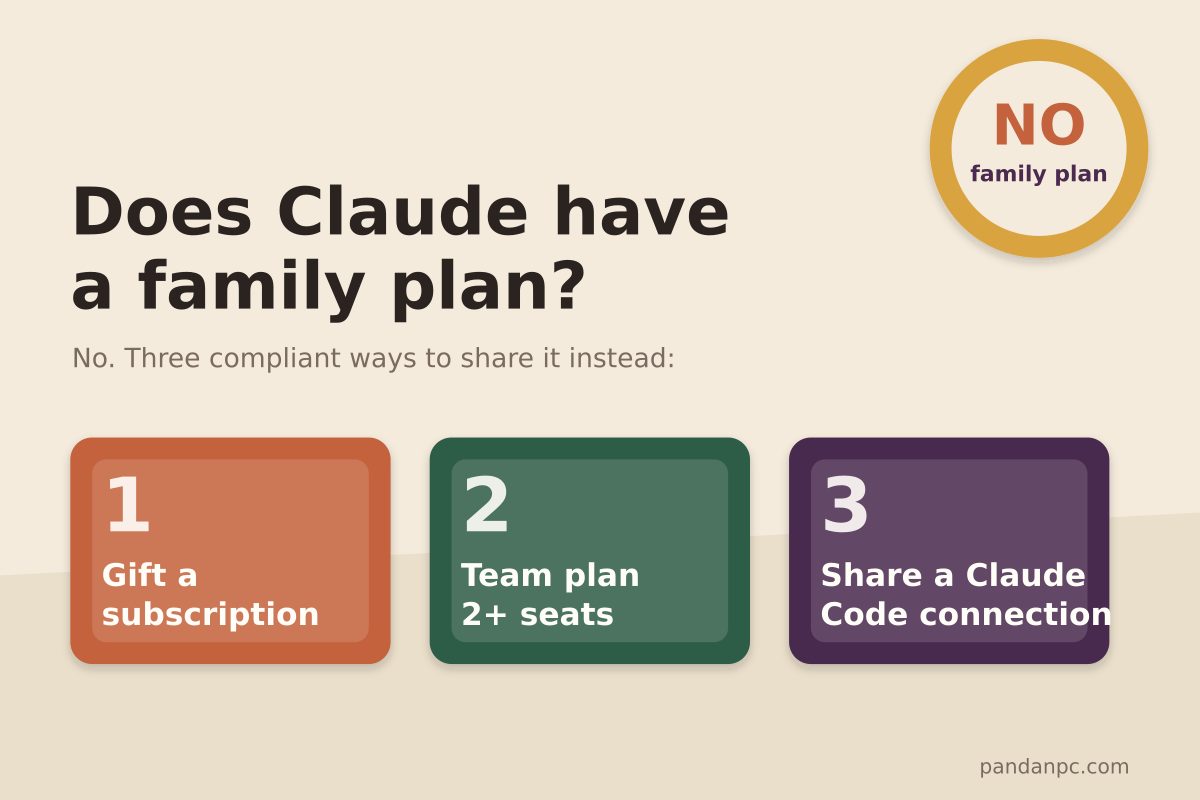
Does Claude have a family plan? Team plan pricing, seat rules, and 3 compliant ways to share Claude with family and friends (2026)
No — Claude currently does not have a family plan. This article cross-checks the official pricing page and help docs to verify the Team plan's seat pricing (standard seats US$20/25, premium seats US$100/125), 2-seat minimum, corporate email requirement, and other rules; compares the differences between Pro, Max, Team, and Enterprise; and offers three ways for family and friends to share Claude without violating the terms: gifting subscriptions, a Team plan, and sharing a Claude Code connection.
Read article →
Let Claude Directly Operate Your Browser: Fill Forms, Post Content, Even Drag Slider Captchas
Most people still use AI at the level of "you ask, it answers." PandaNpc's Chrome plugin lets your Claude Code actually reach into the browser, clicking, filling, and turning pages for you — even dragging slider CAPTCHAs for you. By injecting real inputs with isTrusted=true at the kernel layer via the Chrome DevTools Protocol, plus backend-calculated human-like drag trajectories, it bypasses anti-scraping and enters cross-origin iframes. 43 operation tools, equipped with a complete set of approval cards + domain blacklist + pause switch + safety gate for operation traces.
Read article →
Can you share a Claude subscription? How to safely share Claude Code with friends and team (no password, revoke anytime)
Yes — and you don’t need to hand your account password to anyone. PandaNpc lets you share the Claude Code connection on your machine via a link with friends, family, or teammates: they remotely use your subscription quota to run Claude Code. Each share is an independent, revocable token with 1/7/30-day or permanent validity; one-click revocation disconnects them instantly, without affecting your own usage at all.
Read article →