You pay for Claude Max or a Codex plan, but only you can use it — meanwhile a family member or teammate wants to try an agent-driven coding session without setting up their own subscription. PandaNpc lets you share a live connection to the Claude Code (or Codex) session running on your machine, so someone else can log in and drive it, without disclosing your account password. The recipient can still operate the agent on your machine within its tool permissions.
This guide covers PandaNpc's connection sharing feature specifically — generating a link that lets another person use your Claude Code / Codex. It's different from session sharing, which just gives someone a read-only transcript of one conversation to look at. If you only want to show someone what Claude did, see the read-only "Share session" option in the sidebar instead — this guide is about handing over the wheel.
What sharing a connection actually gives someone
Be clear-eyed about this before you send a link: the person you share with can act on your machine, not just view it.
| They get | They don't get |
|---|---|
| A live line into Claude Code (or Codex) running on your machine — they can chat, approve tool calls, and drive it like you would | Your PandaNpc account, password, or any of your other connections |
| The ability to run Bash commands, edit files, and read/write whatever the working directory (and the agent's tool permissions) allow | Read-only — there's no "view only" mode for connection sharing. Anything the session can do, they can do |
| Whatever model usage the session requires, billed to the account or API configuration on your host | A separate account on your machine, or the ability to see the rest of your file system beyond what that session's tools reach |
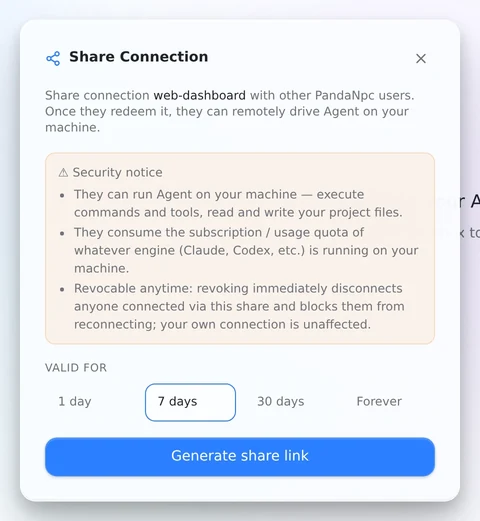
The app shows this warning directly in the share dialog before you generate a link:
They can run Agent on your machine — execute commands and tools, read and write your project files. They consume the subscription / usage quota of whatever engine (Claude, Codex, etc.) is running on your machine. Revocable anytime: revoking immediately disconnects anyone connected via this share and blocks them from reconnecting; your own connection is unaffected.
If that's not what you want for a particular person, don't share that connection with them — there's no way to grant partial (read-only, or directory-restricted) access today.
What the recipient needs
Nothing installed on their end besides a PandaNpc account:
- A free PandaNpc account. No VIP/paid tier required on either side to create or redeem a share — sharing works on the free plan.
- Any PandaNpc client: the web app, the desktop app, or the iOS app. They do not need to install
pandapawthemselves — that only runs on your machine, the one actually executing Claude Code or Codex. - They don't need their own Claude or Codex subscription. The session runs under yours.
Only remote (relay) connections — the ones set up through PandaPaw — can be shared. A purely local connection (Claude Code or Codex running on the same device as the client, no network involved) has nothing to share. Follow the PandaPaw installation and connection guide first if your machine is not online yet.
How to share a connection
The walkthrough below is captured in the web app at pandanpc.com/agent. The desktop app shows the same sidebar and the same dialogs, so every step matches one-to-one; on iOS the layout is different but the fields are the same.
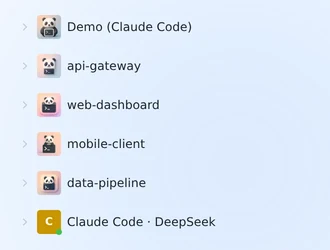
Step 1 — Find the connection in your sidebar
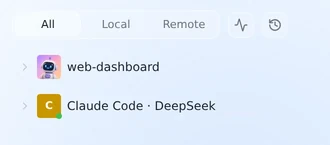
Open the Claude Code sidebar and locate the connection you want to share. Only remote (relay) connections can be shared, so if your list mixes local and remote ones, the Remote filter above the list narrows it down first.
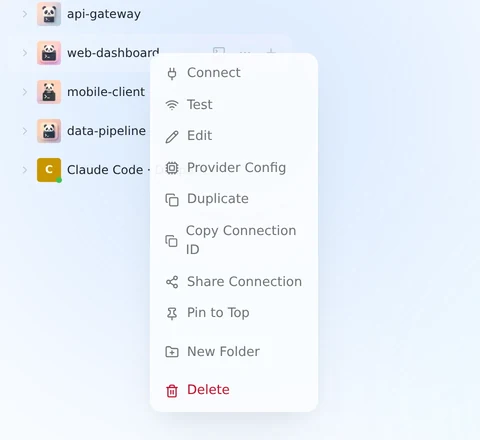
Step 2 — Right-click it and choose "Share Connection"
Right-clicking a connection opens its context menu. "Share Connection" only shows up for remote connections; on a local one the entry isn't there at all.
Step 3 — Read the warning, then pick how long the link lives
The dialog restates what you're handing over before anything is generated — that the other person can run the agent on your machine, that it draws on your subscription, and that you can revoke it at any time.
Under Valid for, choose 1 day, 7 days, 30 days, or Forever. 7 days is the default; pick the shortest window that actually covers what the other person needs.
Step 4 — Generate the link and send it
Click Generate share link. The dialog turns into the finished share: the link (https://pandanpc.com/agent?connect=<code>), a copy button next to it, and a Revoke share action that stays available for as long as the share exists.
Copy the link and send it however you like — chat, email, whatever. Treat it like a password. Anyone holding it can redeem it.
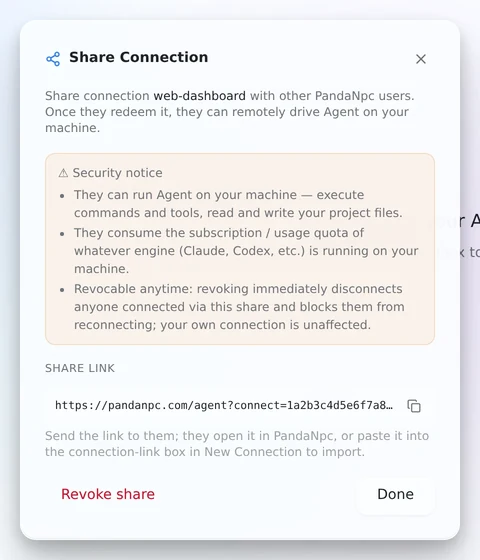
The code in the screenshot is a placeholder. A real one is 32 hex characters.
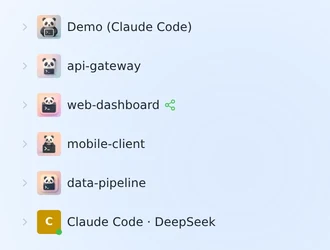
Step 5 — The connection now carries a "Shared" badge
Back in the sidebar, a small green share icon appears next to the connection's name, so you can tell at a glance which of your connections are currently handed out.
Step 6 — Review all your shares in one place
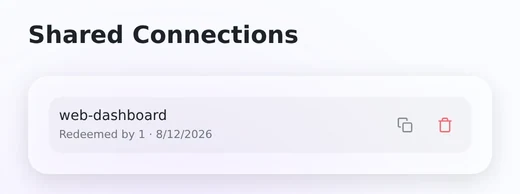
Your account page has a Shared Connections entry that opens a list of every share that's still active, with how many people have redeemed it and when it expires. The two buttons on each row copy the link again and revoke the share.
What the recipient sees
Step 7 — They open the link
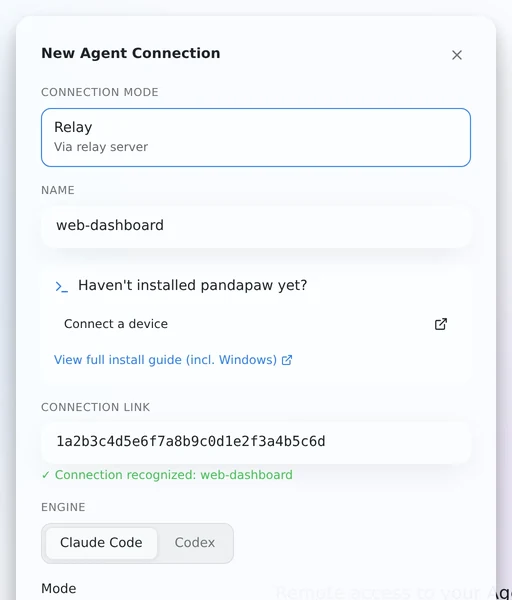
Opening the link in a browser lands them on pandanpc.com/agent, which reads the ?connect= parameter and pops the New Agent Connection dialog already filled in — name, engine, and mode all come from your connection. The green "Connection recognized" line under the connection-link box means the code checked out against the server.
On desktop or iOS there's no auto-detect: they open the New Connection dialog themselves and paste the link (or just the bare code) into the Connection link field. Everything after that is the same.
Step 8 — They check the preview and confirm
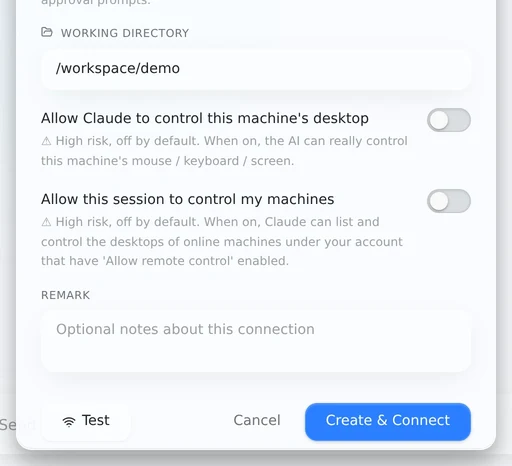
Scrolling down shows the rest of what they're accepting, including the working directory the session will run in — this is the one field worth pointing out to them, since it's the part of your machine the agent will be working against. Then they hit Create & Connect.
Step 9 — It becomes an ordinary connection in their account
From here it behaves like any other connection they own: it sits in their sidebar, they start sessions from it, and those sessions run Claude Code (or Codex) on your machine.
Verify and test the shared connection
Do not make a real repository the recipient's first test. Ask them to start a new session and send a harmless prompt such as Report the current working directory without changing any files. Confirm all of the following:
- The connection opens under the intended Claude Code or Codex engine.
- The displayed working directory is the directory you expected to share.
- Tool approval requests reach the recipient and no unexpected permission bypass is enabled.
- The session appears only in the recipient's account, while your original connection remains available.
- Revoking a disposable test share disconnects the recipient and prevents reconnection.
After the test, generate a new link only if you intentionally want the old test link invalidated. A connection keeps one active share link, so regenerating it is a security rotation, not a way to create a second independent invitation.
Sharing with multiple people (family, small team)
A few behaviors matter once more than one person is involved:
- One link can be redeemed by any number of people. There's no cap — if you want to share the same machine with your whole family, send everyone the same link.
- A connection only keeps one active share link at a time. If you click "Share Connection" again on the same connection, it generates a new link and immediately invalidates the old one — anyone still connected through the old link gets disconnected. So don't regenerate a fresh link per person; that revokes access for everyone using the previous one. Send the same link to everyone you want to include.
- They can't redeem their own share — if you're logged into two accounts, redeeming a code you created yourself is blocked.
- Everyone who redeems the link ends up with their own connection entry in their own account. They see only the sessions they themselves start through that connection — not your existing conversation history on that machine.
Usage, quota, and who pays
This is the part people usually get wrong, so to be precise:
- The Claude Code / Codex usage itself is billed to the machine owner's account. The actual
claudeorcodexprocess runs on your machine, signed into whatever plan you're on. Every message the recipient sends draws down your usage the same as if you'd typed it yourself. - Sharing doesn't cost you an extra "online device" slot. PandaNpc's online-connection limit (free = 2 machines online at a time, VIP = 10, SVIP = 50) counts machines that register through
pandapaw, not people who redeem a share and connect as viewers/operators. A recipient using your shared connection isn't a second machine from your quota's point of view. - Sharing does not add model quota. The host's configured service limits still apply. Check current PandaNpc limits and the upstream account before relying on simultaneous sessions.
In short: sharing is generous with your money, not free of it — the person you share with is spending your subscription's usage, so only share with people you'd be fine footing the bill for.
Revoking access
Once a connection is shared, its context menu changes: "Share Connection" becomes "Manage share", and a red "Revoke share" appears right under it — you can cut access without opening the dialog at all.
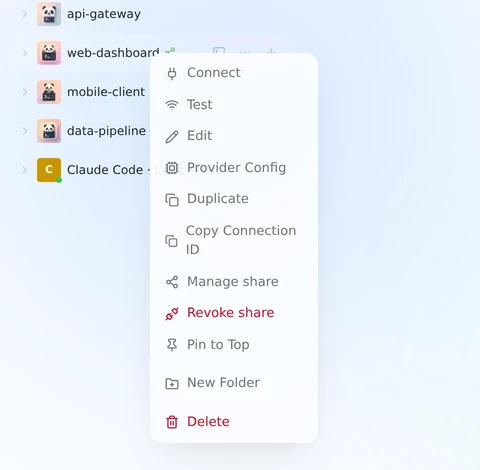
The same action lives at the bottom of the share dialog and on the Shared Connections page from Step 6. Whichever one you use, revoking:
- Immediately disconnects anyone currently connected through that share link.
- Blocks the link/code from being redeemed again.
- Does not touch your own connection at all — you keep working uninterrupted; only the shared-in copy is cut off.
Revoking is per-connection, not per-person: since a connection only ever has one active link, revoking cuts off everyone who redeemed that link, all at once. If you shared the same link with three people and only want to remove one of them, there's currently no way to revoke a single person's access without also disconnecting the others — you'd need to revoke and re-share with the remaining people.
Claude Code vs. Codex
Sharing works the same way for both engines — if the connection you're sharing runs Codex instead of Claude Code, the steps above are identical; the app carries the engine type along automatically so the recipient's client connects correctly.
Troubleshooting
Share Connection does not appear
The menu is available only for a remote connection. Confirm that the host machine is connected through PandaPaw and that the connection is not a local-only entry. If the machine is missing or offline, work through the PandaPaw troubleshooting checklist.
The recipient's link is not recognized
Ask them to copy the complete https://pandanpc.com/agent?connect=... URL without punctuation added by a chat application. They must be signed in to a PandaNpc account. If you generated a newer link, the previous code was invalidated and cannot be restored.
The recipient connected but the agent is offline
The host computer must remain powered on, awake, connected to the internet, and signed in to the local coding engine. A redeemed link grants access to a connection; it does not keep the physical computer running.
The wrong project opens
Revoke the share, correct the connection's working directory, and create a new share. The recipient should verify the directory preview before selecting Create & Connect. Do not rely on a prompt telling the agent to stay in one folder as the only security boundary.
Usage is higher than expected
Shared sessions consume the host machine owner's Claude Code or Codex allowance. Revoke unused shares, choose a finite expiry, and review active shares on the account page. PandaNpc account plans and upstream model subscriptions are separate; see Accounts, plans, and API costs.
FAQ
Does the person I share with need their own Claude or Codex subscription? No. They use yours, through the session running on your machine.
Can I let someone view without letting them act? Not with connection sharing — anything the session's tools can do, the recipient can do. If you want a view-only experience, use "Share session" for a specific conversation instead.
Will they see my other connections or account settings? No. A share exposes exactly one connection (its name, mode, and working directory) — nothing else about your PandaNpc account.
Will they see the conversations I already had on that connection? No. When they redeem the link, it's saved as a brand-new connection in their own account, with its own empty session list. They see what happens from the point they connect onward, not your prior history.
What happens when the share expires? Anyone who already redeemed it keeps their connection entry, but it stops working going forward — reconnecting is rejected the same as if you'd manually revoked it.
Can I limit which directory they can access? The connection is scoped to whatever working directory it was set up with when you shared it (shown in the preview before they confirm). Within that session, though, tool permissions — not a sandbox — are what determine what Claude/Codex can touch, same as when you use it yourself.
Is this safe to do with someone I don't fully trust? Only if you're comfortable with them running arbitrary commands on that machine within that session's permissions. There's no scoped/limited-permission share mode today — full control or no access are the only options. When in doubt, share the read-only session transcript instead of the connection.
For a walkthrough with screenshots and typical team setups, see the guide on how to share your Claude subscription with friends and teammates.